
Easy Prints App Installation Guide
From the left-hand side menu, go to the Orders section. Once inside, you will find several options in the top bar. Click the Easy Prints App button.
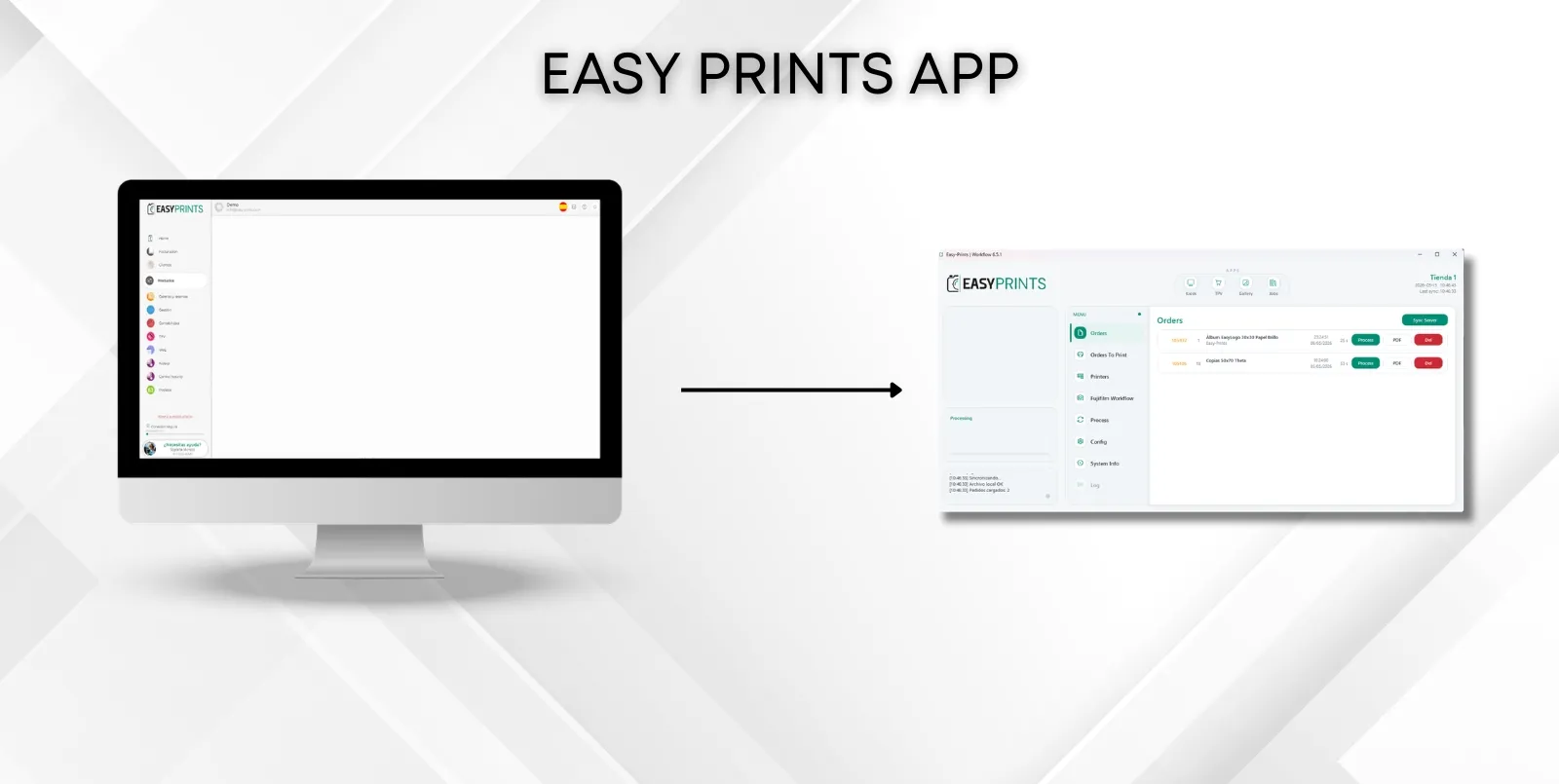
Step 1
From the left-hand side menu, go to the Orders section. Once inside, you will find several options in the top bar. Click the Easy Prints App button.
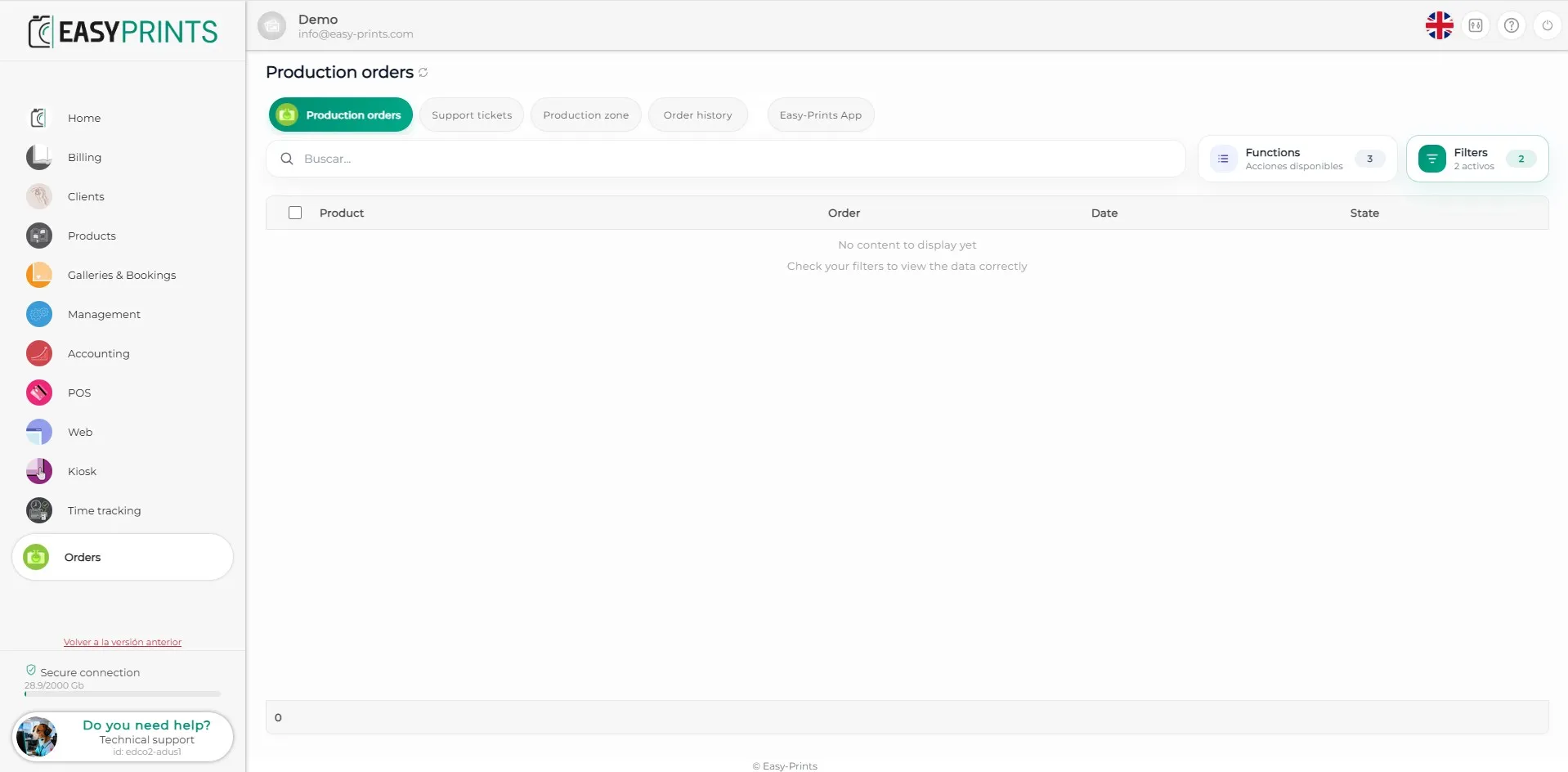
Step 2
Click the Download program button.
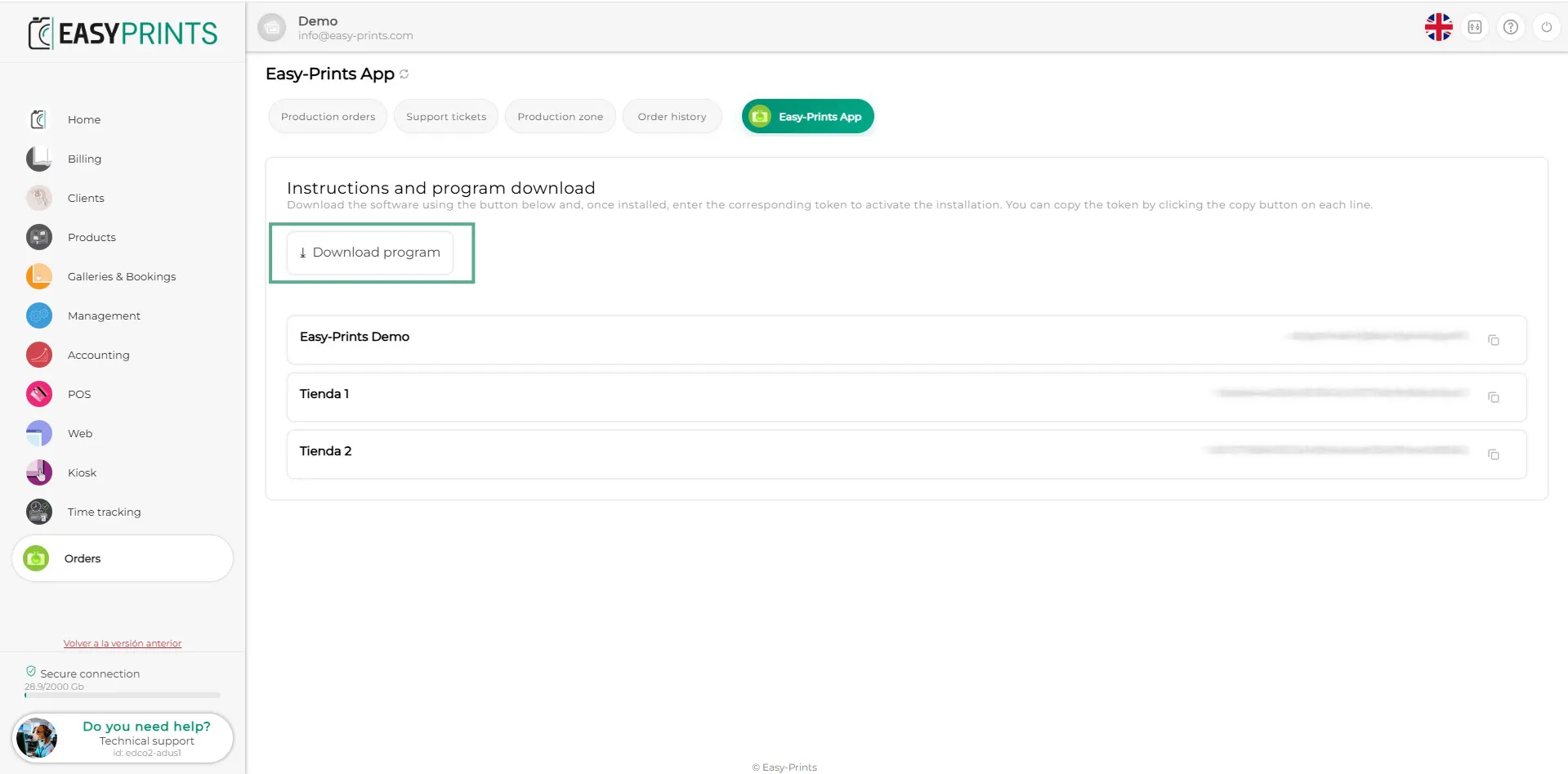
Step 3
Open the Downloads folder, locate the downloaded file, and click it to start the installation.
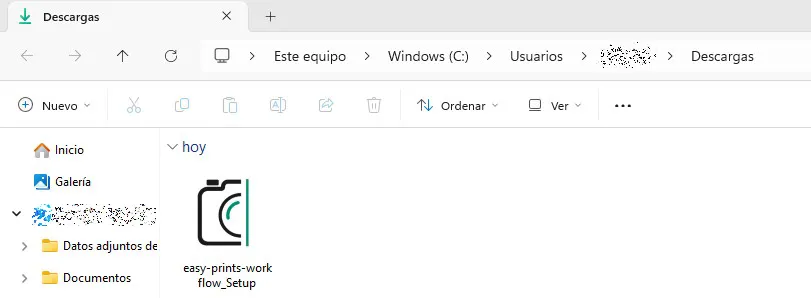
Step 4
Allow the program to run anyway.
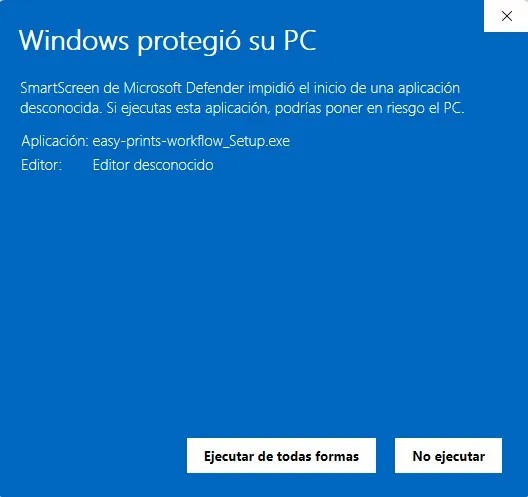
Step 5
Once the program has been installed, an Easy Prints App shortcut will automatically appear on the desktop. Open it and, once inside, go to the Settings section.
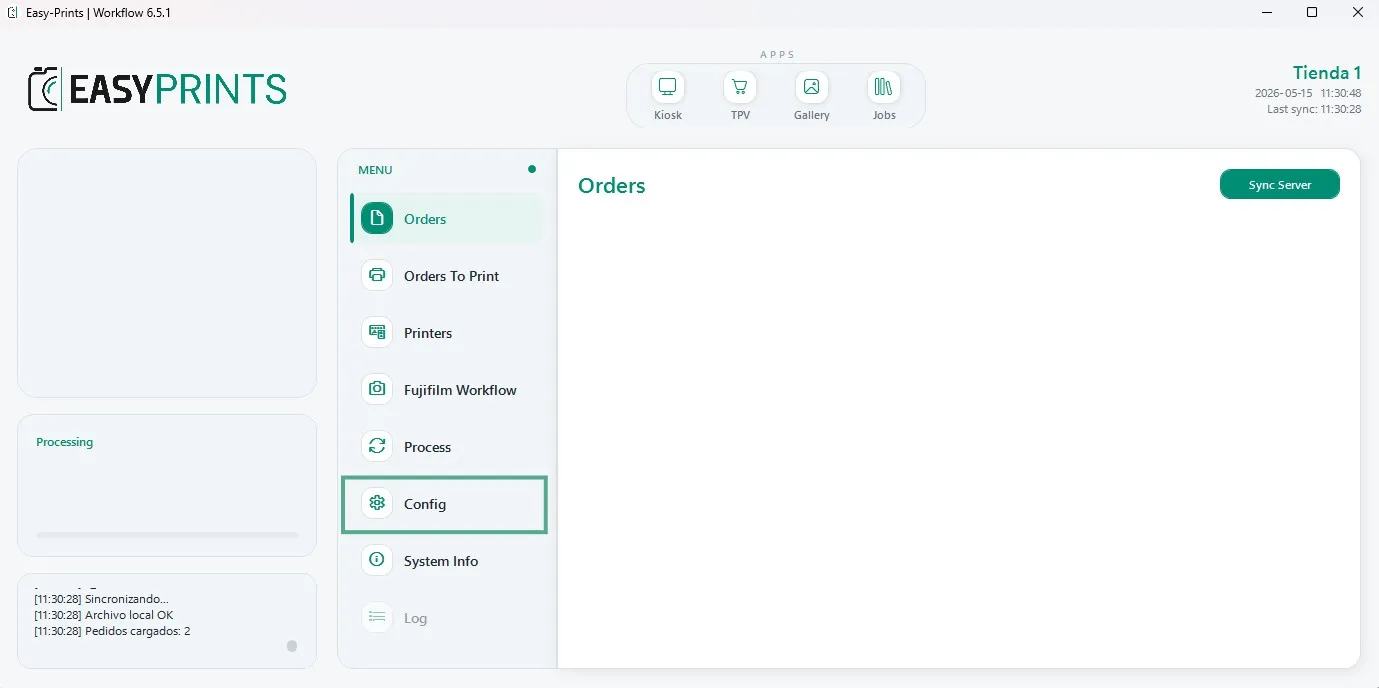
Step 6
To start using Easy Prints App, you must enter the token in the Settings section. In the next step, we explain where to find it.
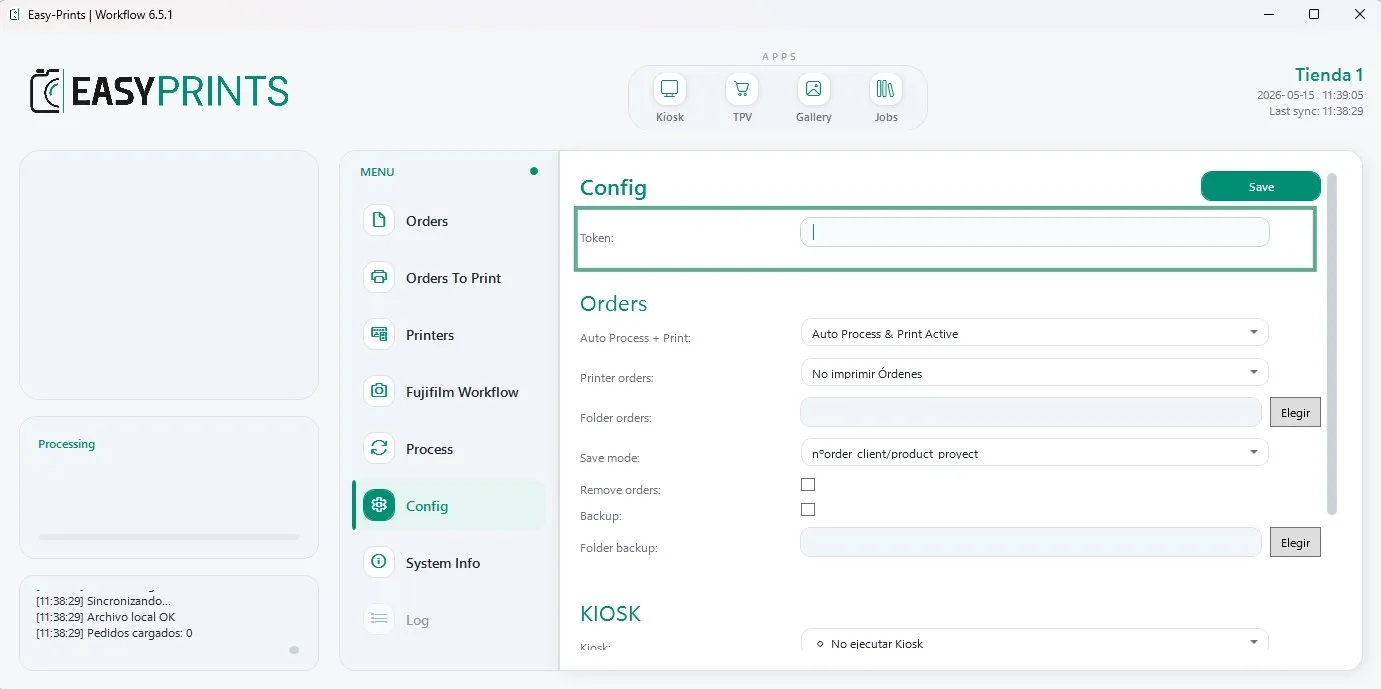
Step 7
From the Easy Prints web admin, go to the Orders section. In the same area where you downloaded Easy Prints App, you will find the token. Copy it and enter it in the app’s Settings section.
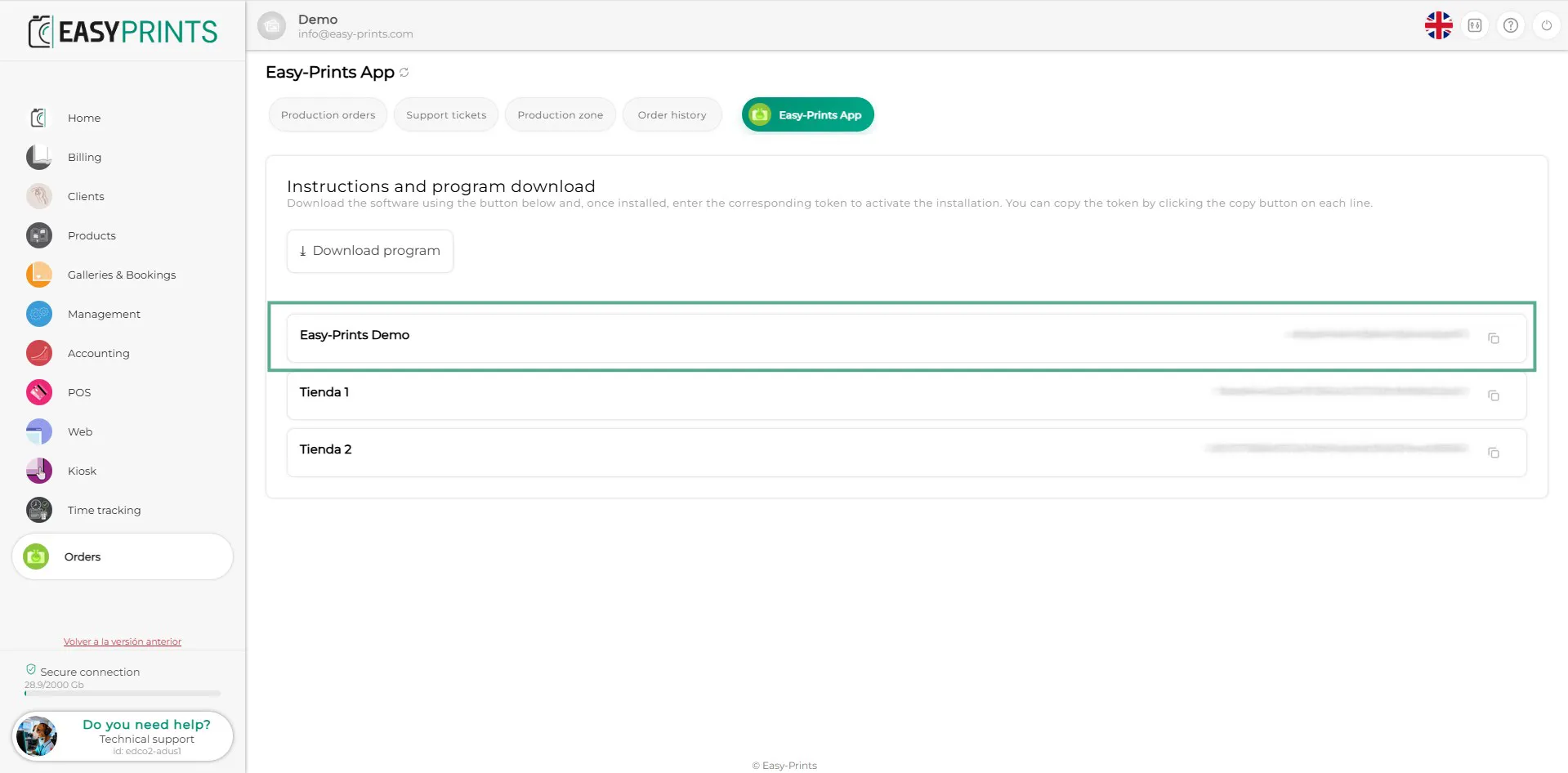
Step 8
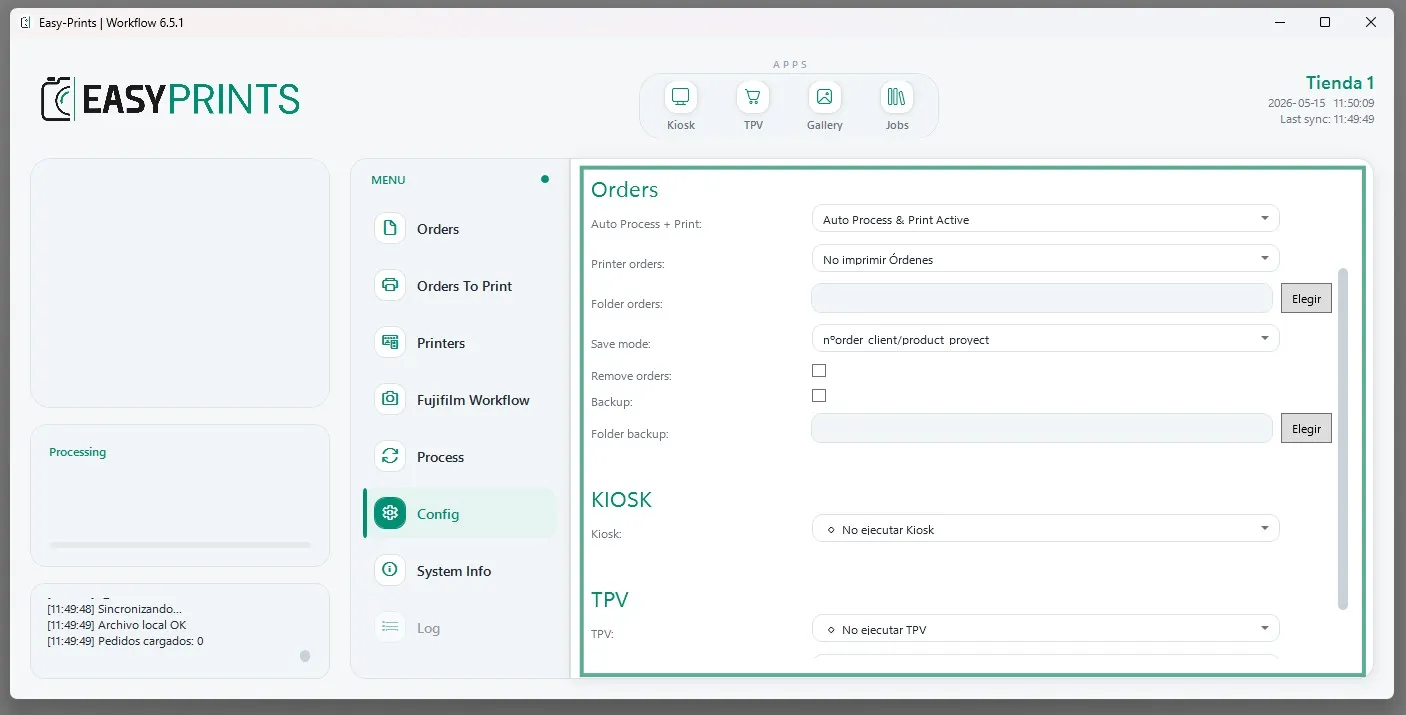
Once the token has been entered, within the Settings section you must configure the areas related to Orders, Kiosk and/or POS, depending on the modules you use. For work orders, you will need to specify whether you want to enable or disable the option to automatically process and print the work sheet. This option will be enabled by default. You must also select the printer to be used, specify the folder where orders will be sent (Folders orders), and define the naming format for the folder where they will be stored. You can choose from several options, for example: customer order number/product or customer/order/product, among others.
Step 9
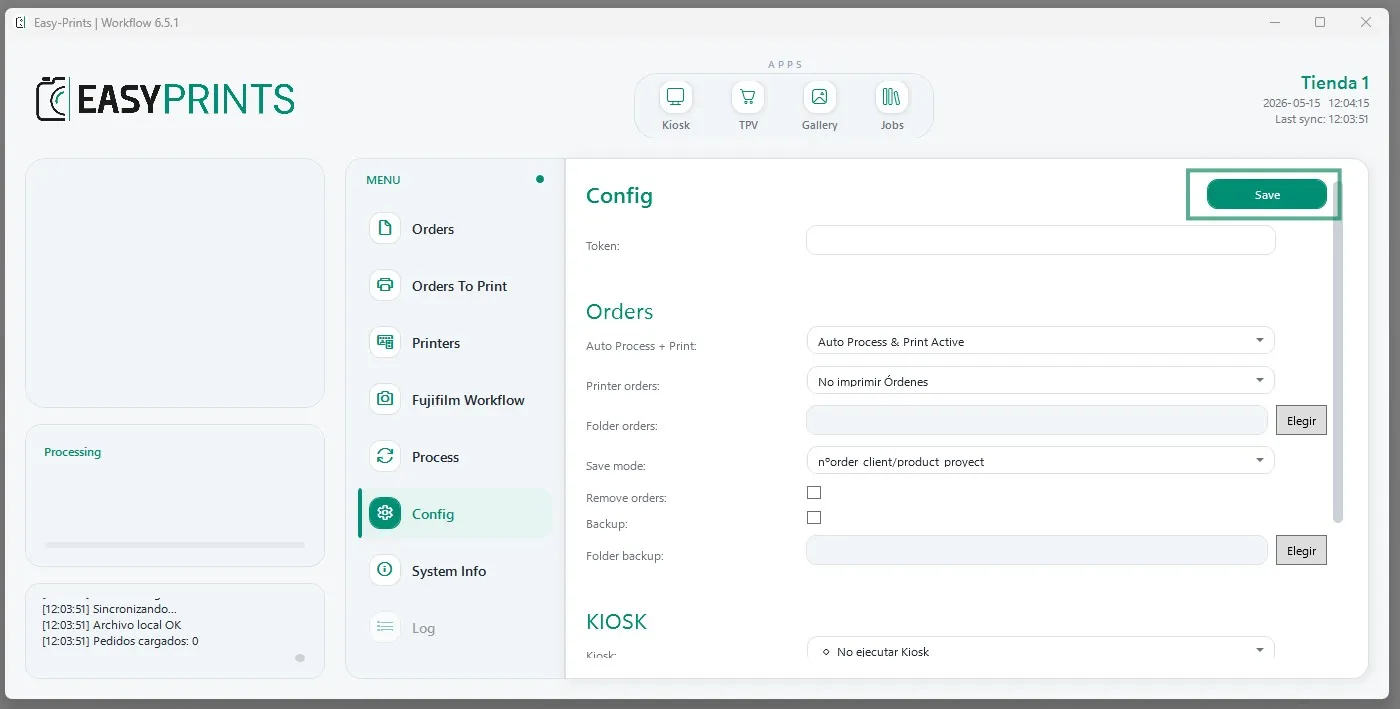
Make sure to save the changes before continuing.
Step 10
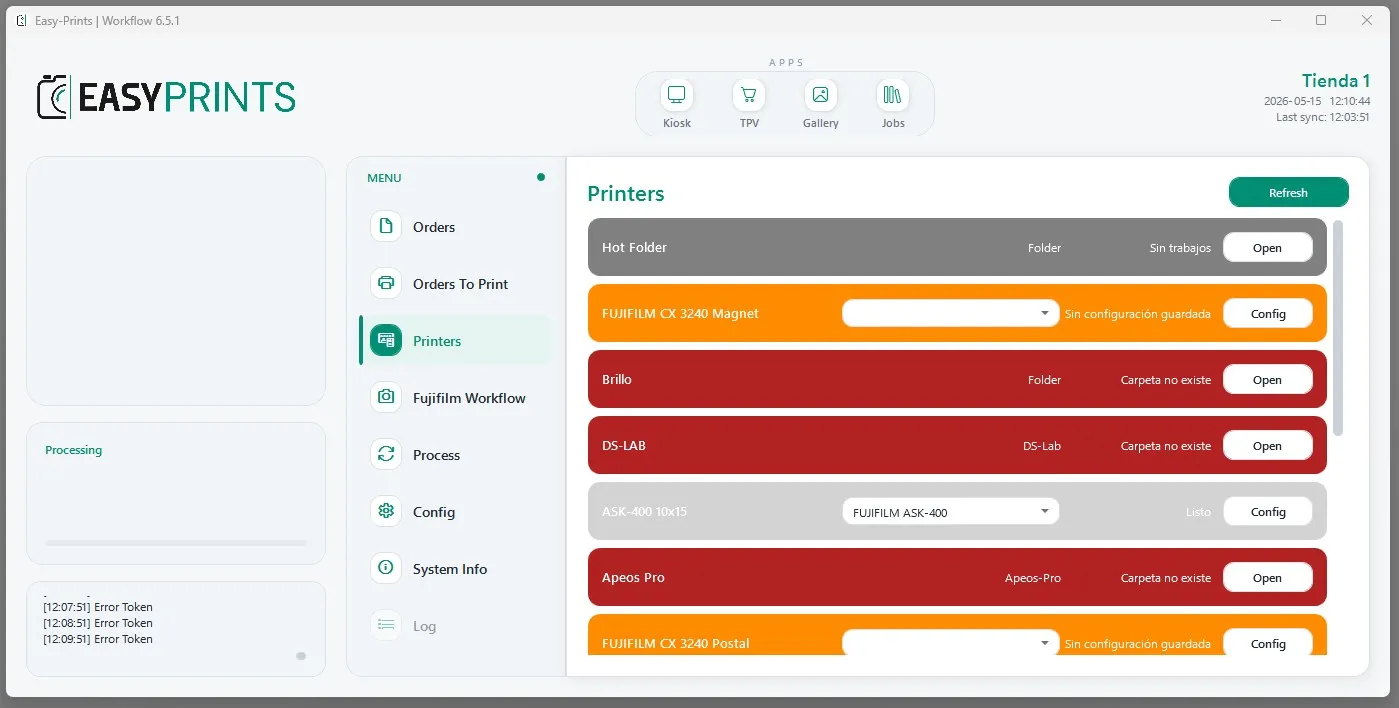
Finally, in the Printers section, you must access each printer and adjust its settings according to your preferences.
Go back to the Help Center or contact Easy-Prints.
← Back to Help Center