
How to run the POS from the Easy-Prints app
The first thing we need to do is open the Easy-Prints app. If you don’t have it installed yet, please refer to the manual “How to install and set up the Ea…
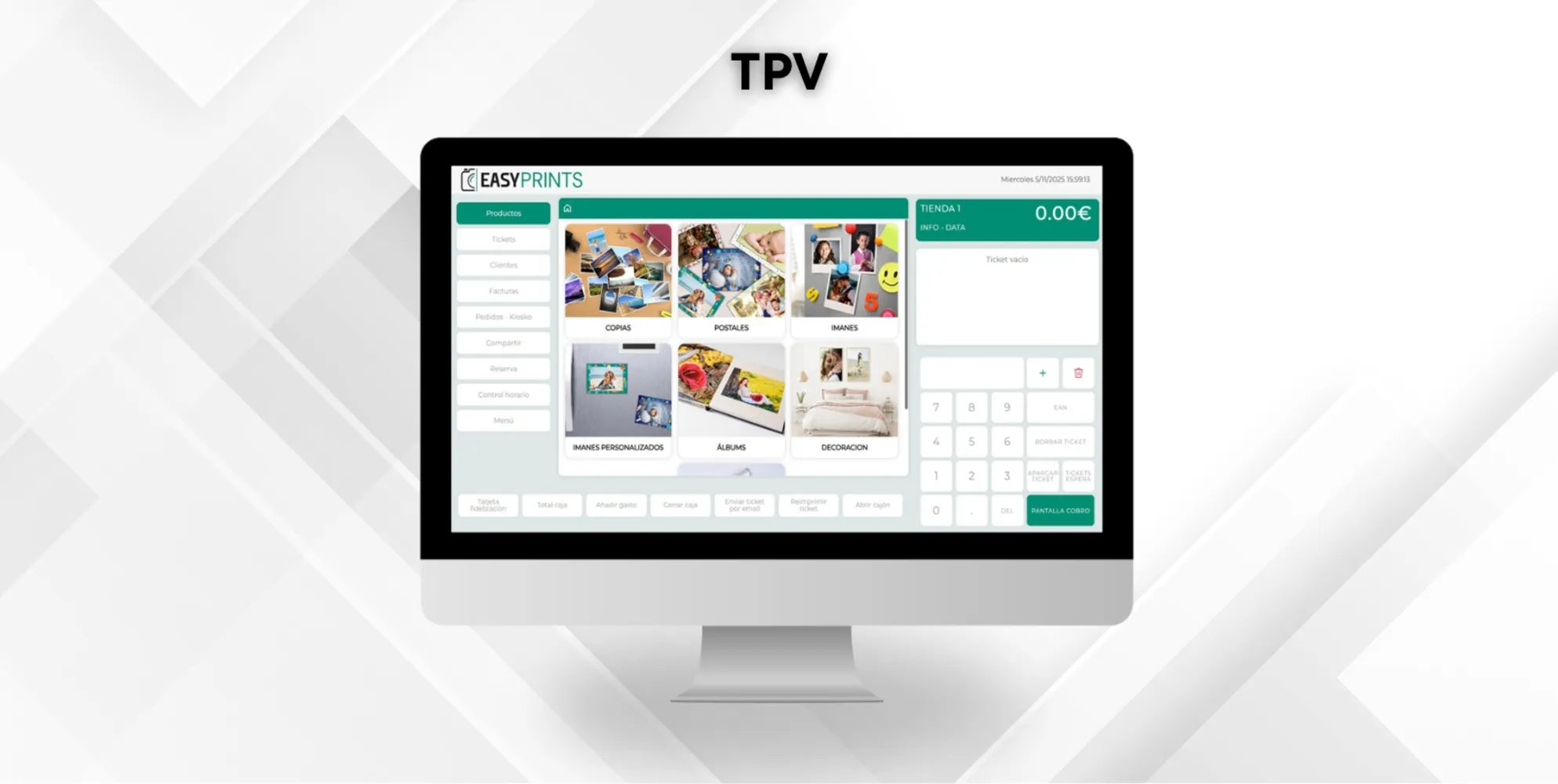
Step 1
The first thing we need to do is open the Easy-Prints app. If you don’t have it installed yet, please refer to the manual “How to install and set up the Easy-Prints App.”
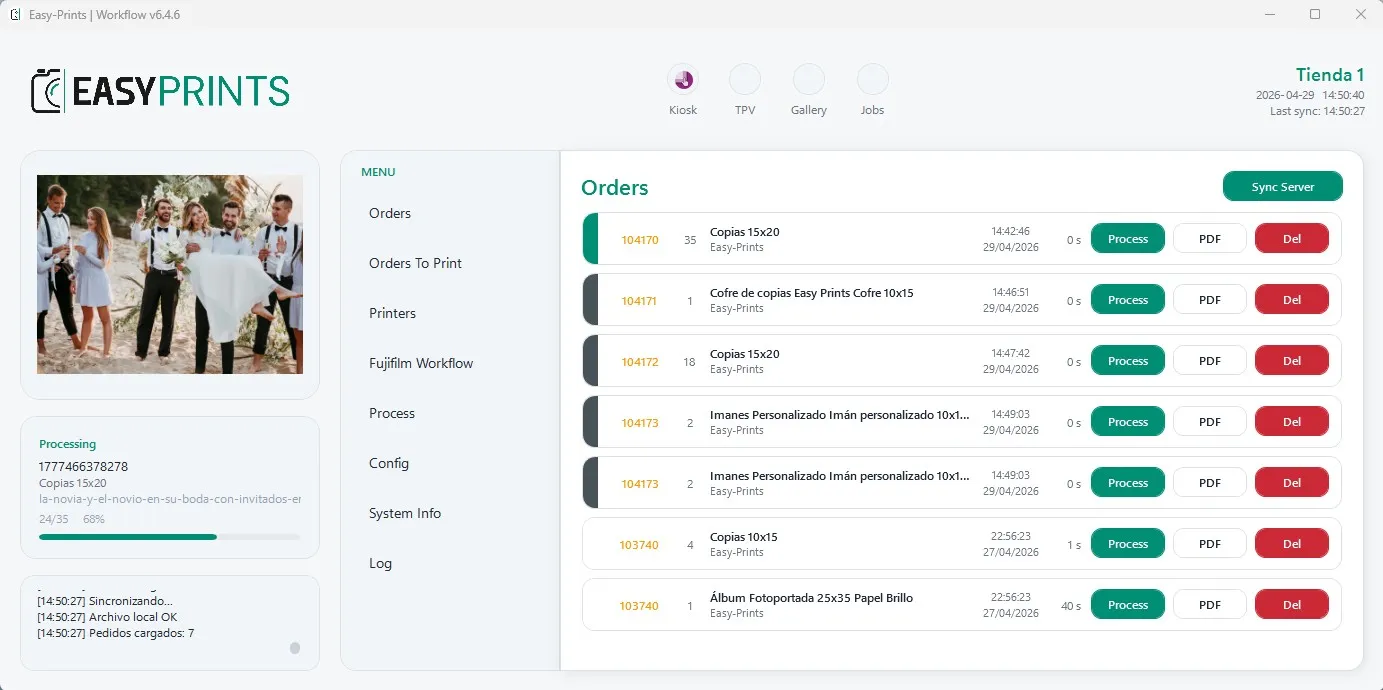
Step 2
Before running the POS, go to the Settings section. Once inside, go to the POS section and configure its options. Among these options, you will need to indicate how you want the POS to run when opening Easy-Prints App, whether you want to print cash register receipts, and which printer will be used for this.
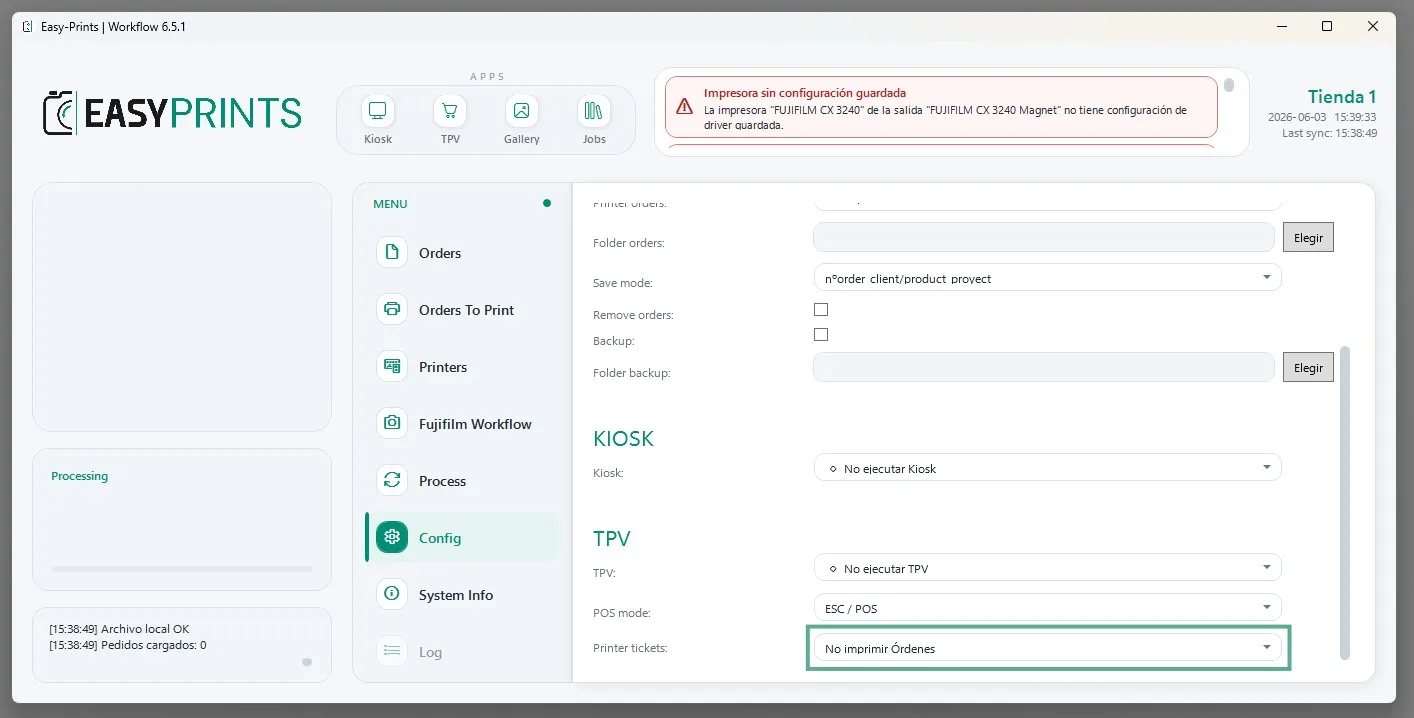
Step 3
Once you have made the changes, you will find four buttons at the top: Kiosk, POS, Gallery and Jobs. Click on POS to run it.
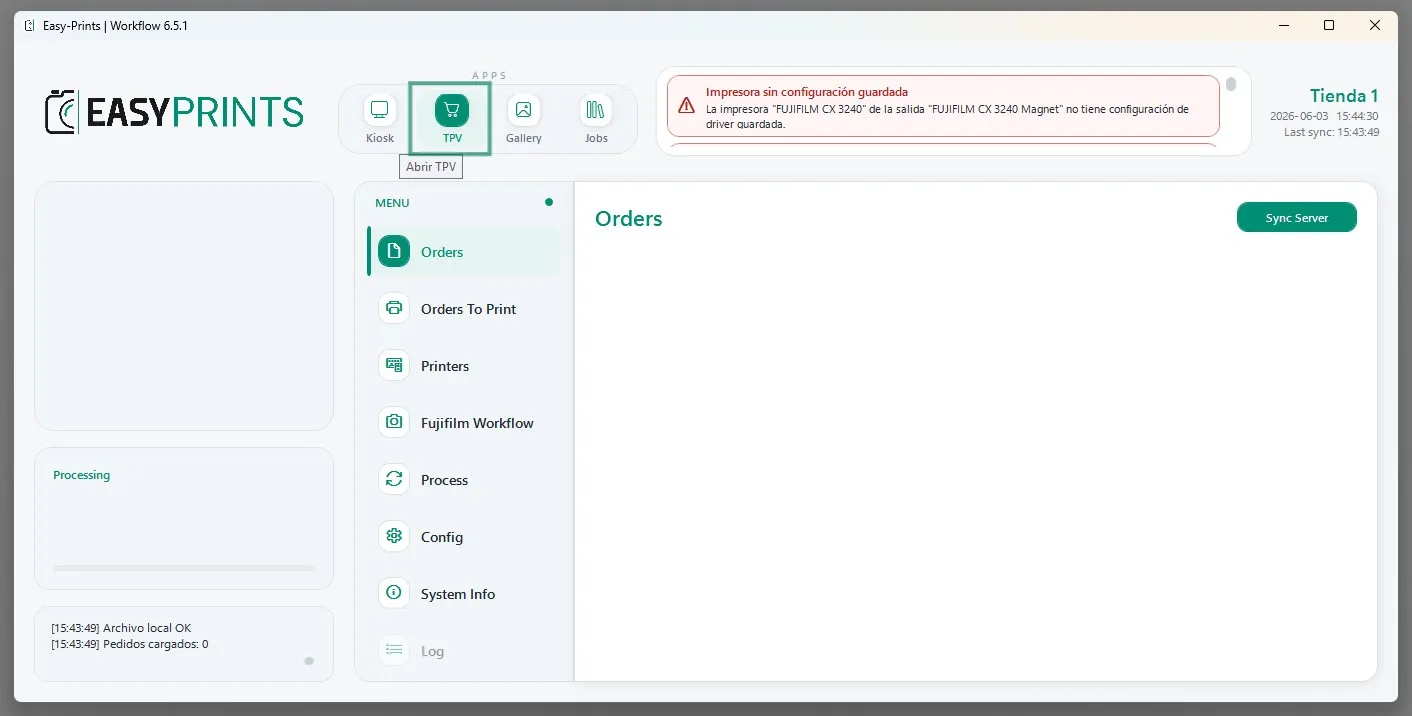
Step 4
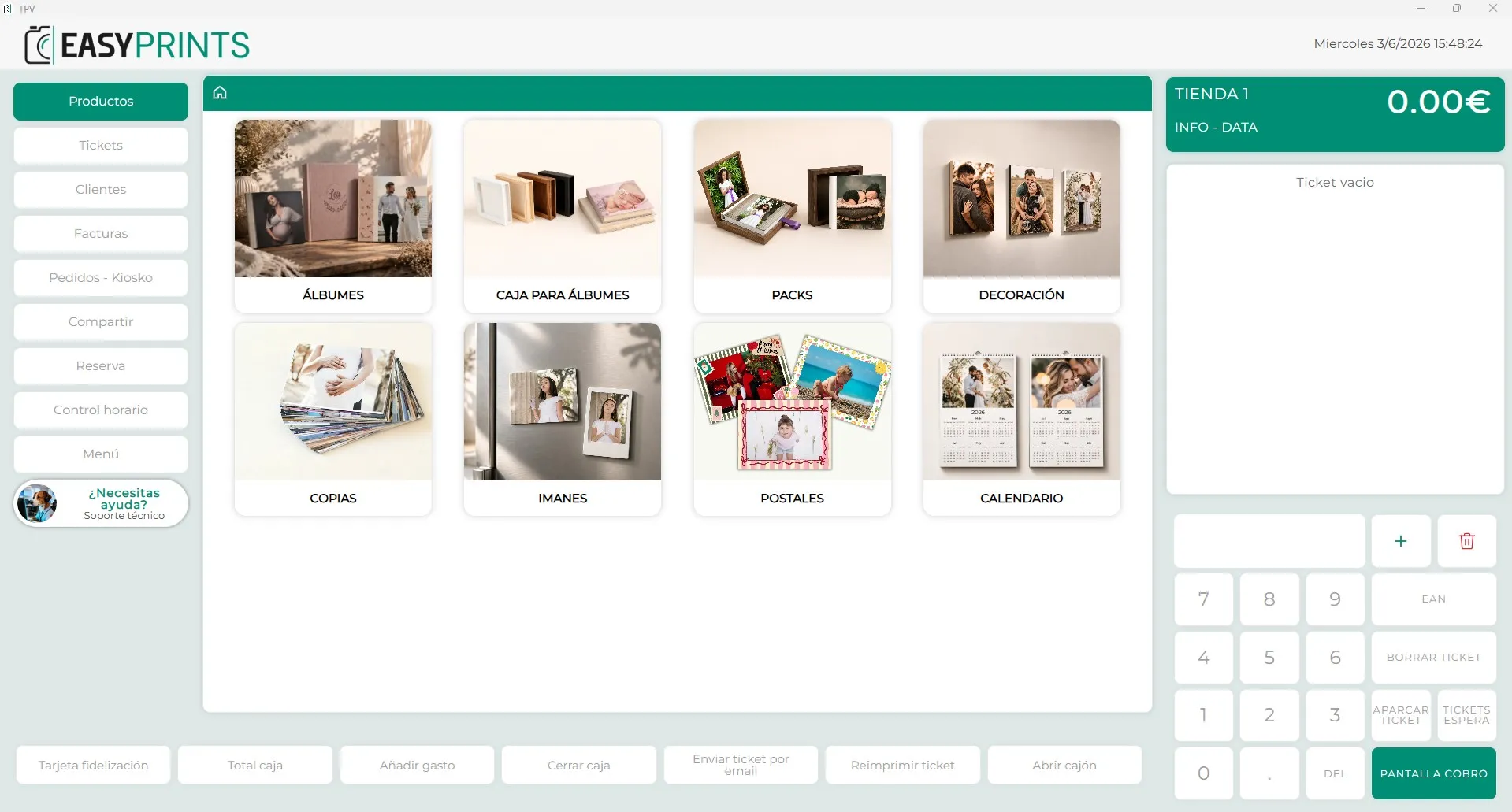
The POS will automatically open in a new window.
Go back to the Help Center or contact Easy-Prints.
← Back to Help Center