
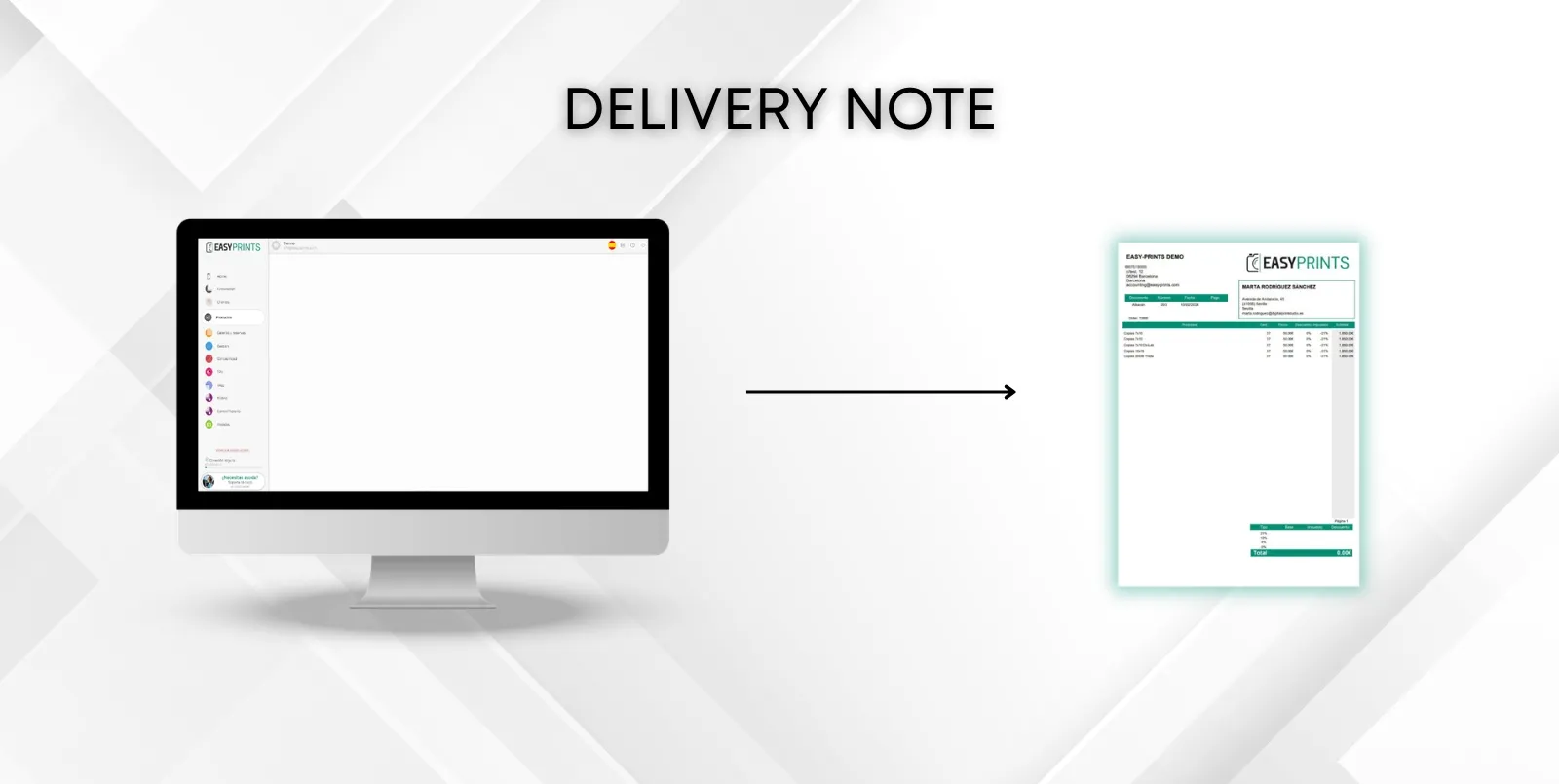
How to create a delivery note.
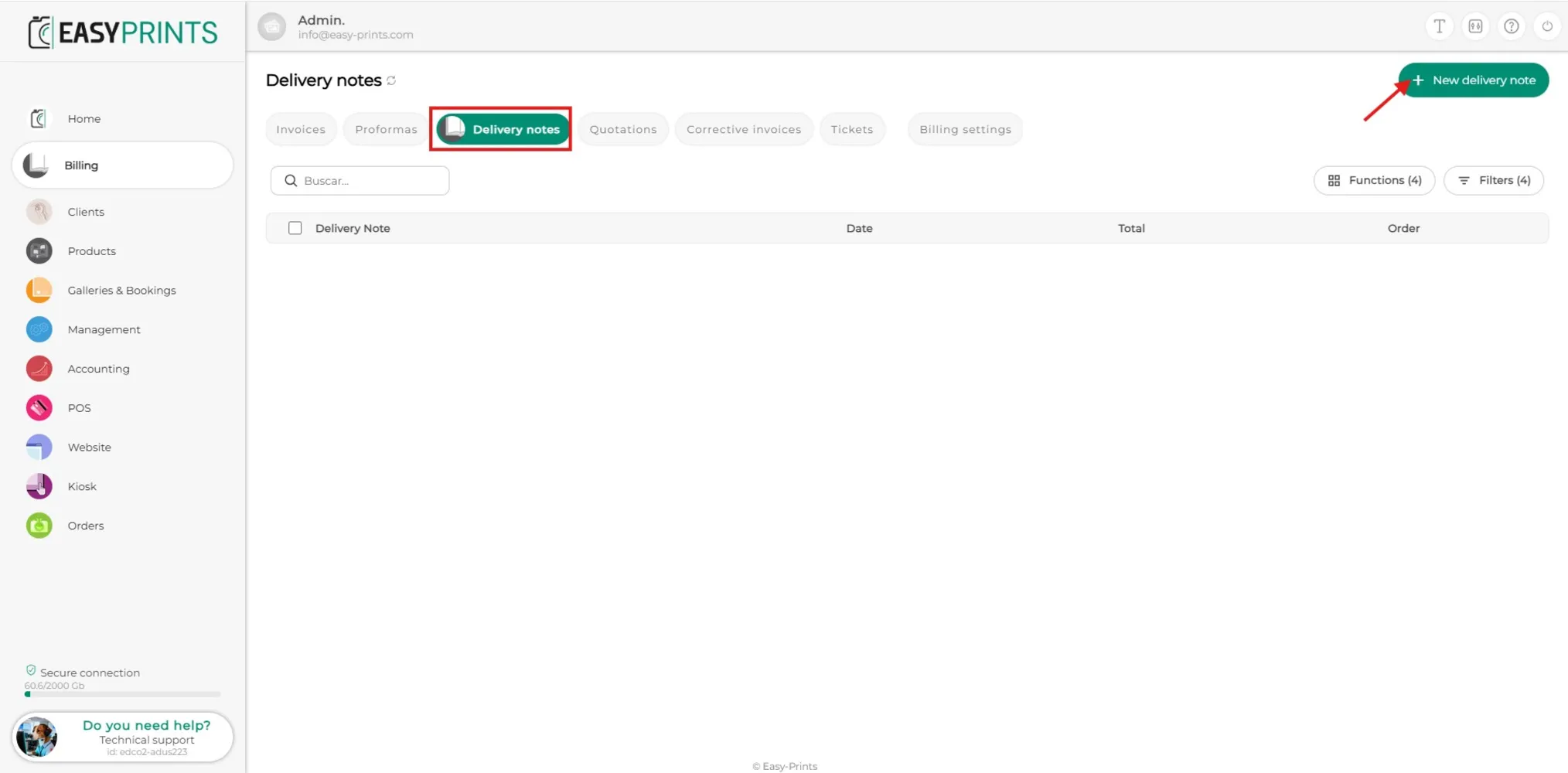
To create a delivery note, go to the Billing section from the main menu on the left side of the screen. Once there, access the Delivery notes section locat…
Step 1
To create a delivery note, go to the Billing section from the main menu on the left side of the screen. Once there, access the Delivery notes section located in the top bar of the screen, as shown in the image. Then click on the green Create delivery note button.
Step 2
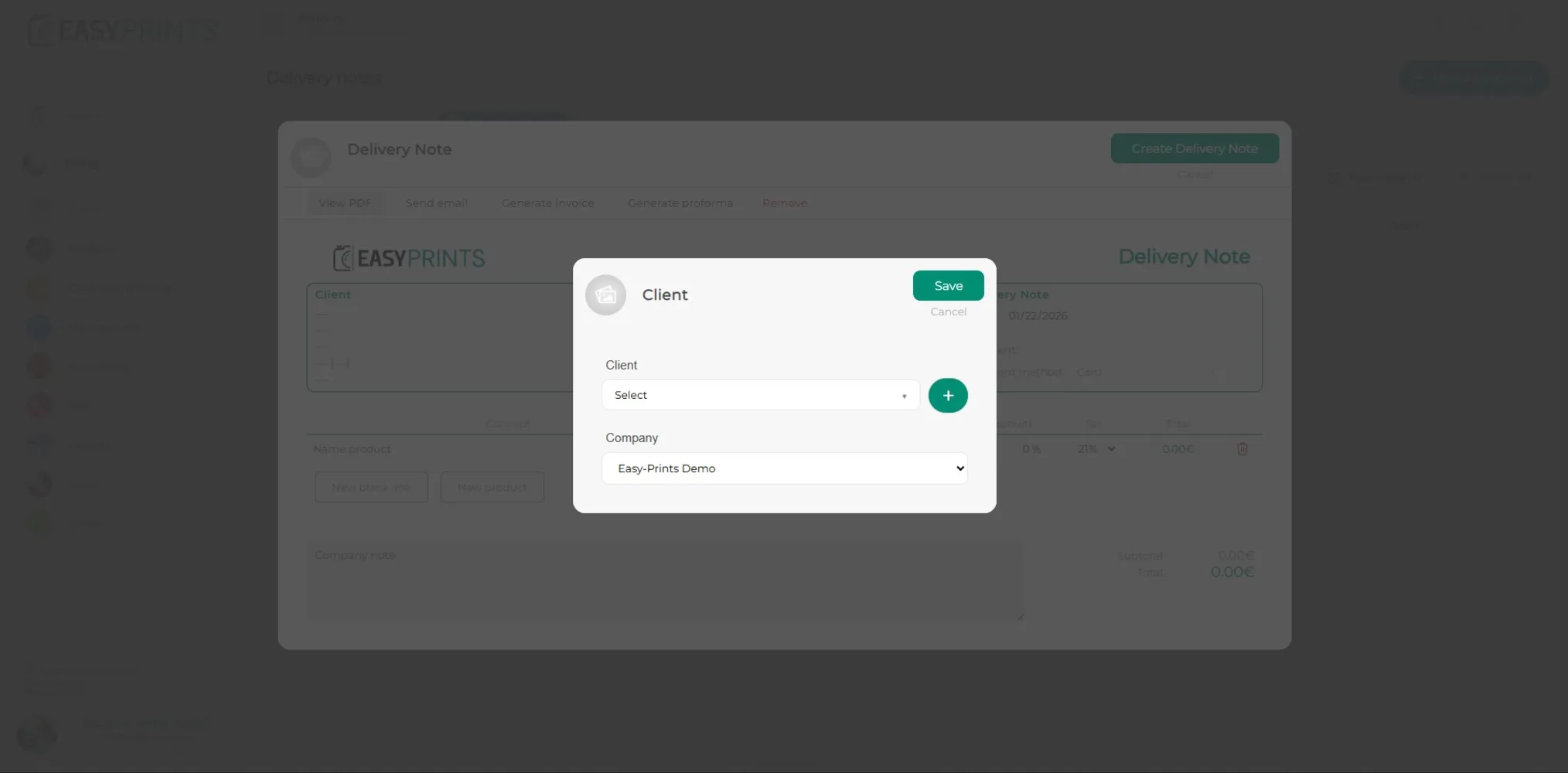
In the new window, you must specify the client to whom the delivery note is addressed and the company.
Step 3
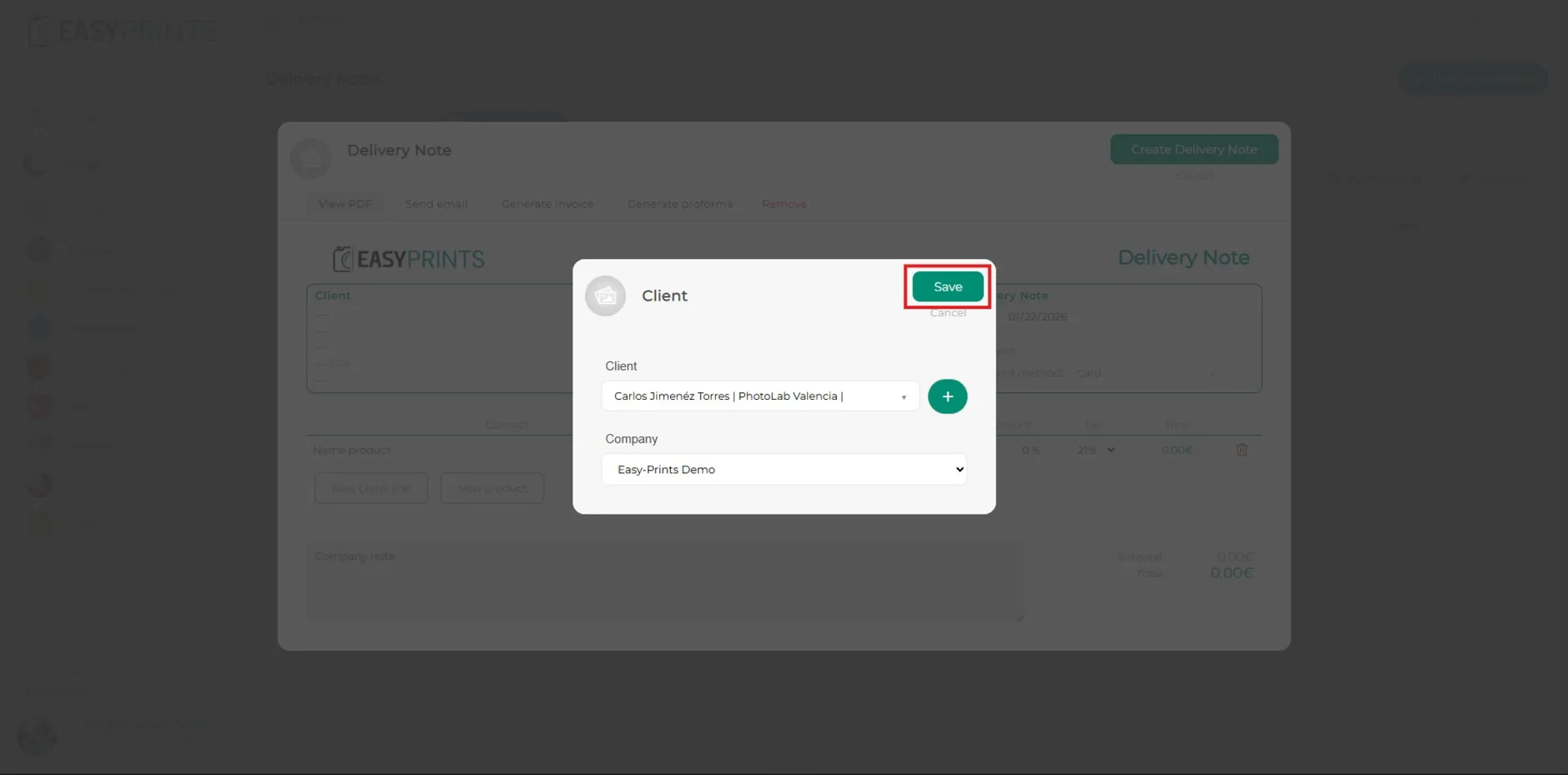
Once the client has been selected, click on the green Save button located in the upper-right corner of the window, as shown in the image.
Step 4
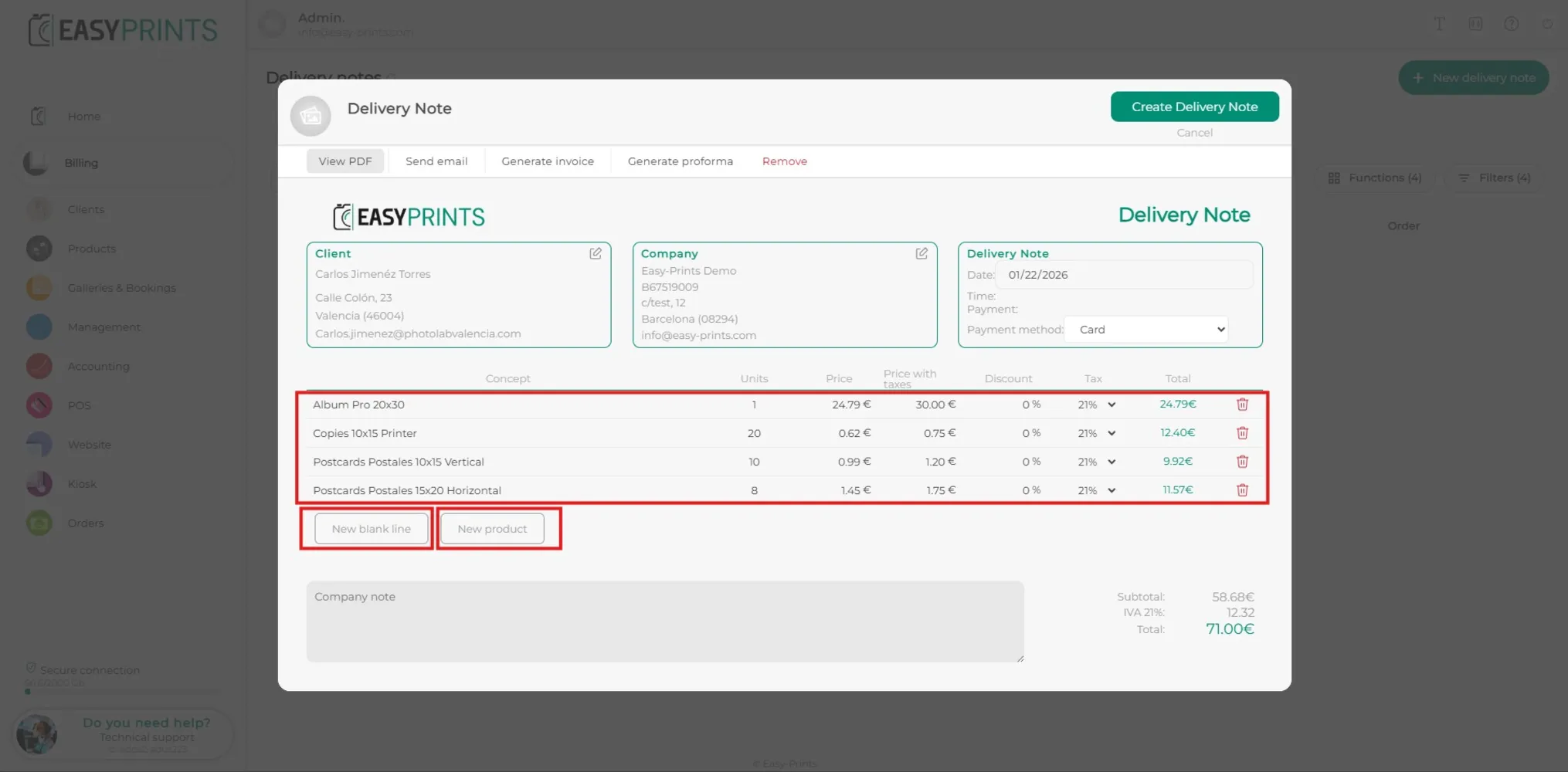
In the new window, the client’s products will be added. There are two ways to add them: by clicking the New blank line button or by clicking the New product button, where the products already created in the system will be displayed.
Step 5
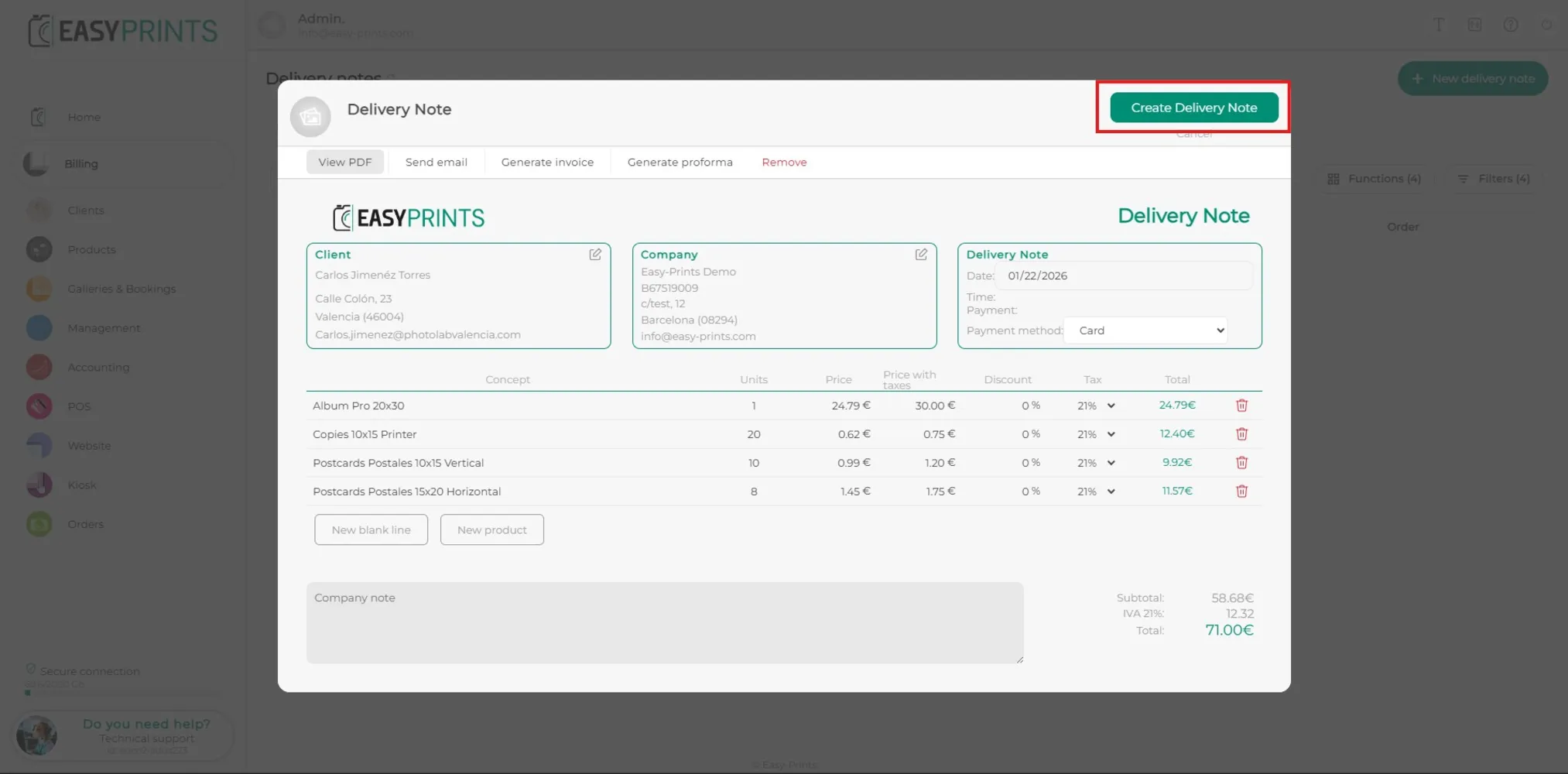
Once all products have been added, click on the green Save button located in the upper-right corner of the window.
Step 6
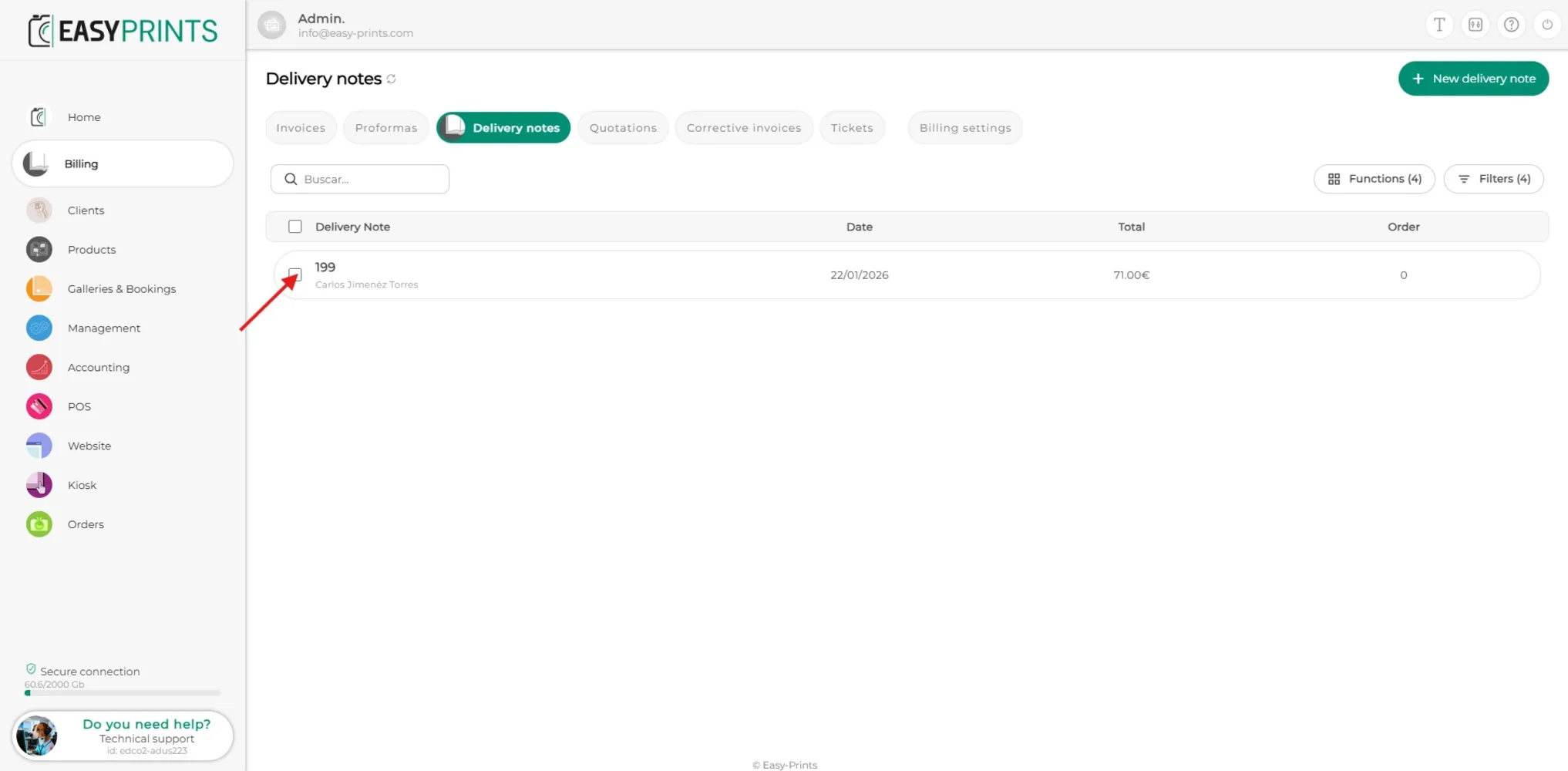
To modify the delivery note, click on the created delivery note to edit it.
Step 7
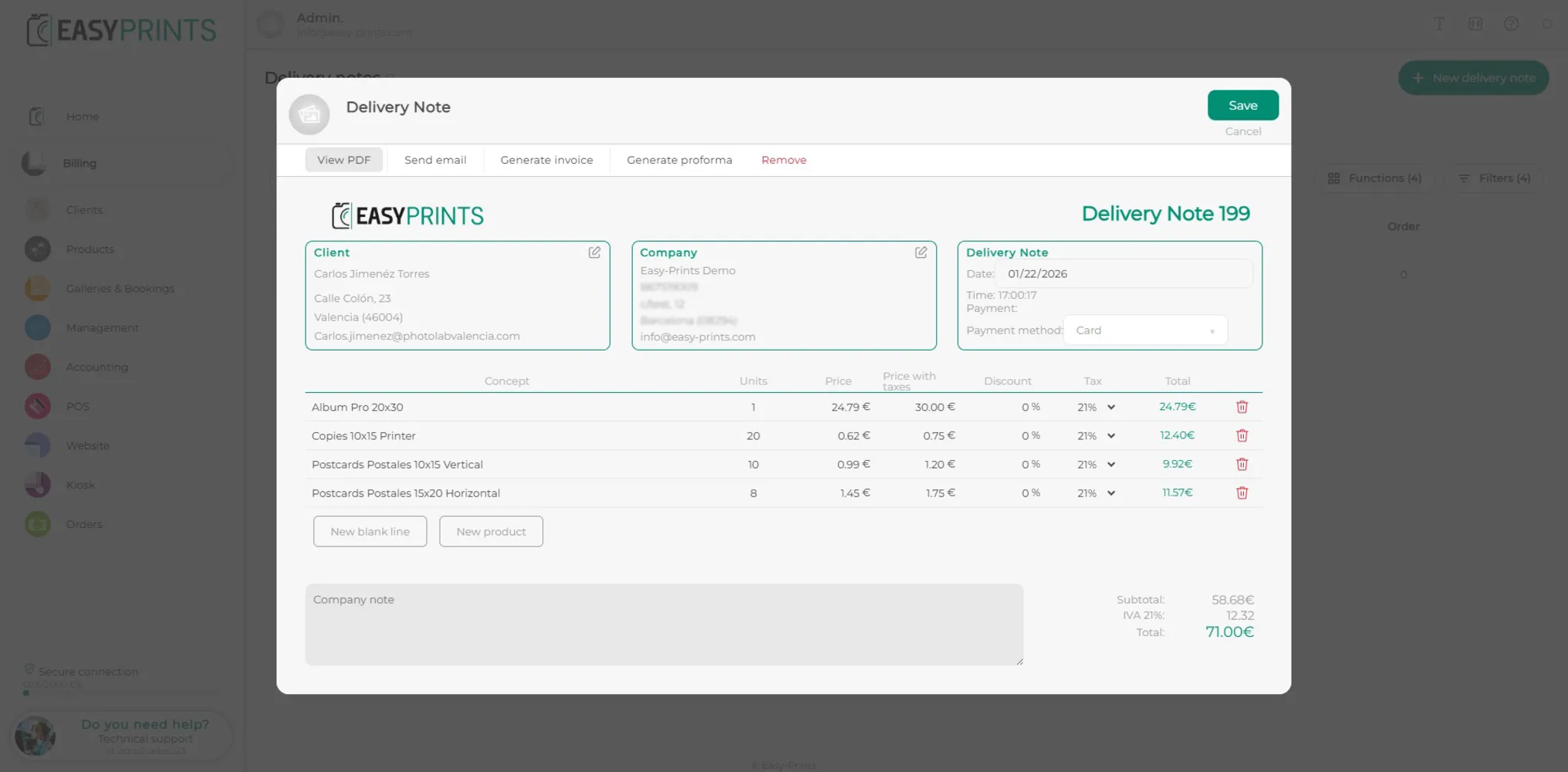
The window with the previously created delivery note will open again. In the top bar, you will find several options, such as sending the delivery note by email, generating an invoice or a proforma from the delivery note, or deleting it.
Go back to the Help Center or contact Easy-Prints.
← Back to Help Center