
How to create internal users within the account
To create several internal users who can access Easy-Prints, go to the Management section, located in the menu on the left. Once inside, access the User Ma…
Step 1
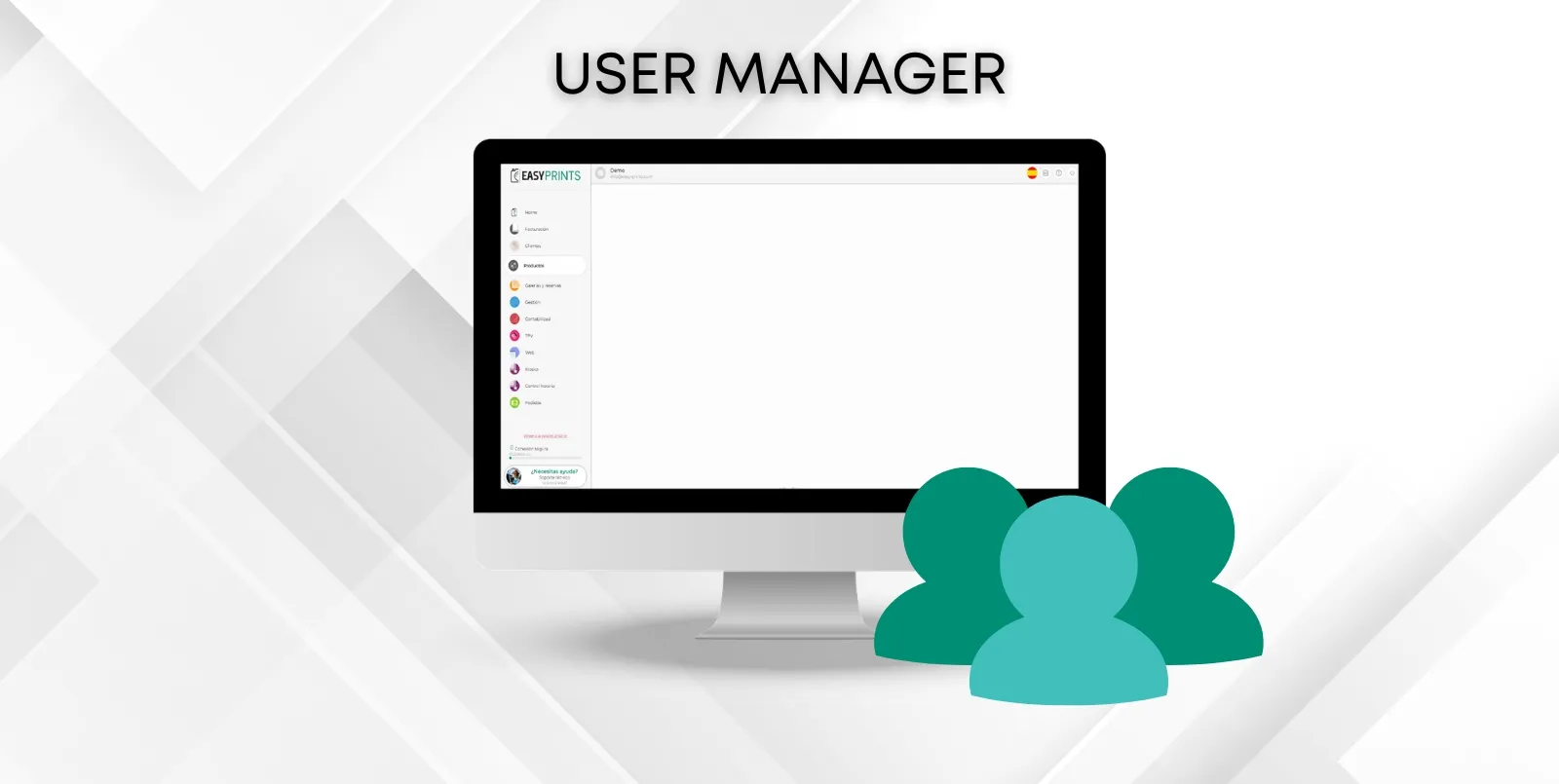
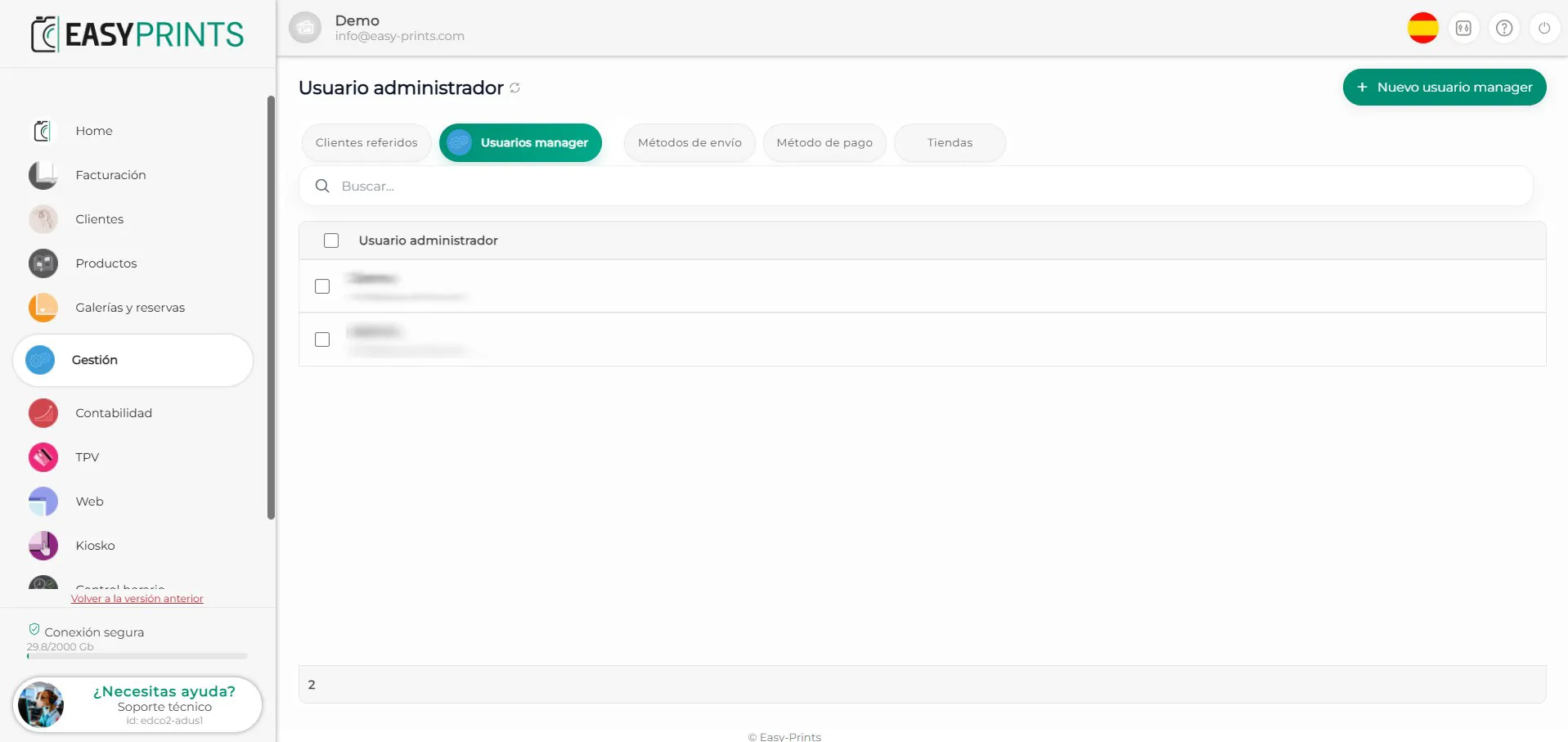
To create several internal users who can access Easy-Prints, go to the Management section, located in the menu on the left. Once inside, access the User Management section.
Step 2
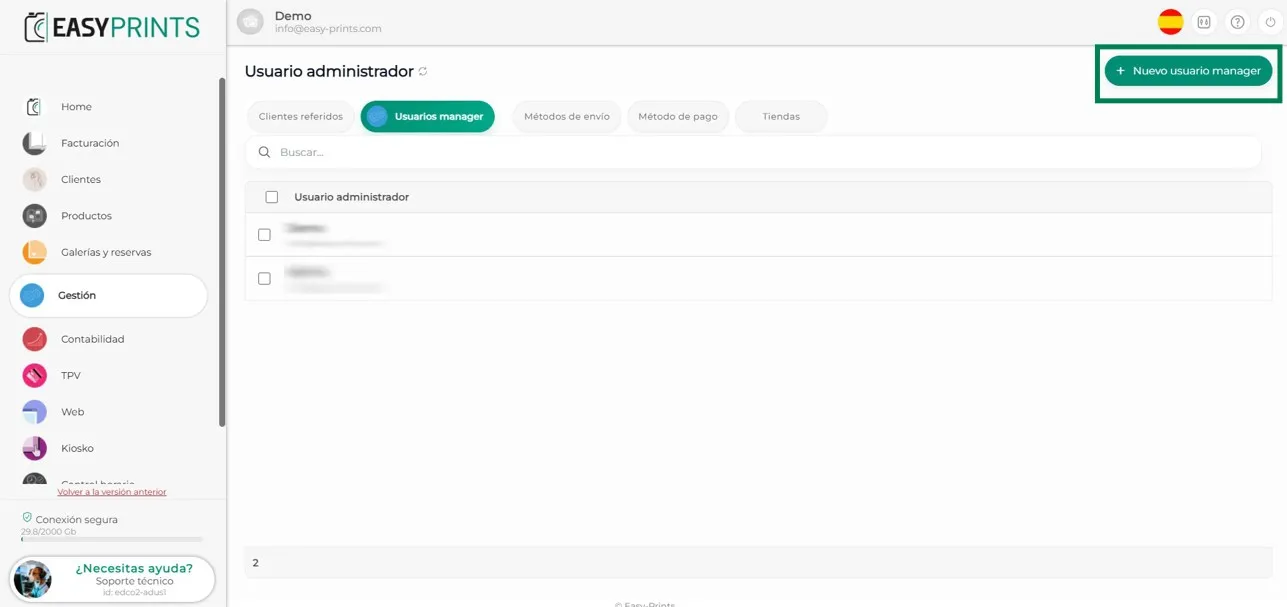
Click the green + New user manager button, located at the top right.
Step 3
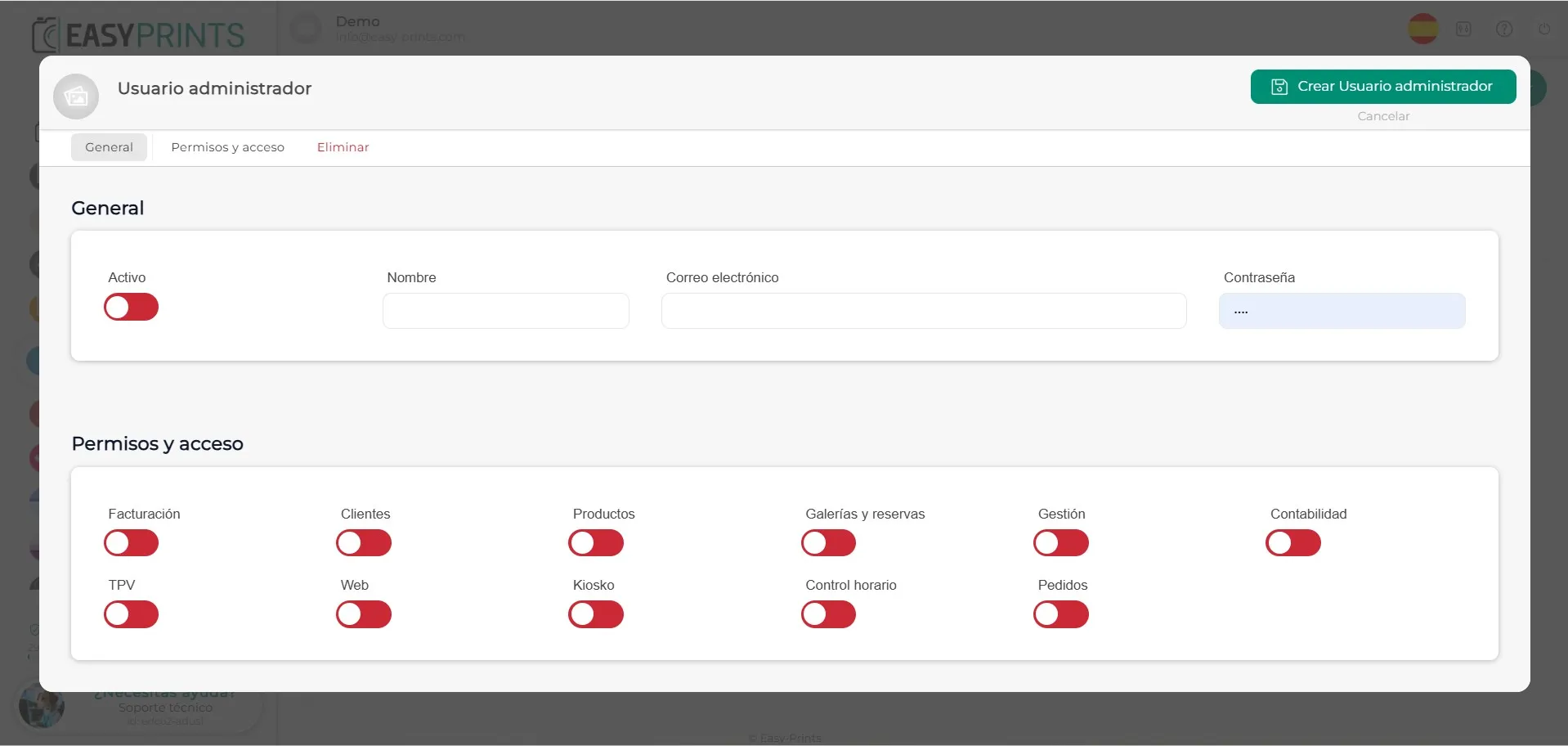
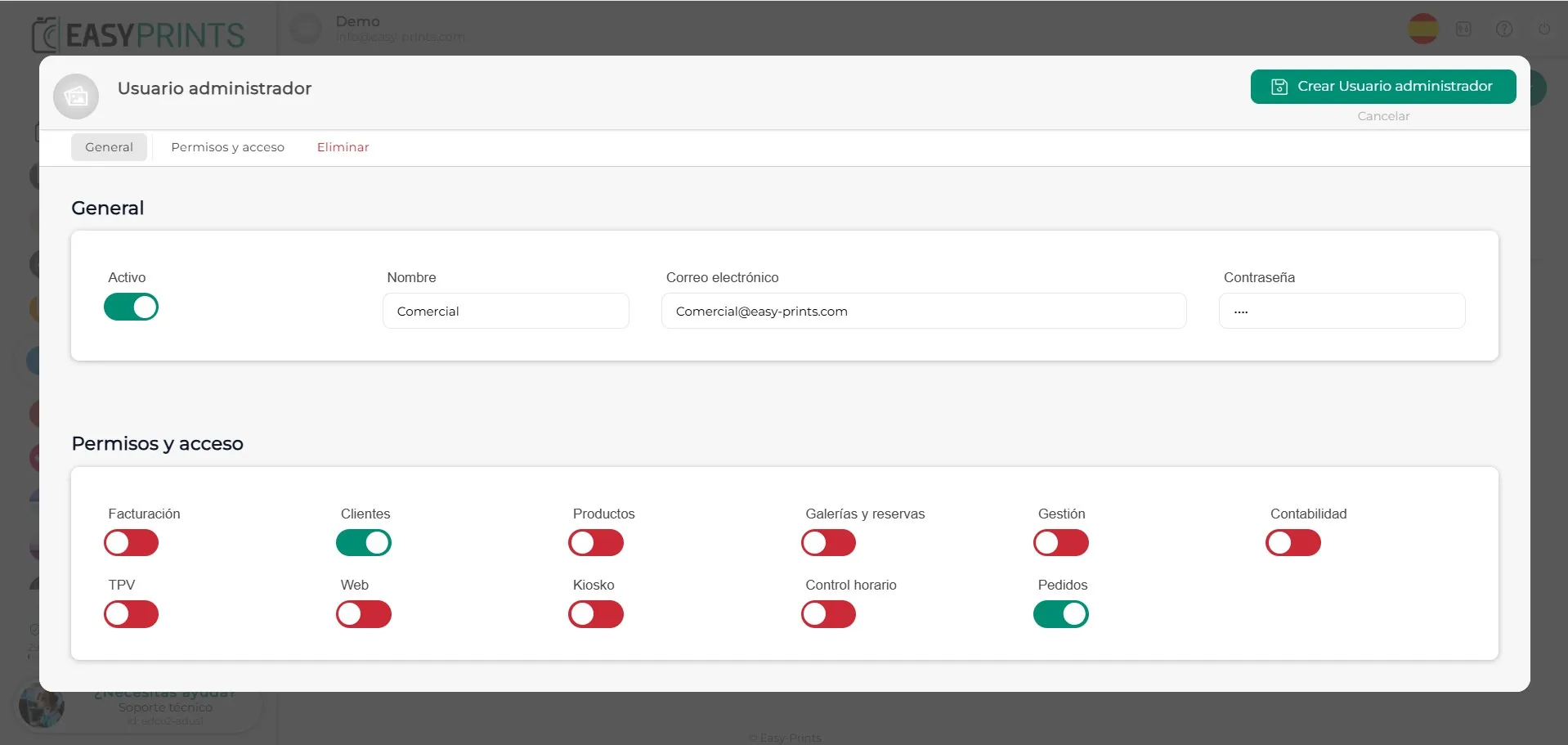
In the new window, you will need to activate the new user and enter their email address and password. In the Permissions and access section, you can indicate which sections this user will have access to and restrict the ones you do not want to grant permission to.
Step 4
Once the details have been entered and the permissions have been configured, make sure to save the changes by clicking the Save button, located at the top right.
Go back to the Help Center or contact Easy-Prints.
← Back to Help Center