
How to install the kiosk in island + cloud mode.
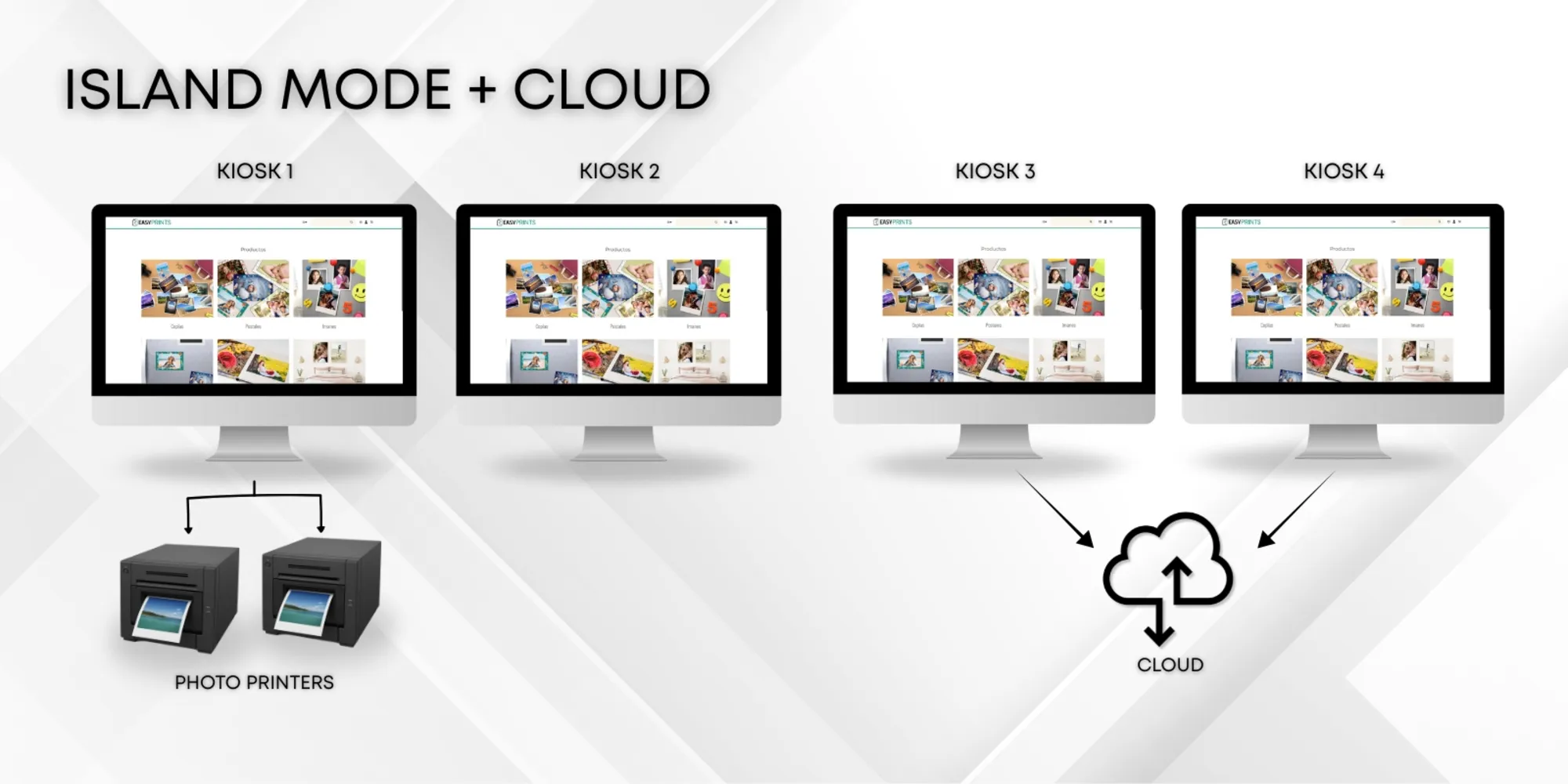
You must install the Easy-Prints application on all computers where you intend to use it. In this example, we will assume you have four computers: two will…
Step 1
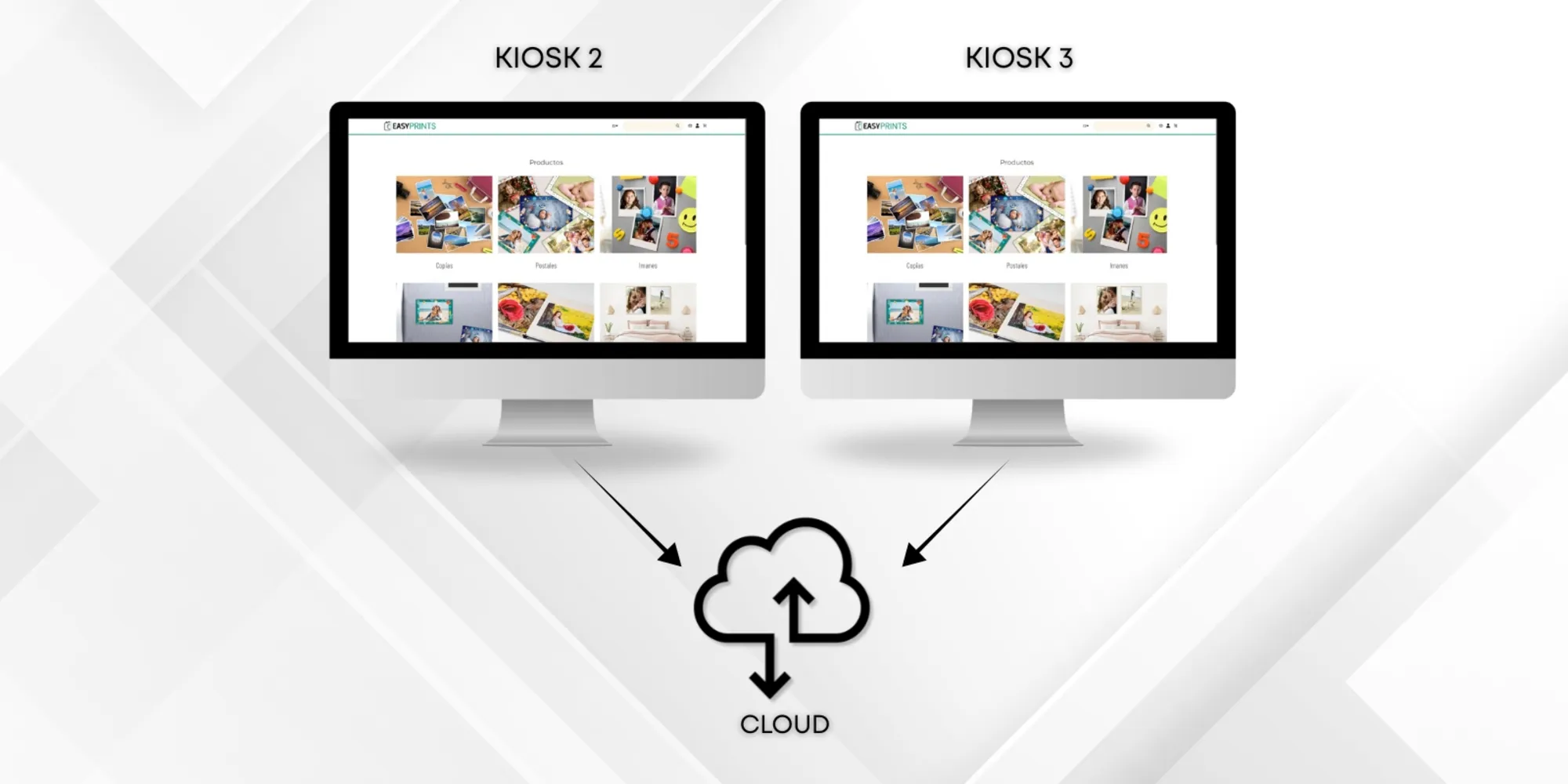
You must install the Easy-Prints application on all computers where you intend to use it. In this example, we will assume you have four computers: two will operate using the Easy-Prints application, and the other two will use the web kiosk. Therefore, we will install the application on the computer where the printers are connected and on one additional system.
Step 2
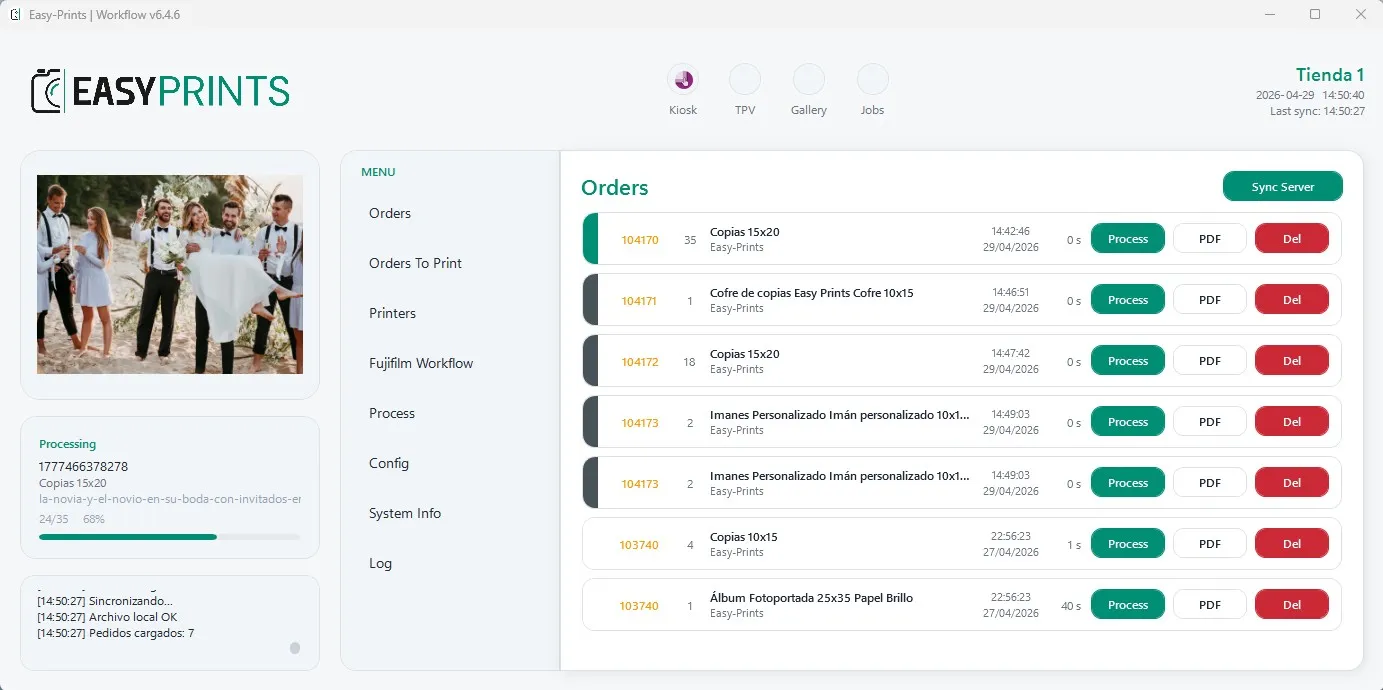
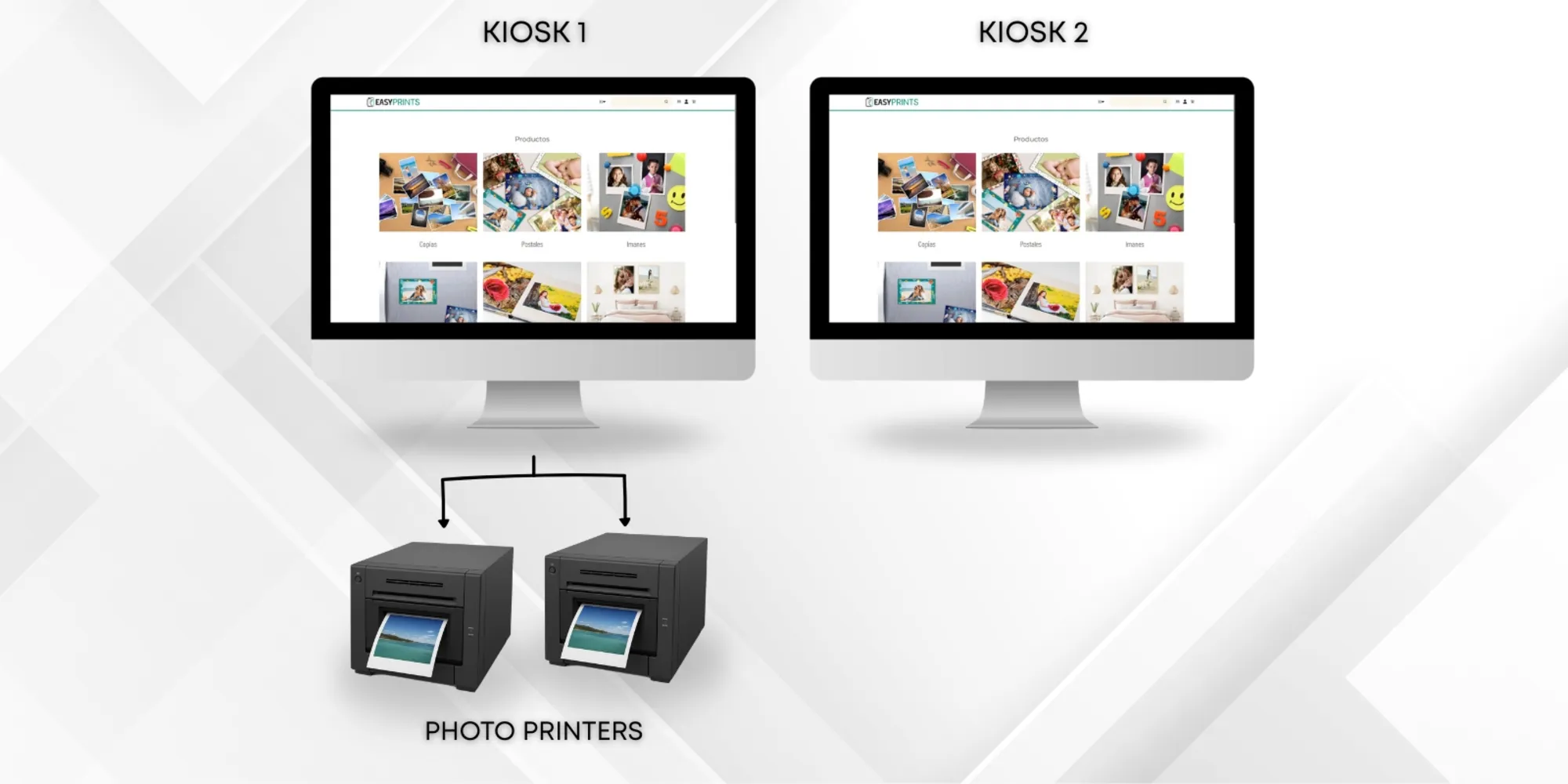
The installation process for Kiosk 1 and Kiosk 2 is the same as the one used in island mode type A. Refer to that manual to complete the configuration correctly.
Step 3
Once everything is ready, you can open the Easy-Prints application and start operating Kiosk 1 and Kiosk 2.
Step 4
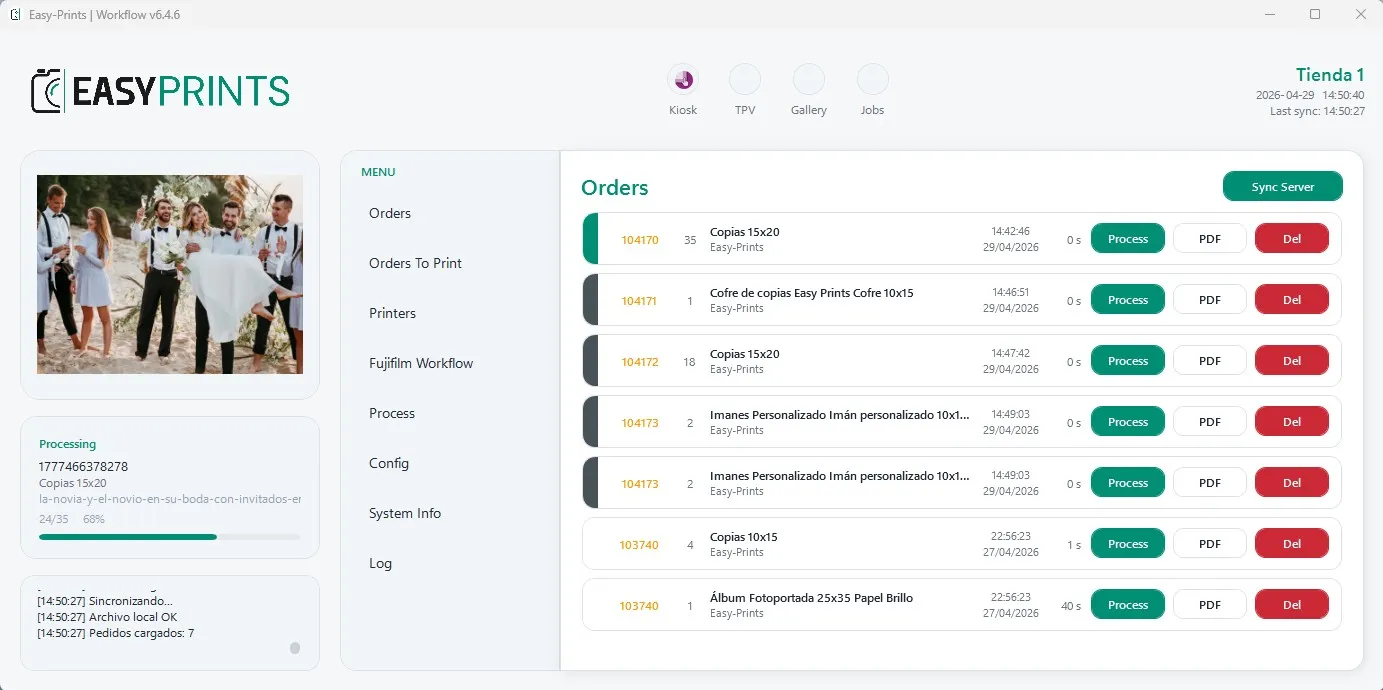
On Kiosk 3 and Kiosk 4, you must access your account from the Easy-Prints website. To open the kiosk, enter www.easy-prints.com/kiosk in your browser. With this system, orders will arrive through the Hot Folder folder.
Go back to the Help Center or contact Easy-Prints.
← Back to Help Center