
How to send a mailing
To send a mailing to a client, go to the Clients category located in the menu on the left. Inside the Clients section, at the top you will find the Mailing…
Step 1
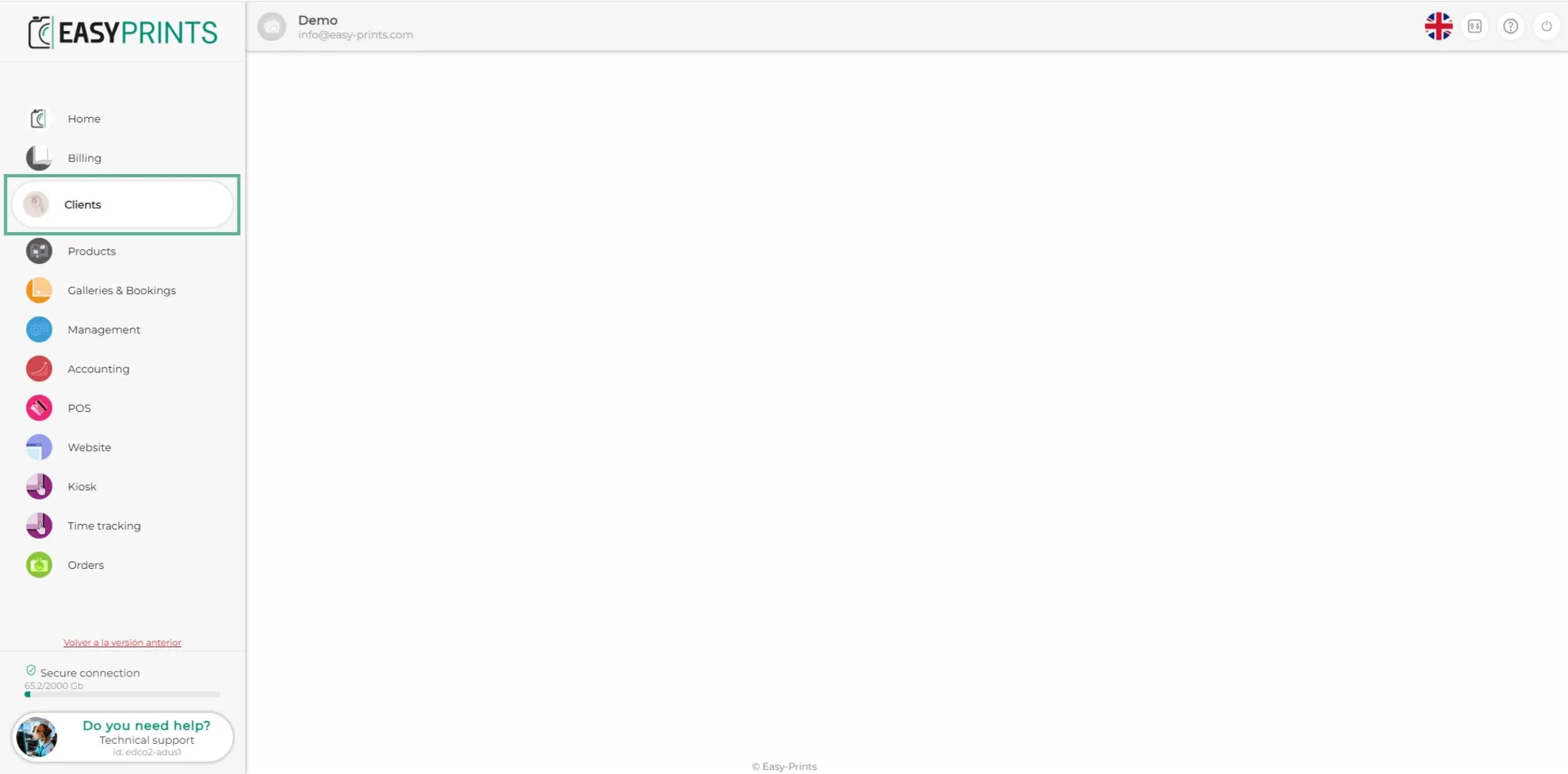
To send a mailing to a client, go to the Clients category located in the menu on the left.
Step 2
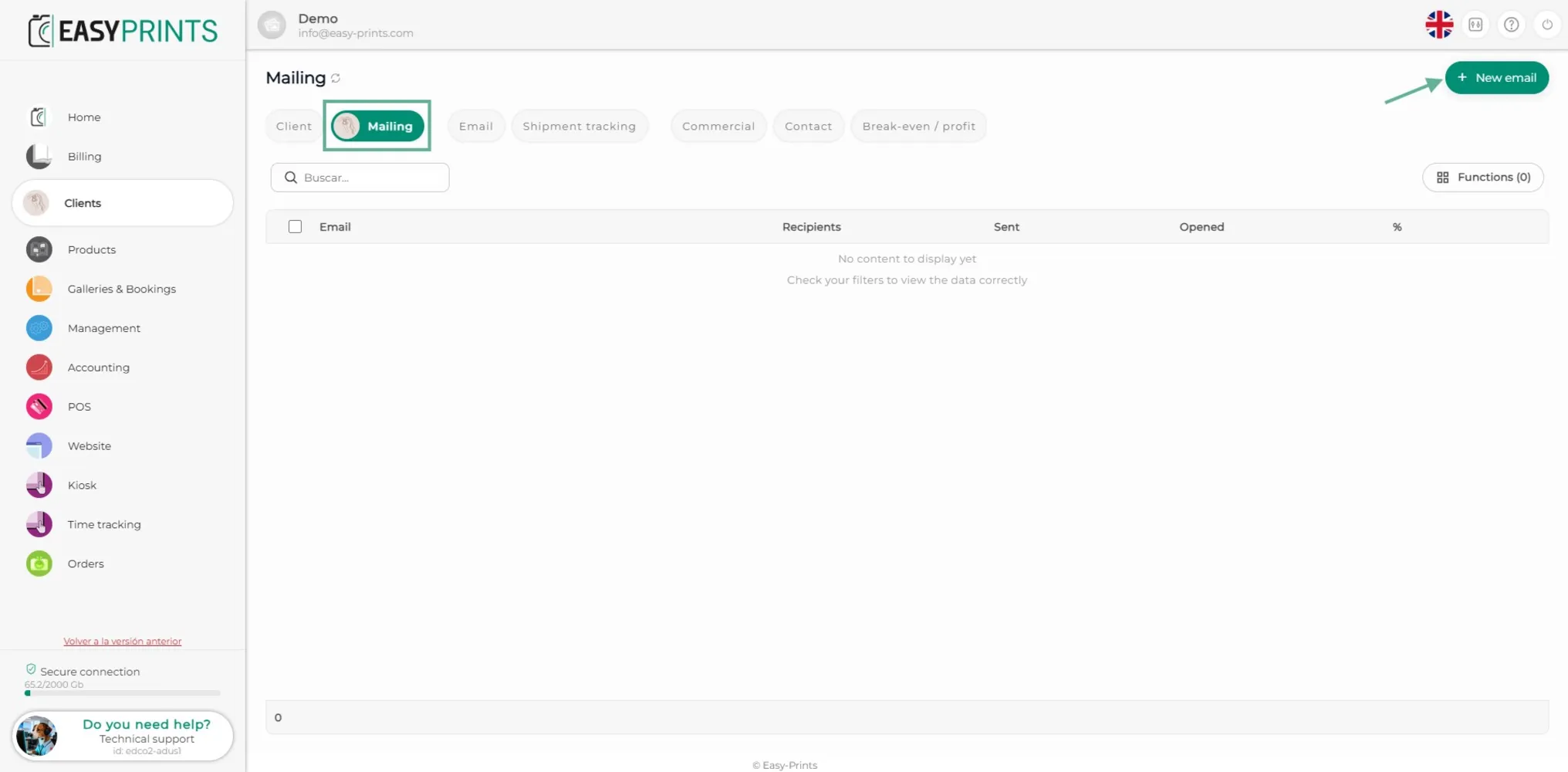
Inside the Clients section, at the top you will find the Mailing button. Click on it. Once in Mailing, in the upper right corner there is the green +New mail button.
Step 3
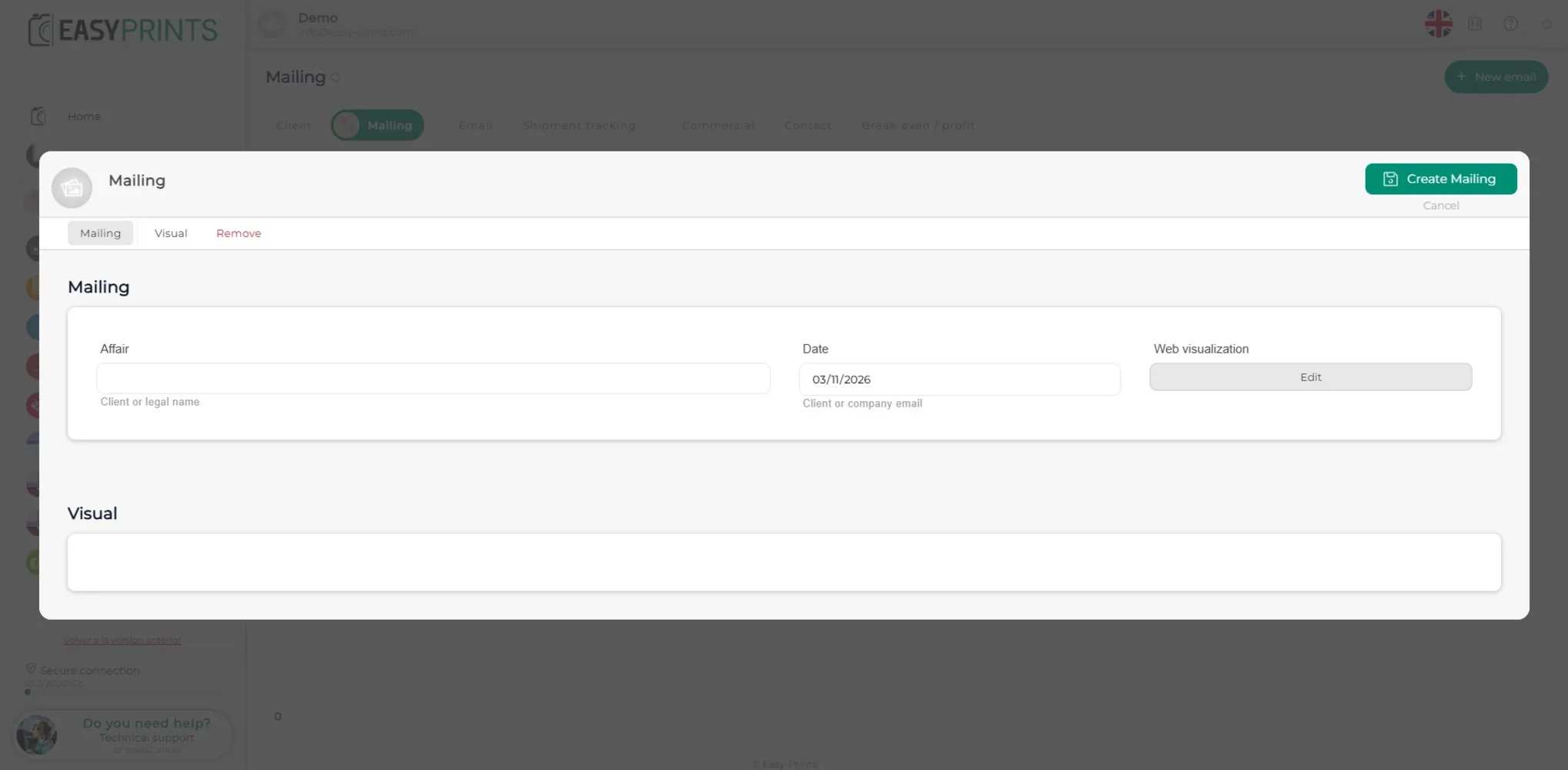
In the new window, in Subject you must enter the email title. The date is used to schedule the sending day. In the web view section you can configure the email.
Step 4
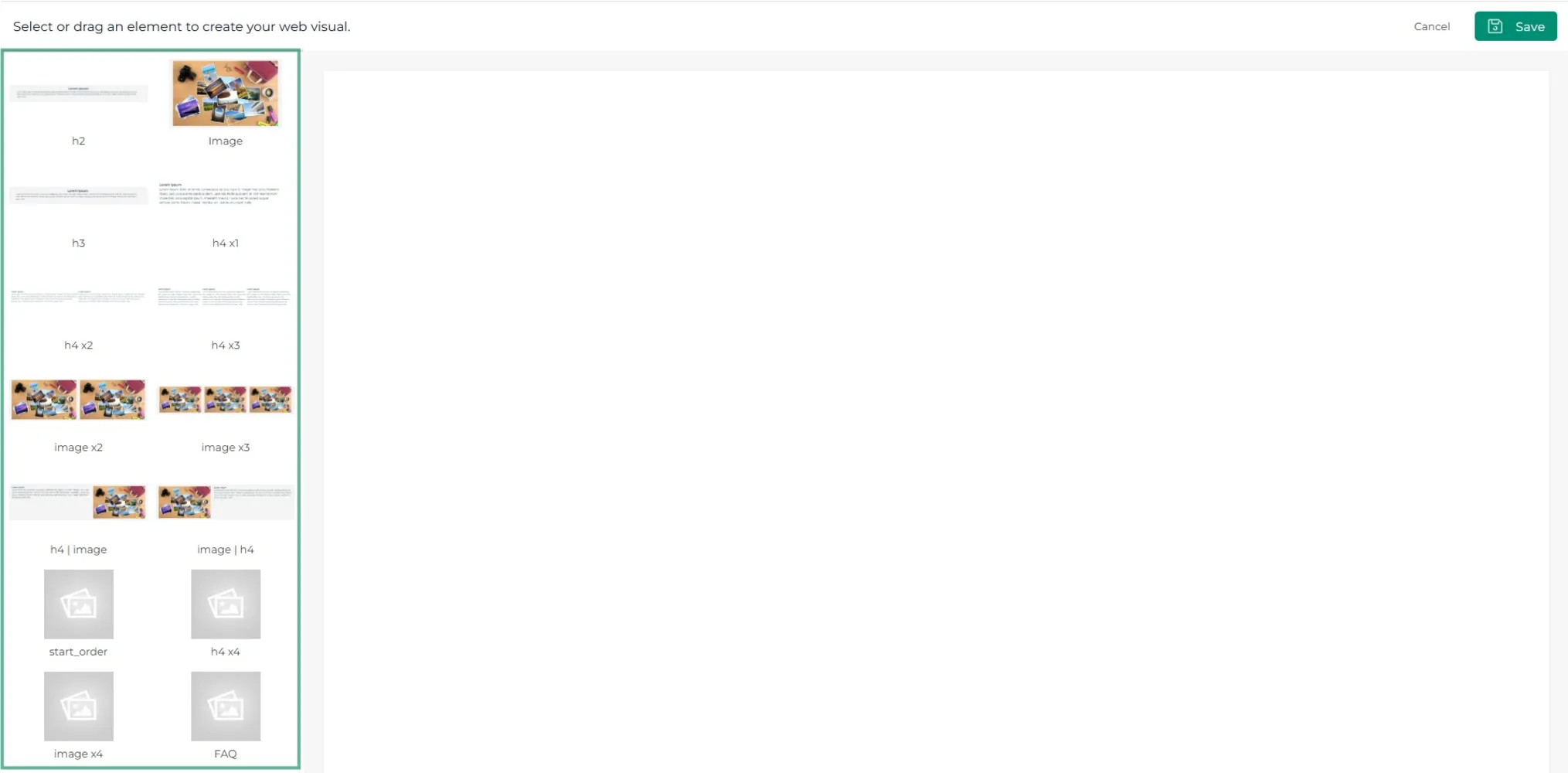
When clicking on Web view, a new window will open. On the left side you will find different compositions that can be used in the email, such as various types of text boxes and image boxes.
Step 5
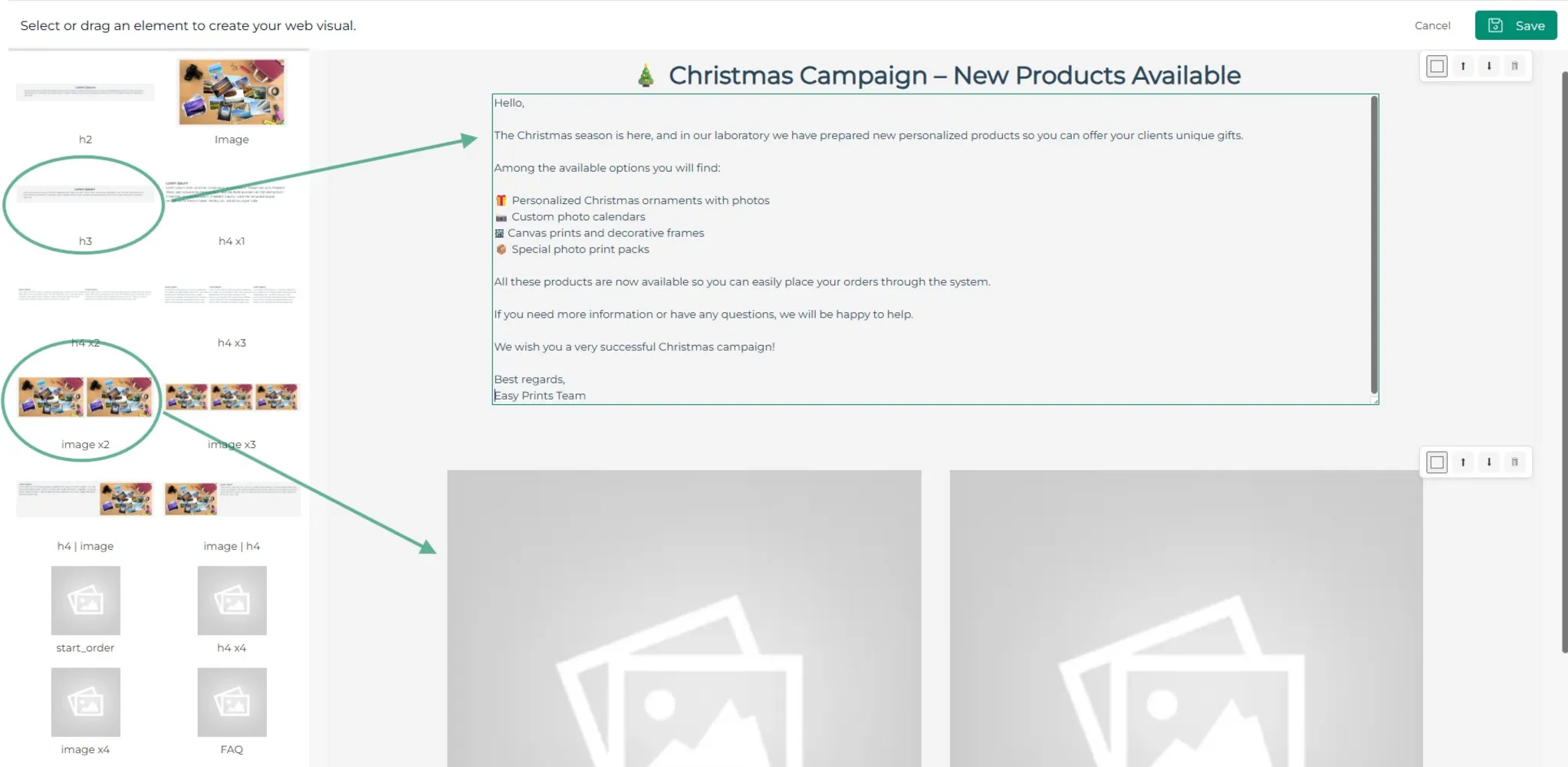
Select the type of template and complete it with the desired text and image, as shown in the image.
Step 6
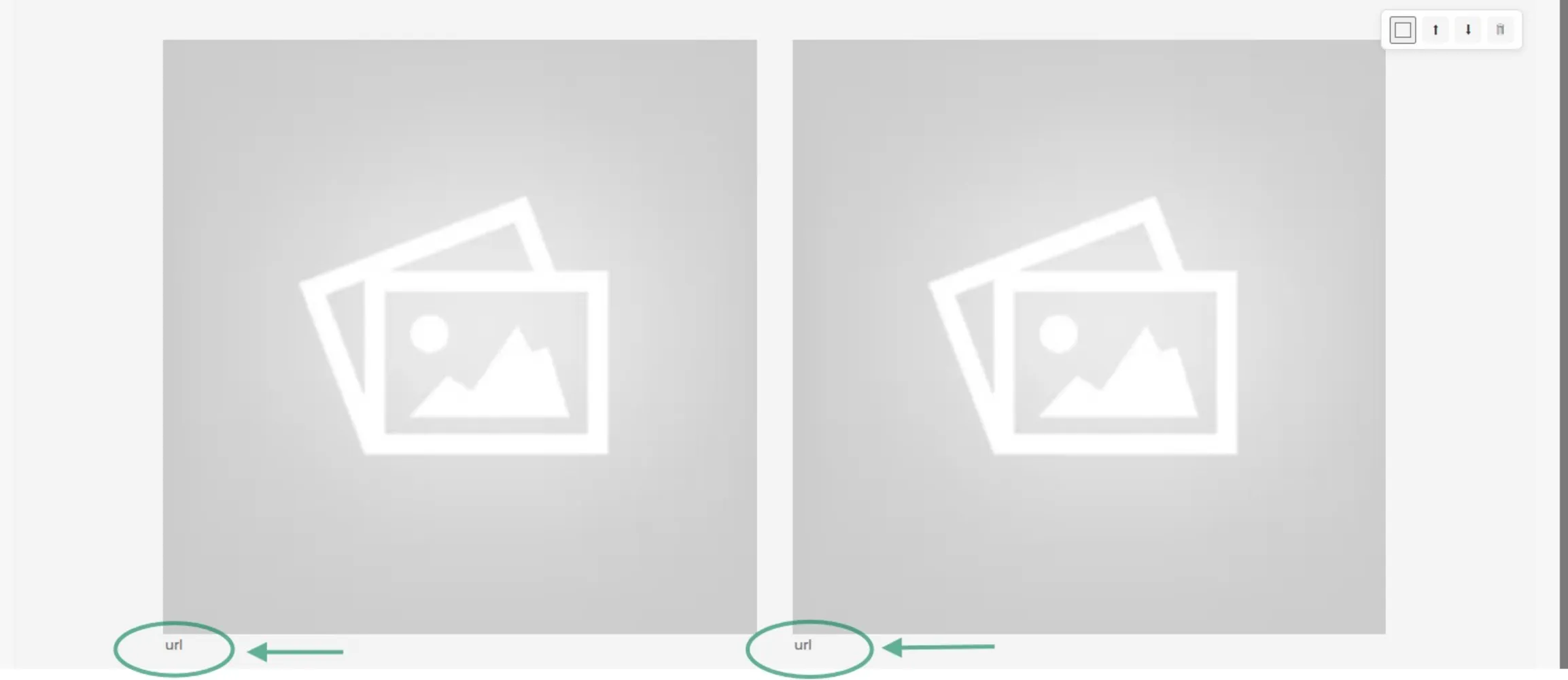
In the images section, a URL can be added so that when the client clicks on the image, they are redirected to the desired website.
Go back to the Help Center or contact Easy-Prints.
← Back to Help Center