
How to charge an order from a kiosk
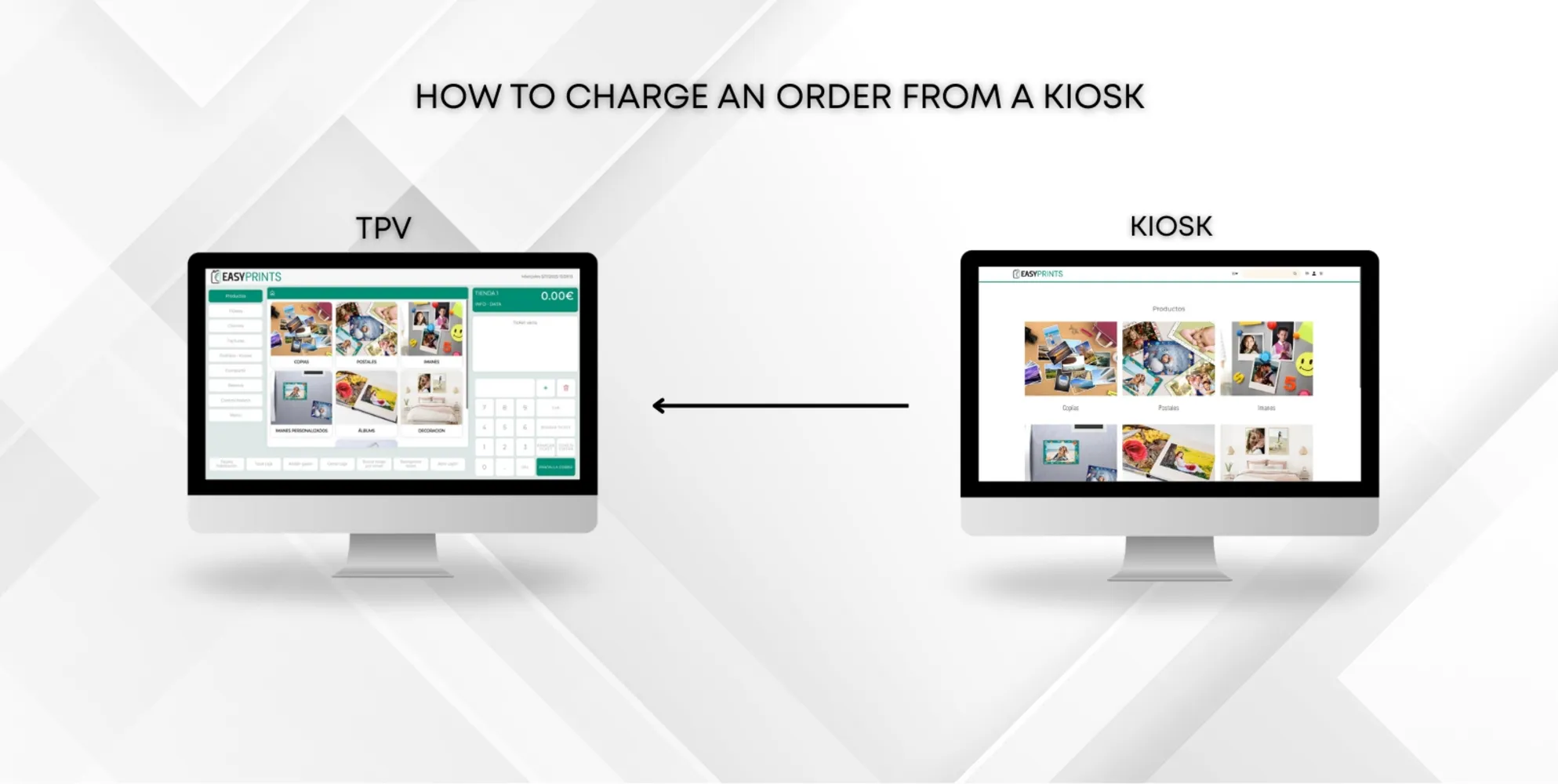
To charge an order placed from the kiosk, you must open the POS and go to the Orders–Kiosks section. You will find it on the left side of the screen, as sh…
Step 1
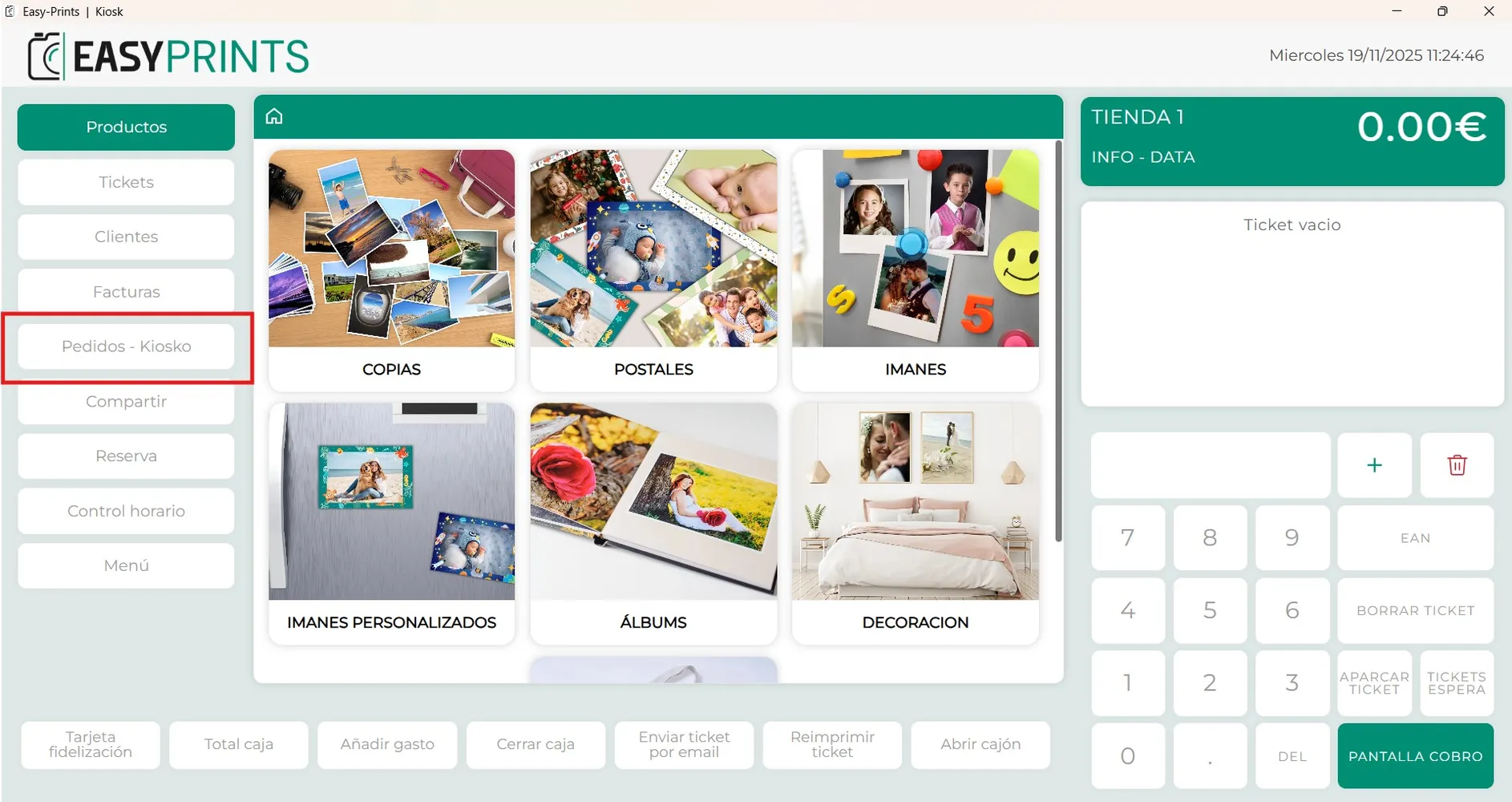
To charge an order placed from the kiosk, you must open the POS and go to the Orders–Kiosks section. You will find it on the left side of the screen, as shown in the image.
Step 2
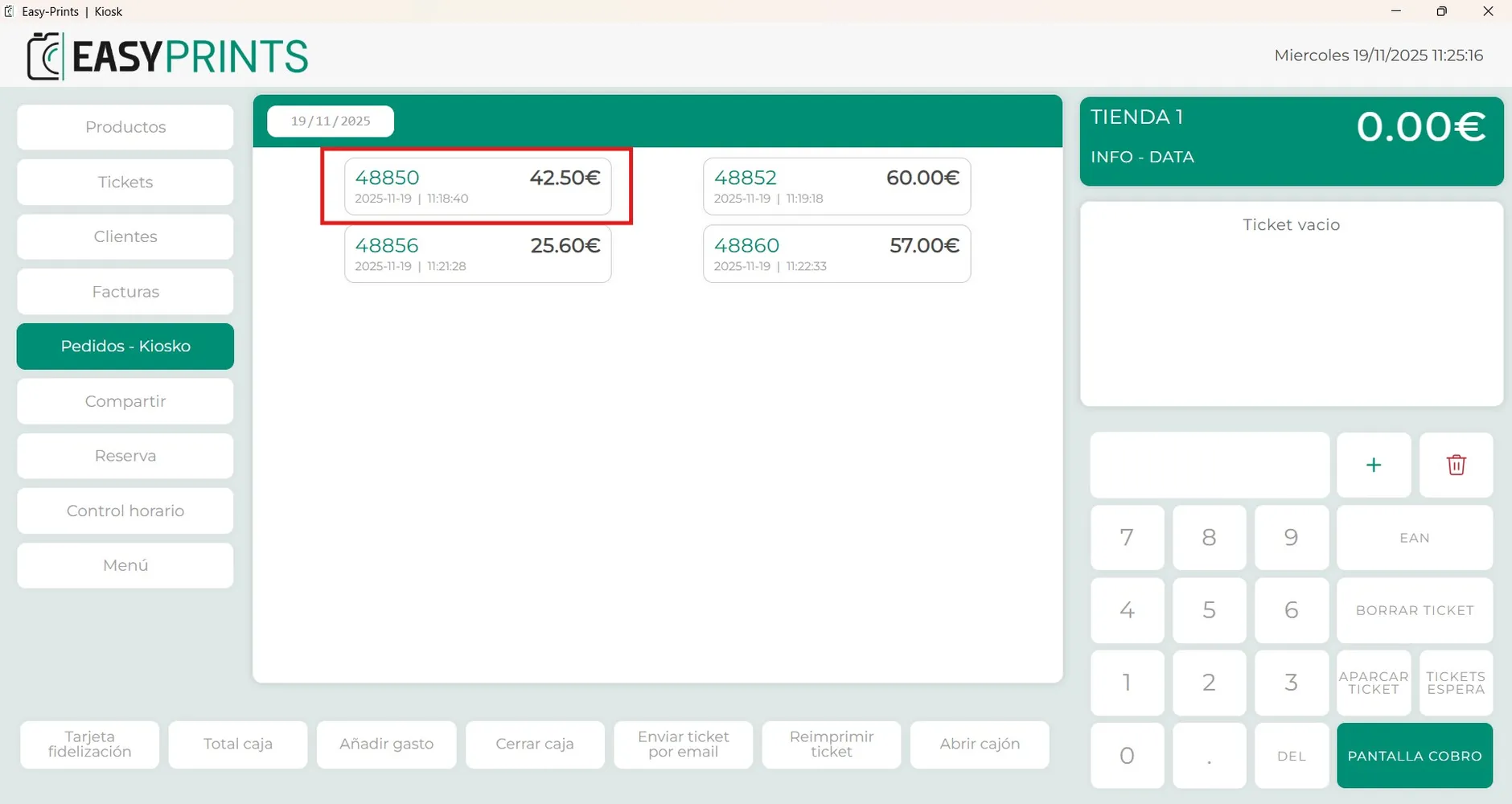
Select the order you are going to charge.
Step 3
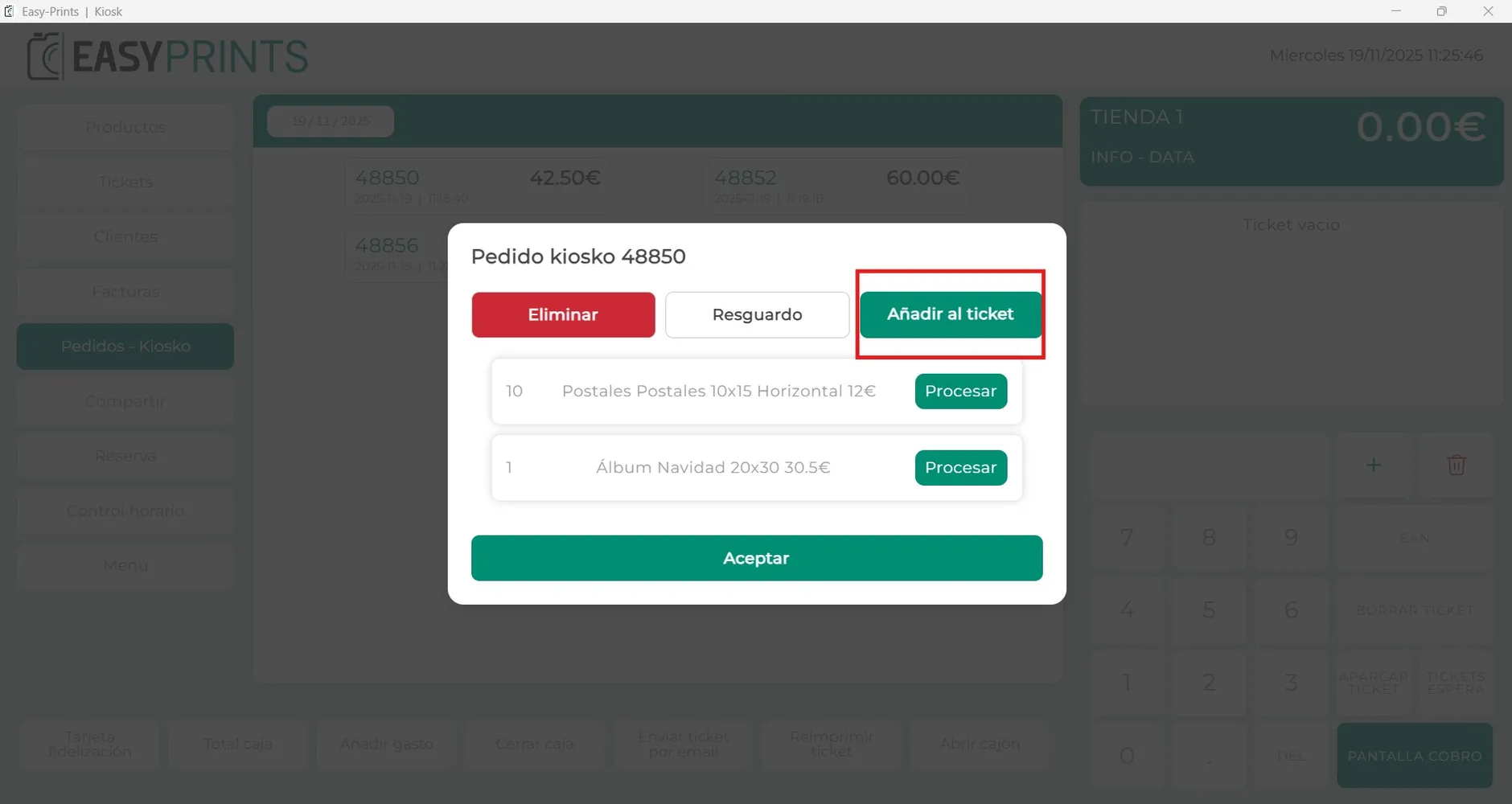
A new window will open where several options will appear: Delete, Receipt, and Add ticket. You must click on “Add ticket”.
Step 4
The products from the order will now appear in the ticket box, just as shown in the image.
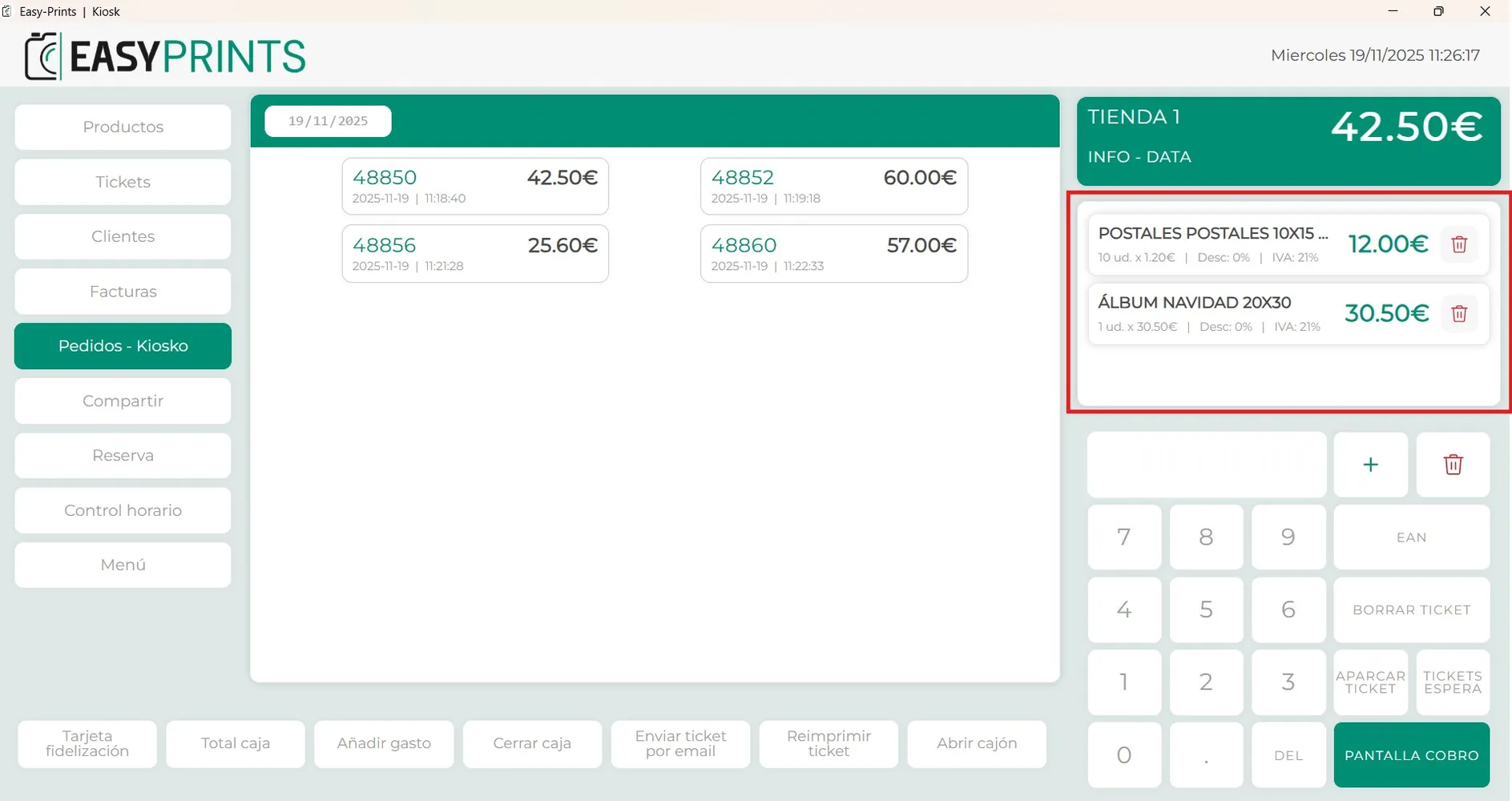
Step 5
To charge this order, you will need to click the Payment screen button. A new window will open where you must indicate how the payment will be made.
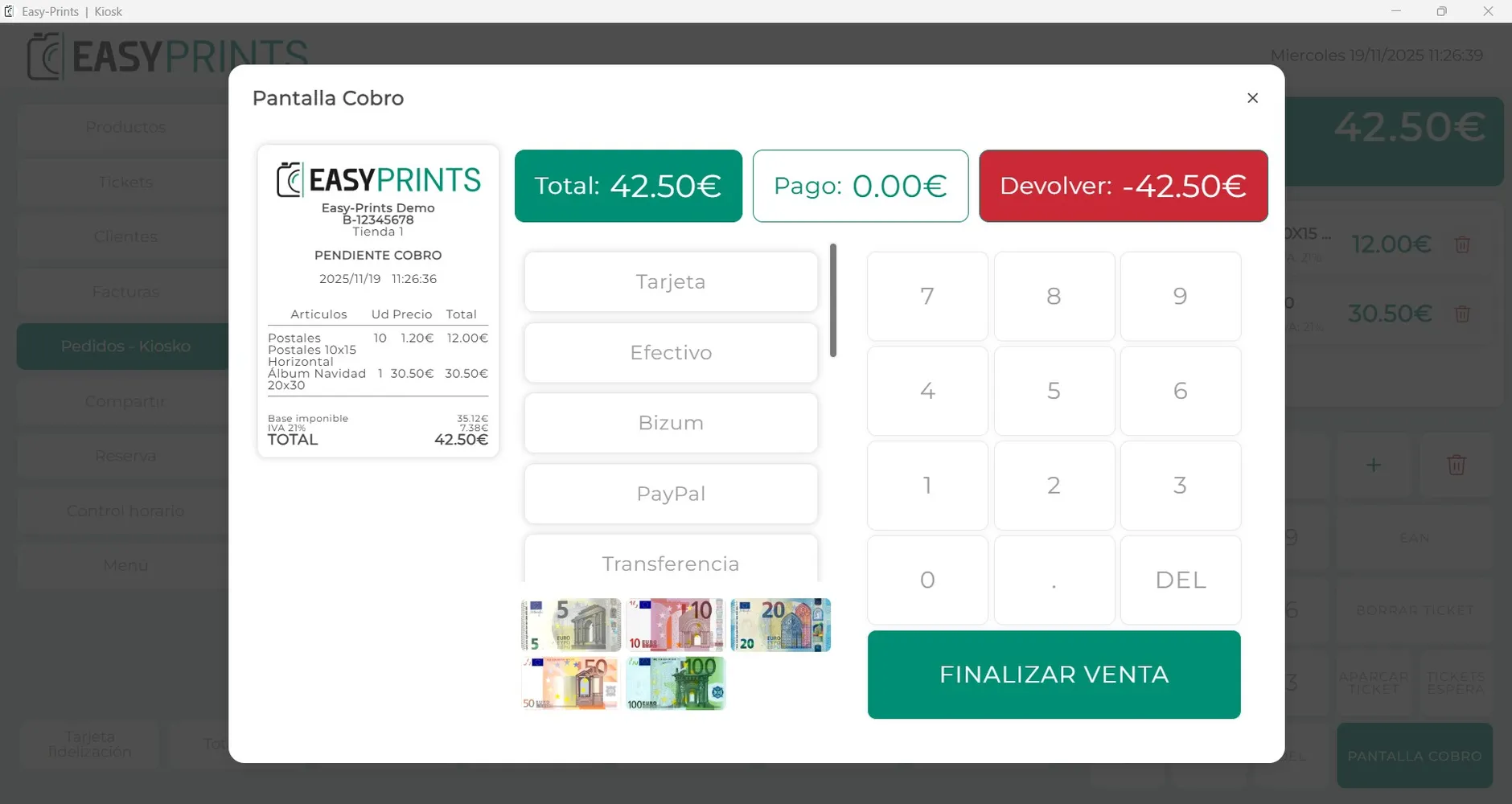
Step 6
Once the payment has been completed, a new window will appear indicating that the sale has been successfully finalized. In it, you will see options such as printing the receipt, generating an invoice, among others.
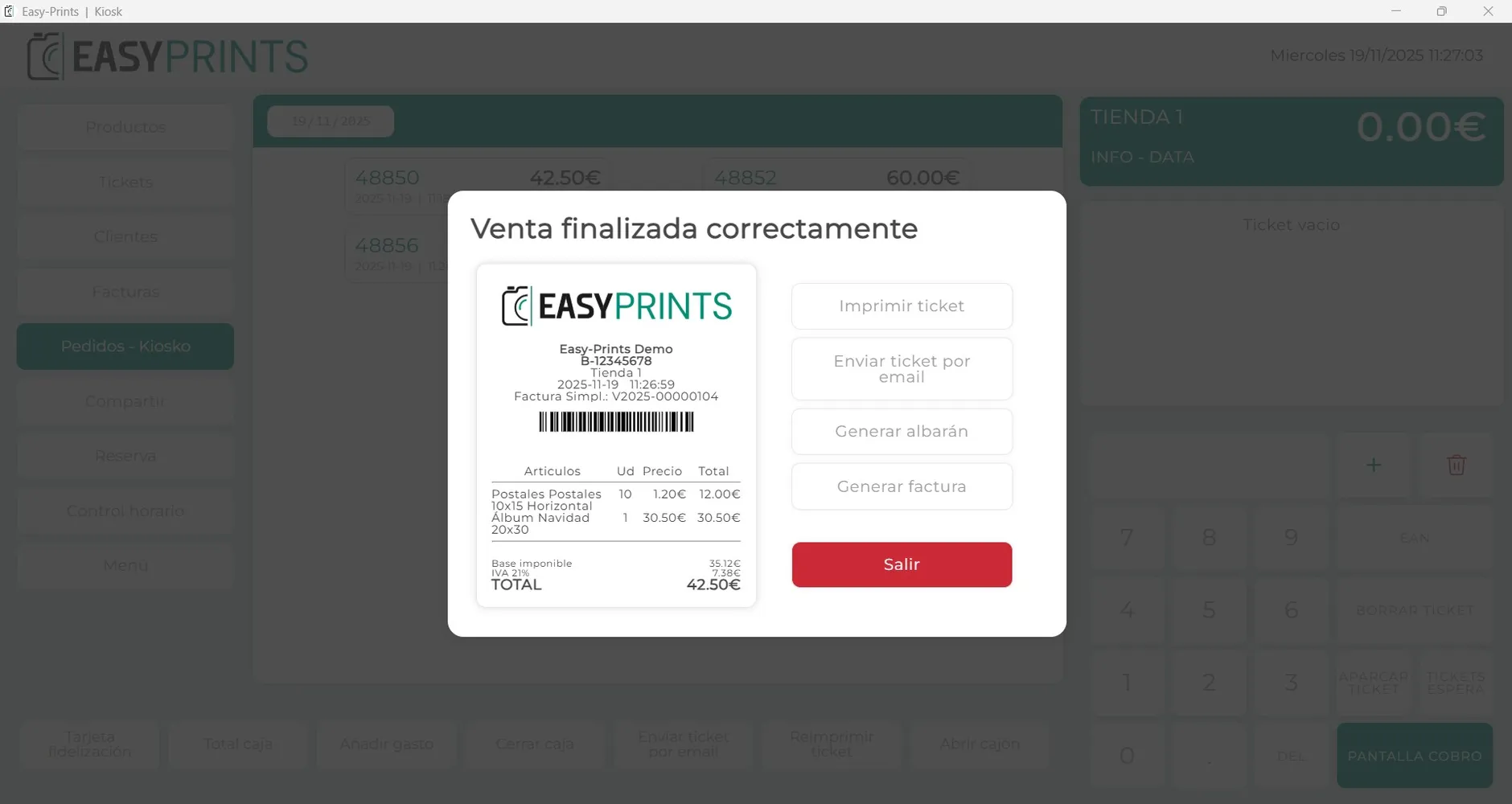
Go back to the Help Center or contact Easy-Prints.
← Back to Help Center