
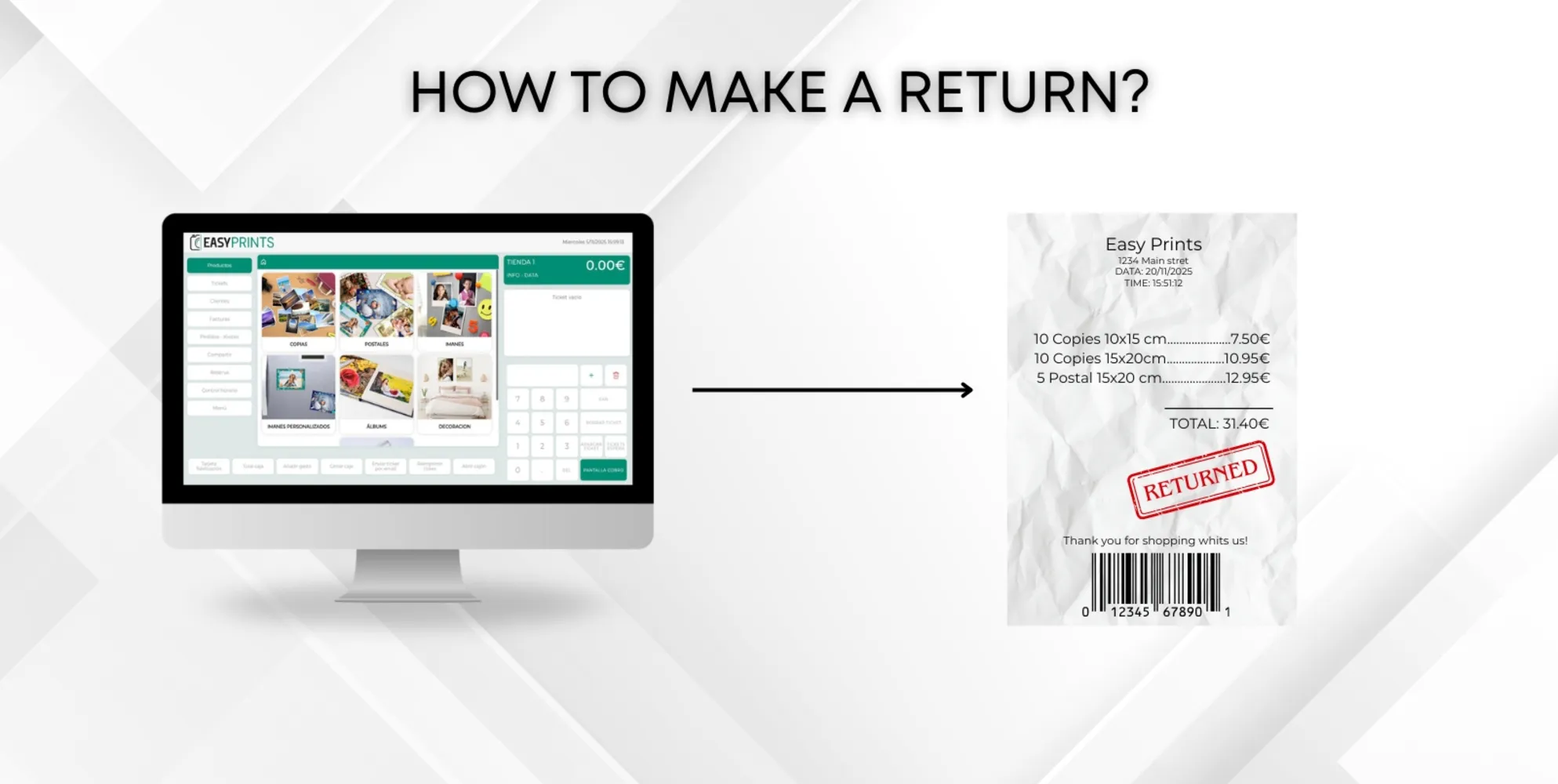
How to make a return?
Open the POS We select the product for which we need to refund the amount. We edit the product so that the amount to be refunded appears. Once we have the…
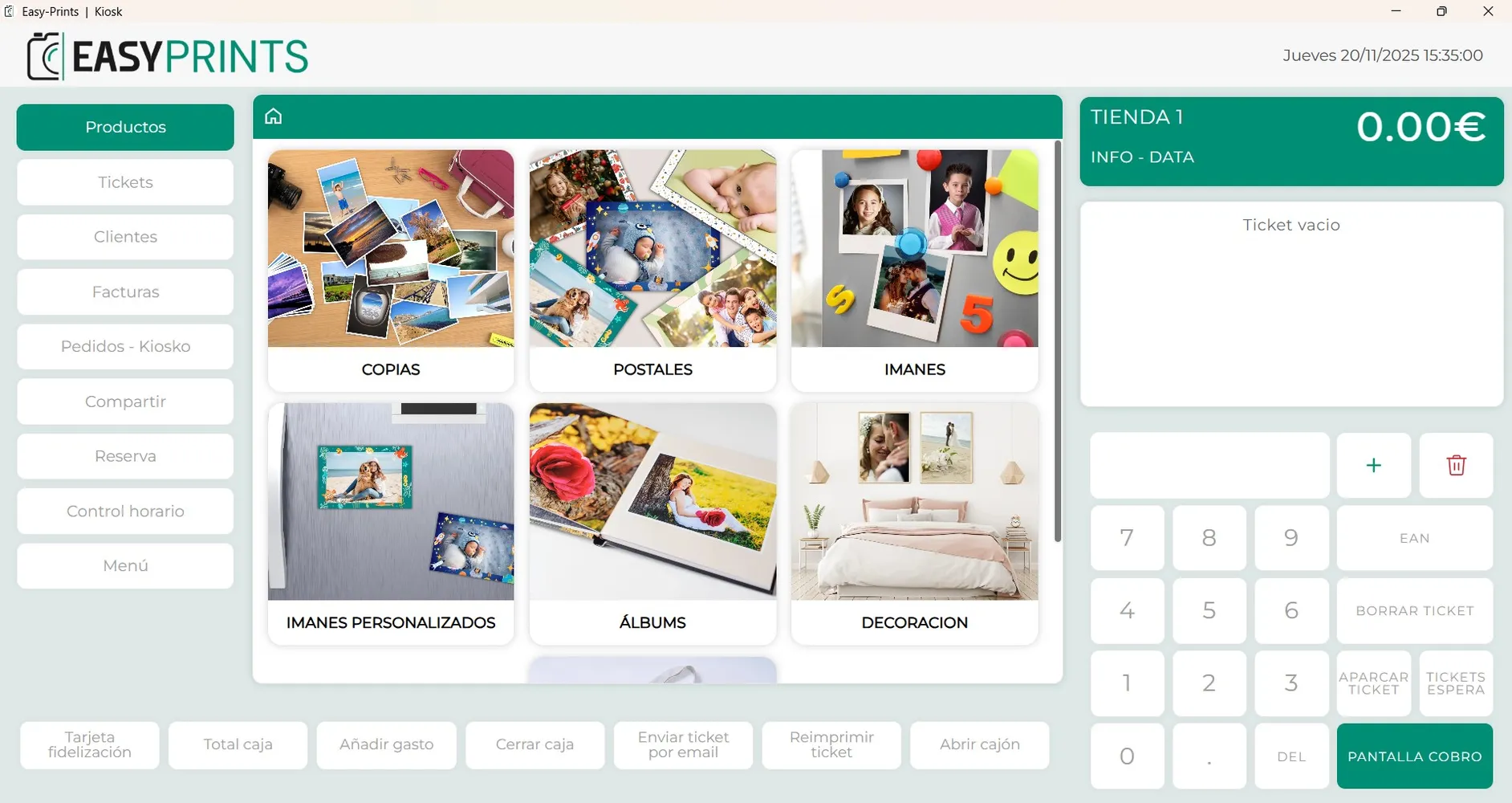
Step 1
Open the POS
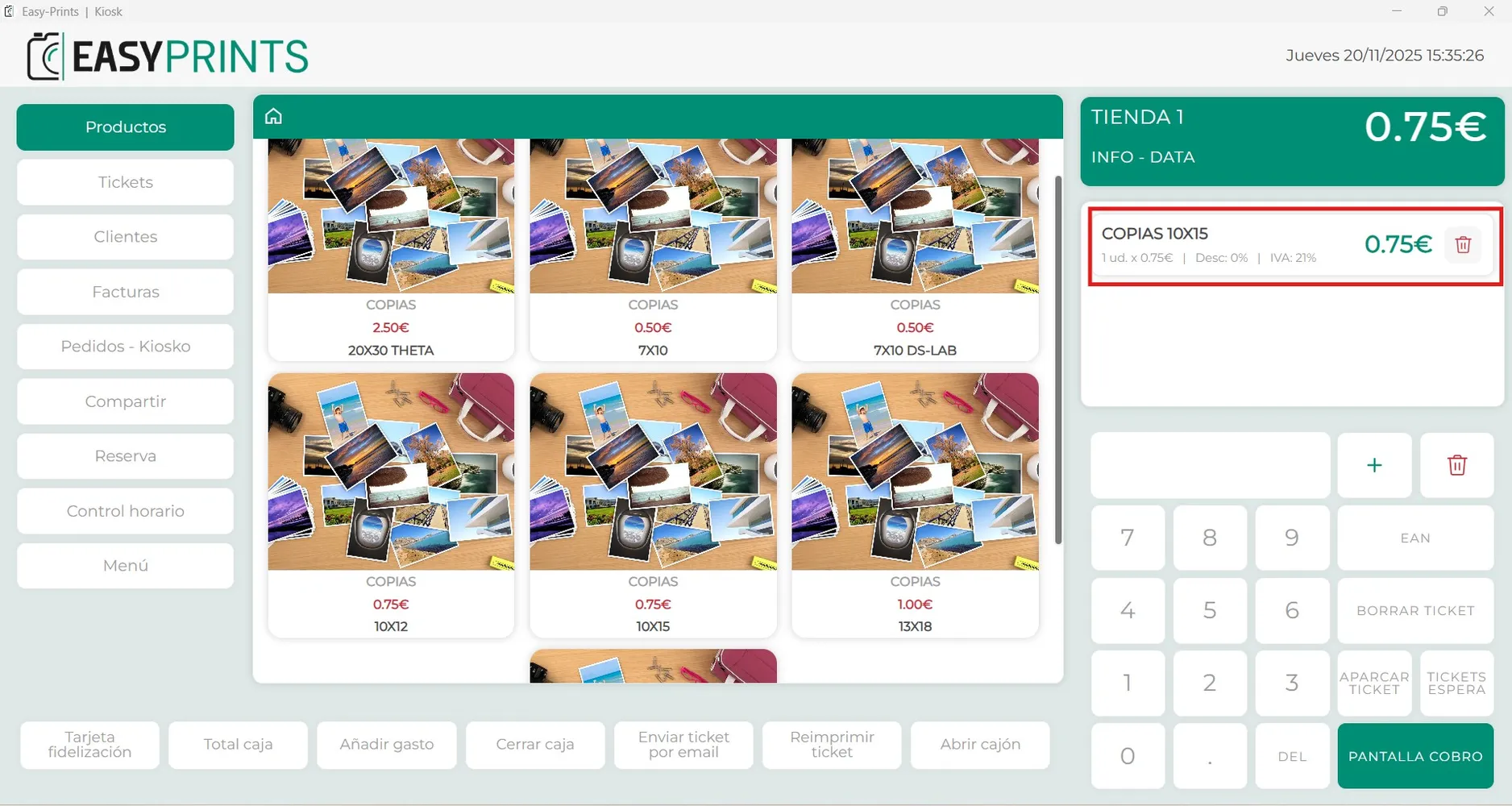
Step 2
We select the product for which we need to refund the amount.
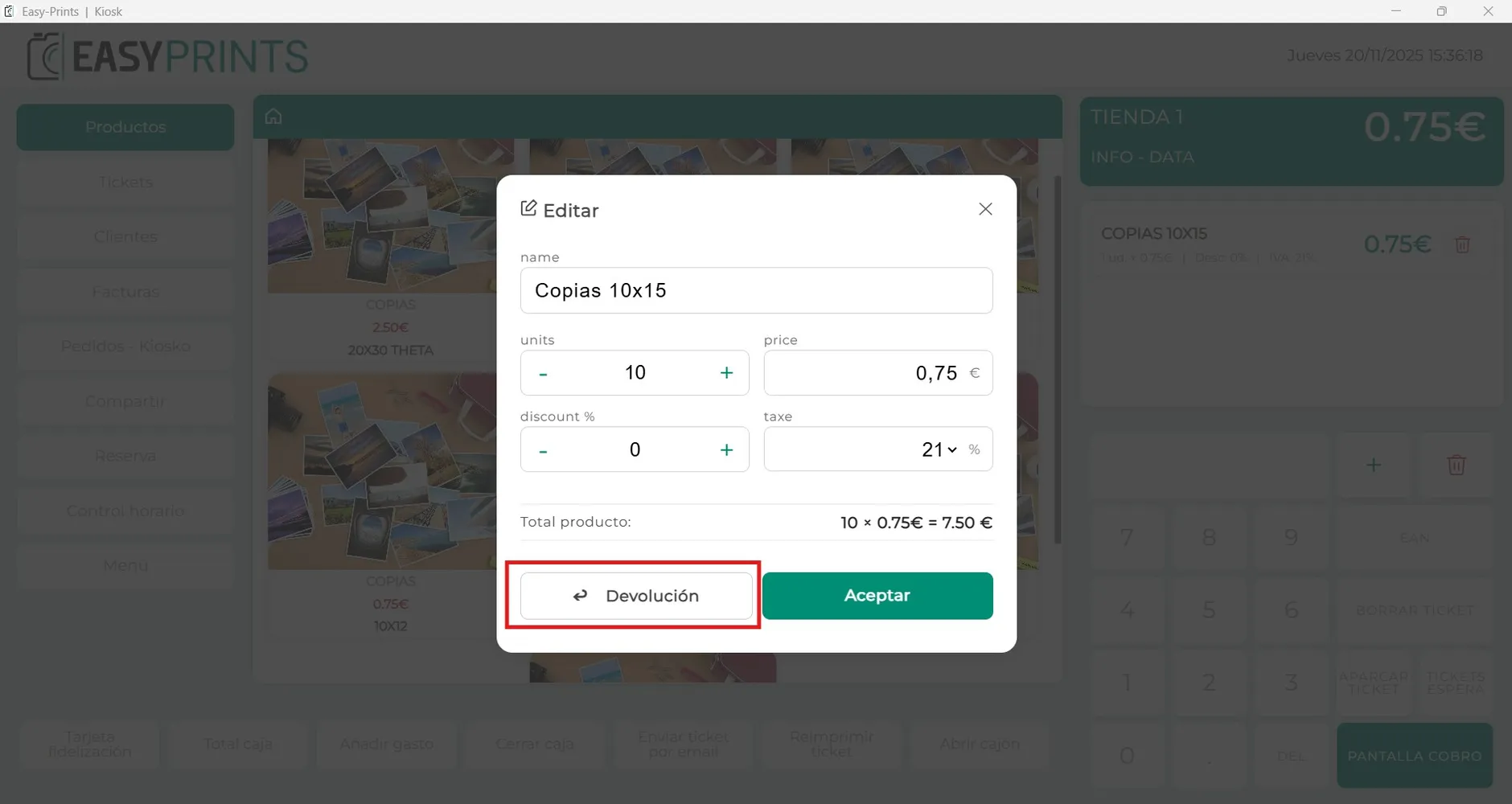
Step 3
We edit the product so that the amount to be refunded appears. Once we have the amount to refund, we click on the “Refund” button.
Step 4
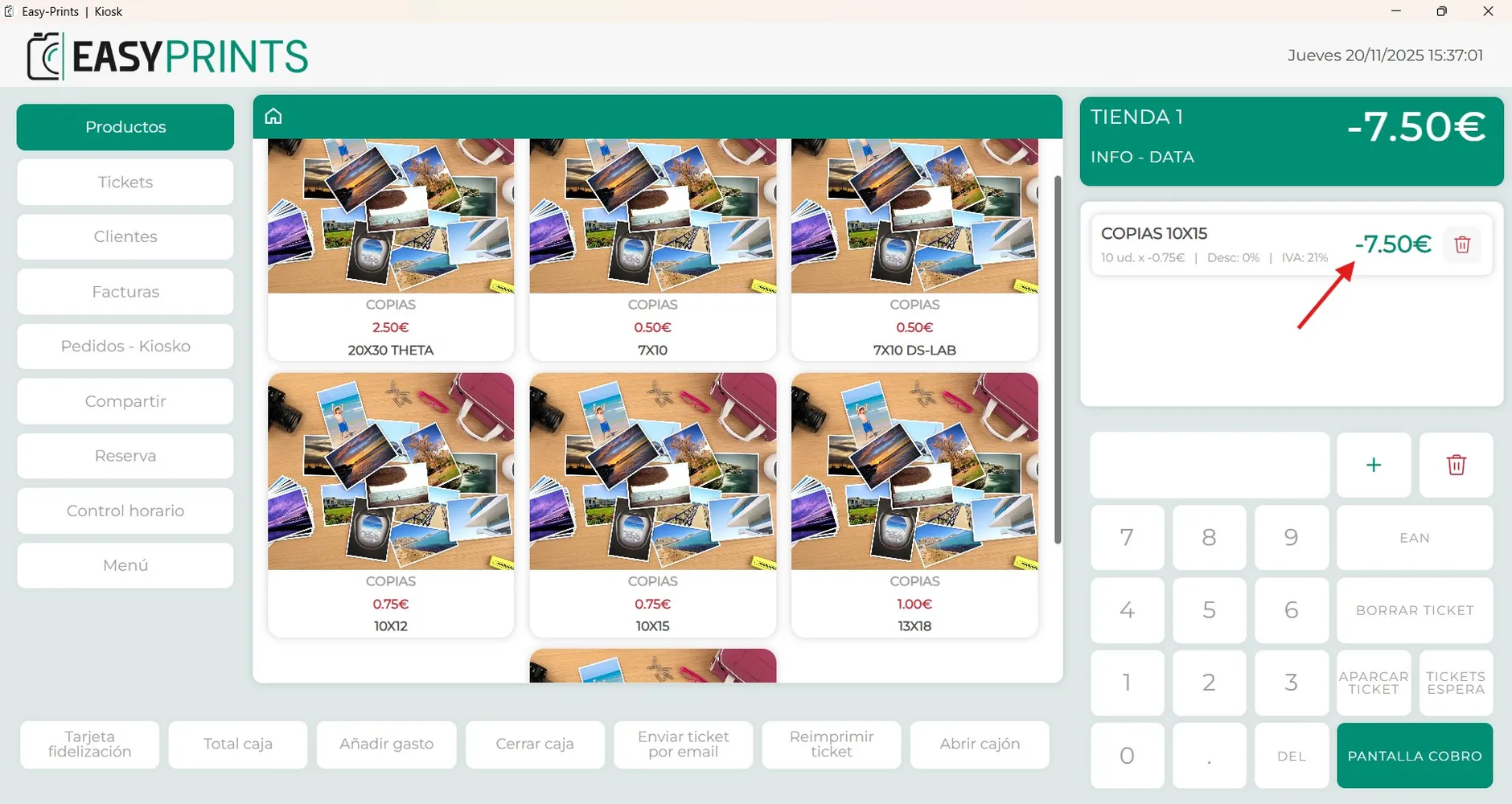
The amount will now appear as a negative value, as shown in the image.
Step 5
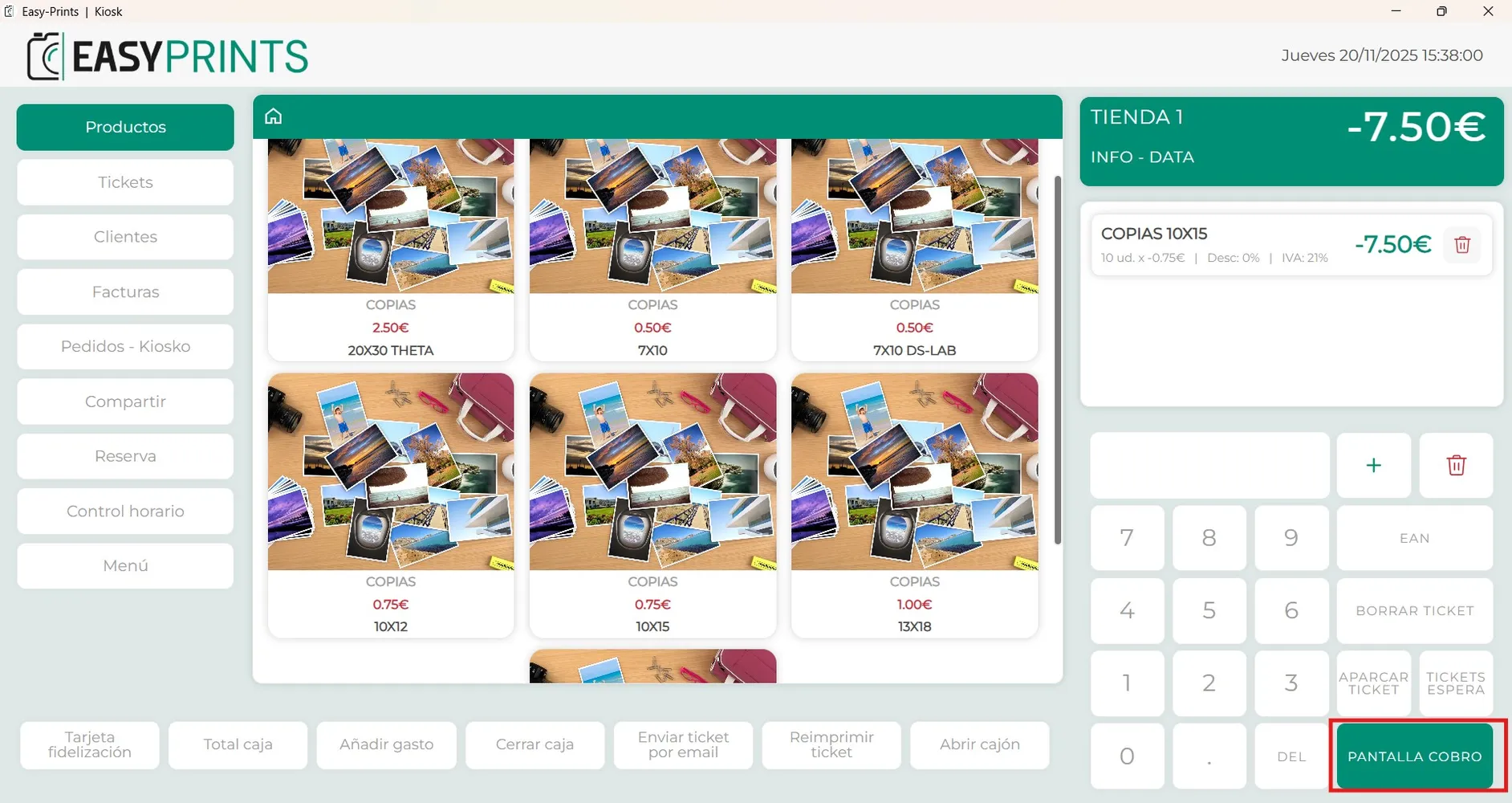
To process the refund, we need to click the green “Payment Screen” button located at the bottom right.
Step 6
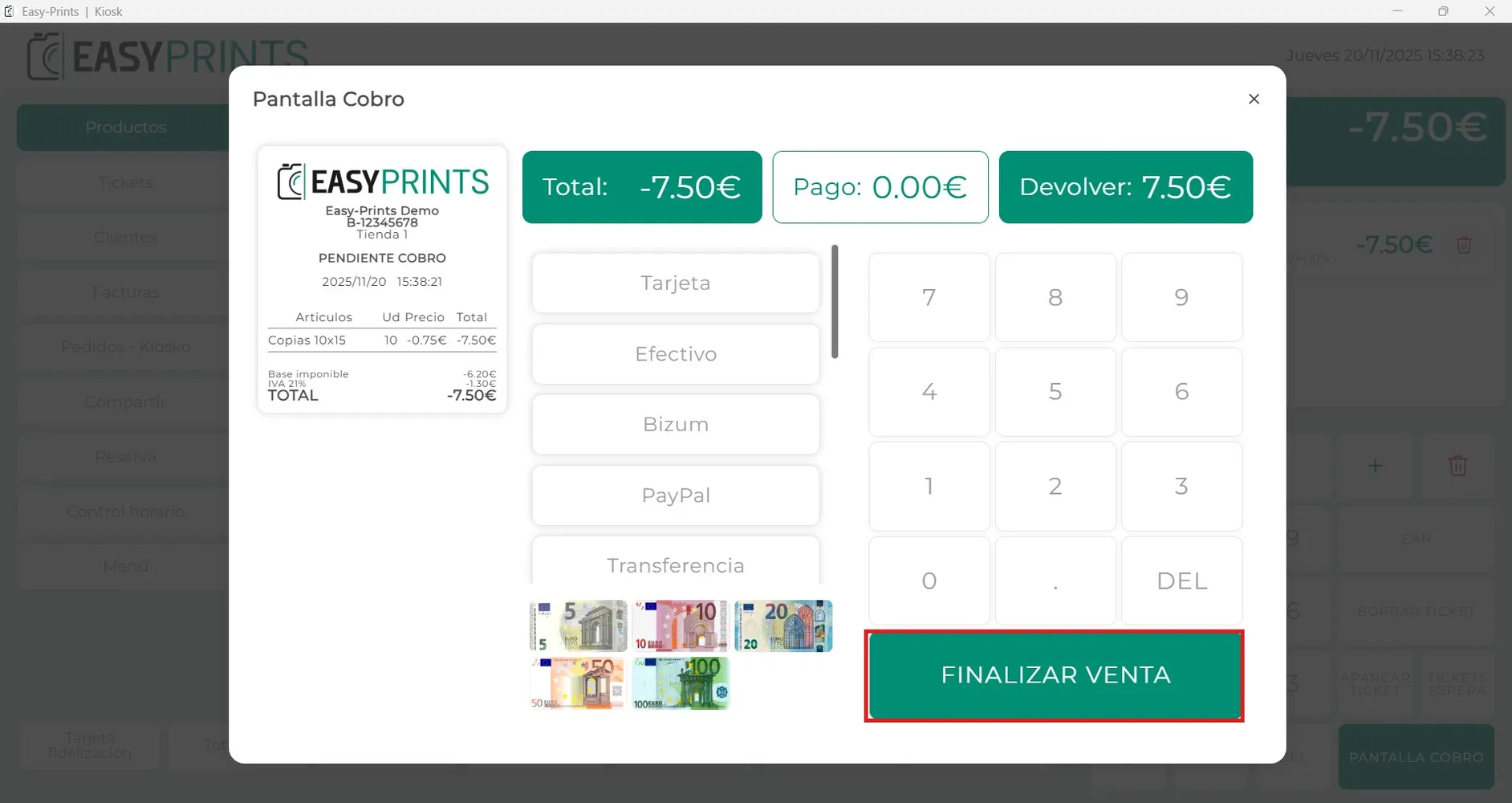
The payment window will open, and there we must indicate how the refund will be processed: by card, cash, Bizum, etc. Once the option is selected, we must click the green “Complete Sale” button.
Step 7
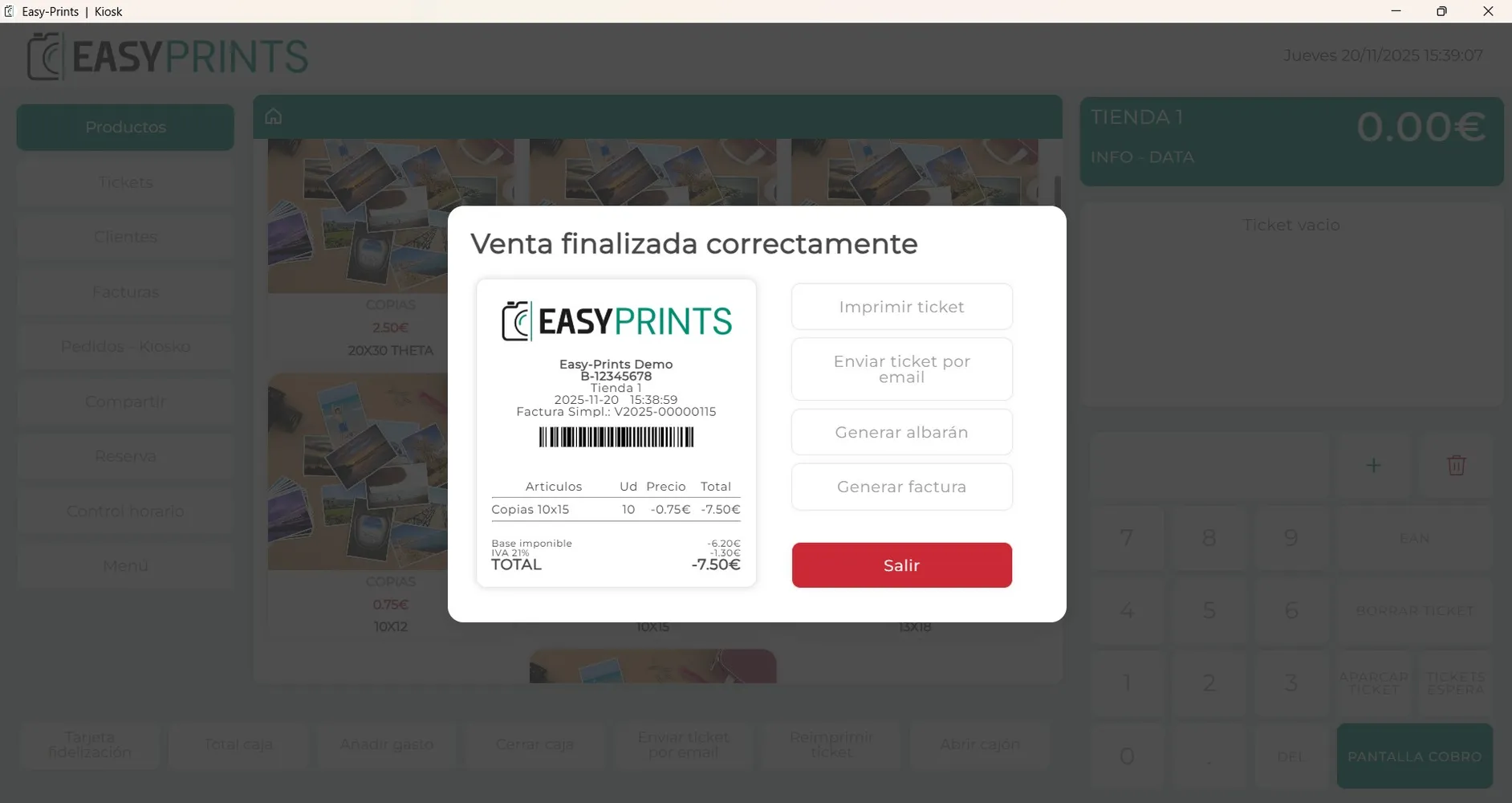
Finally, the new receipt showing the completed refund will appear.
Go back to the Help Center or contact Easy-Prints.
← Back to Help Center