
How to generate bank remittances
To generate a remittance, go to the Accounting section from the left-hand menu. Once inside, go to the top section bar and click on Remittances. Then, clic…
Step 1
To generate a remittance, go to the Accounting section from the left-hand menu. Once inside, go to the top section bar and click on Remittances. Then, click the green + New remittance button, located in the upper-right corner. The corresponding invoices must have been generated beforehand in order to include them in the remittance.
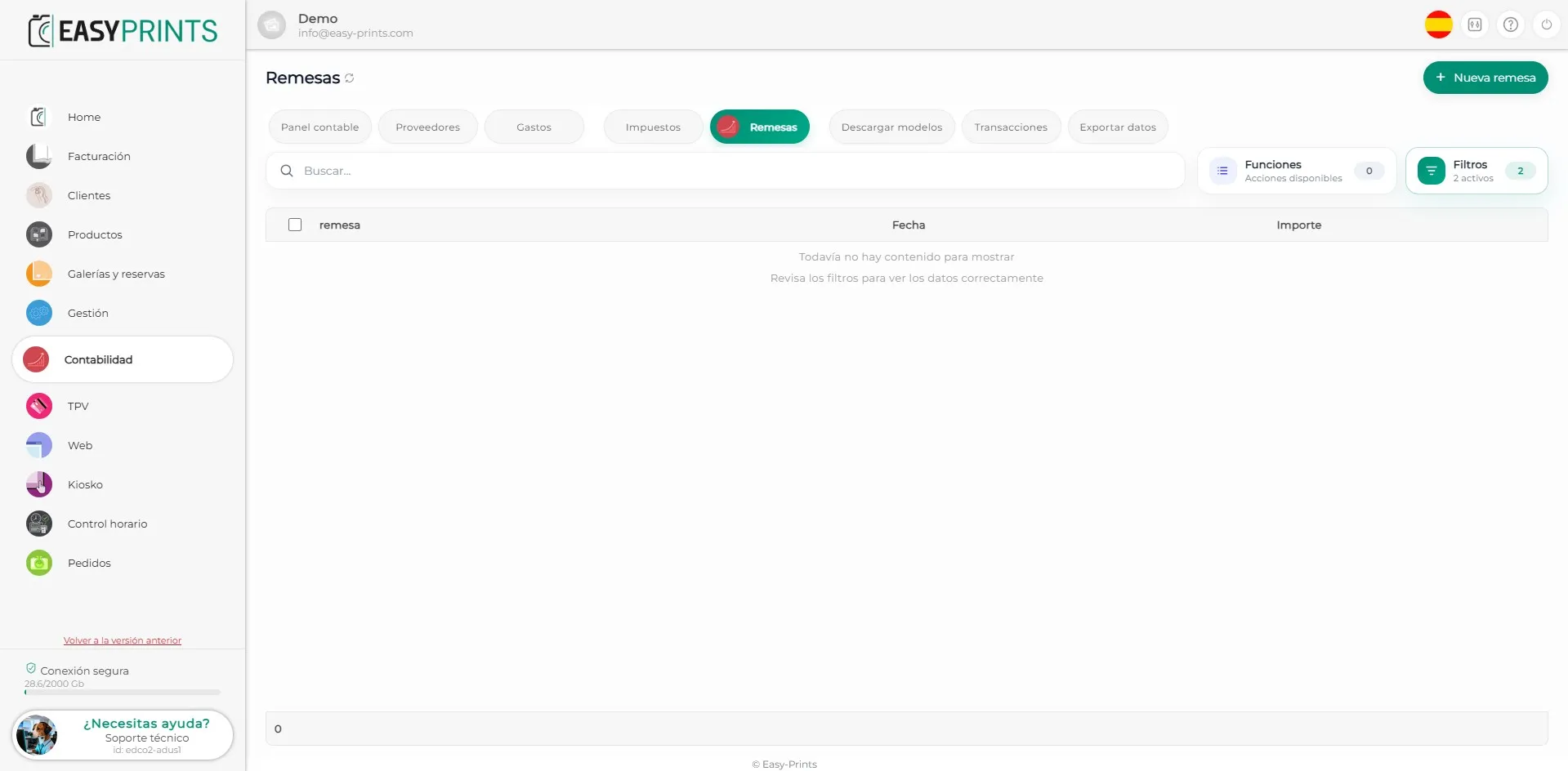
Step 2
In the new window, the customer invoices available for generating the remittance will appear. For an invoice to appear in this window, it must have a bank draft payment method configured, such as bank draft at 15, 30, or 60 days.
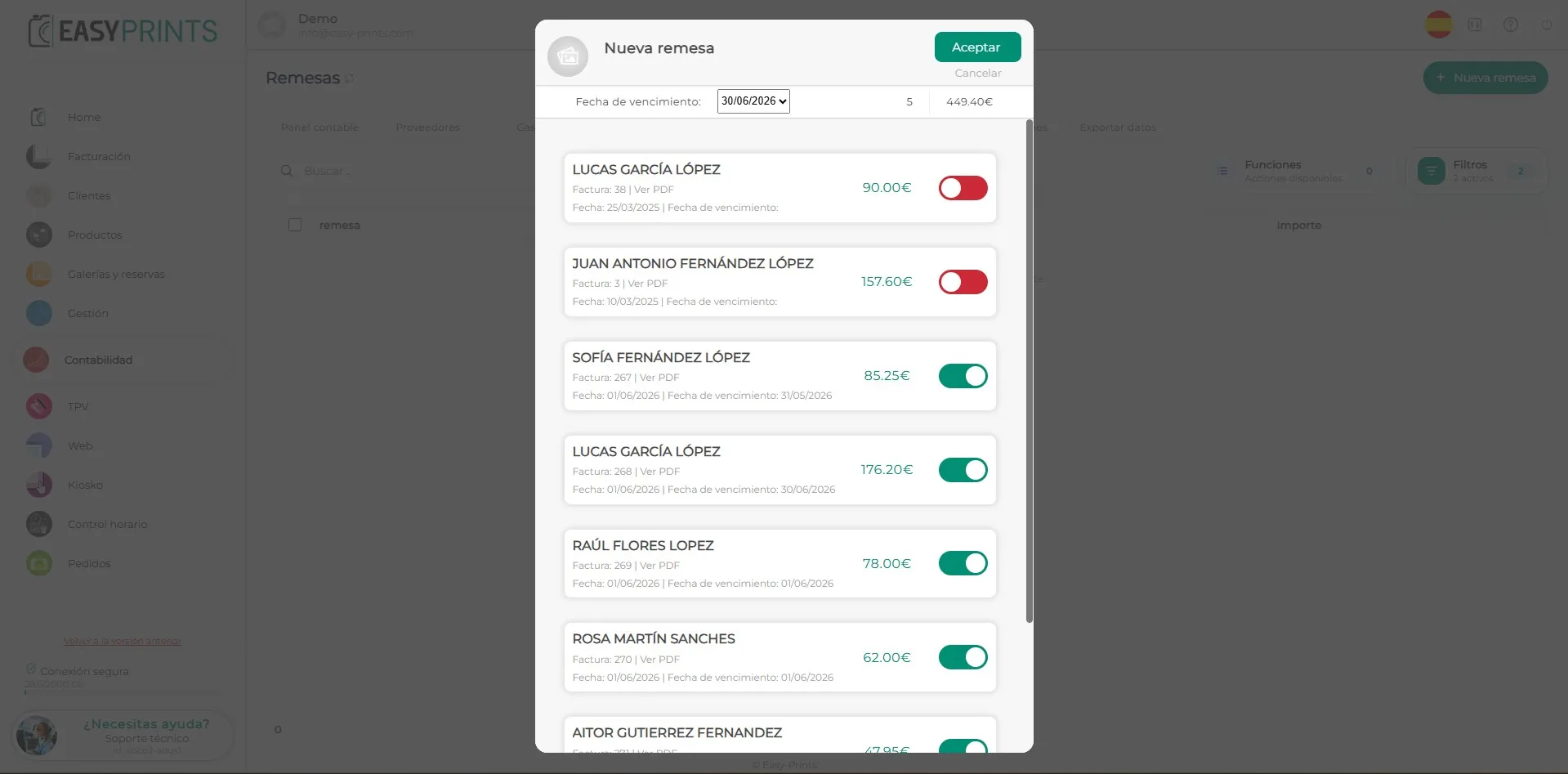
Step 3
To generate the remittance, you must click the green Accept button, located in the upper-right corner.
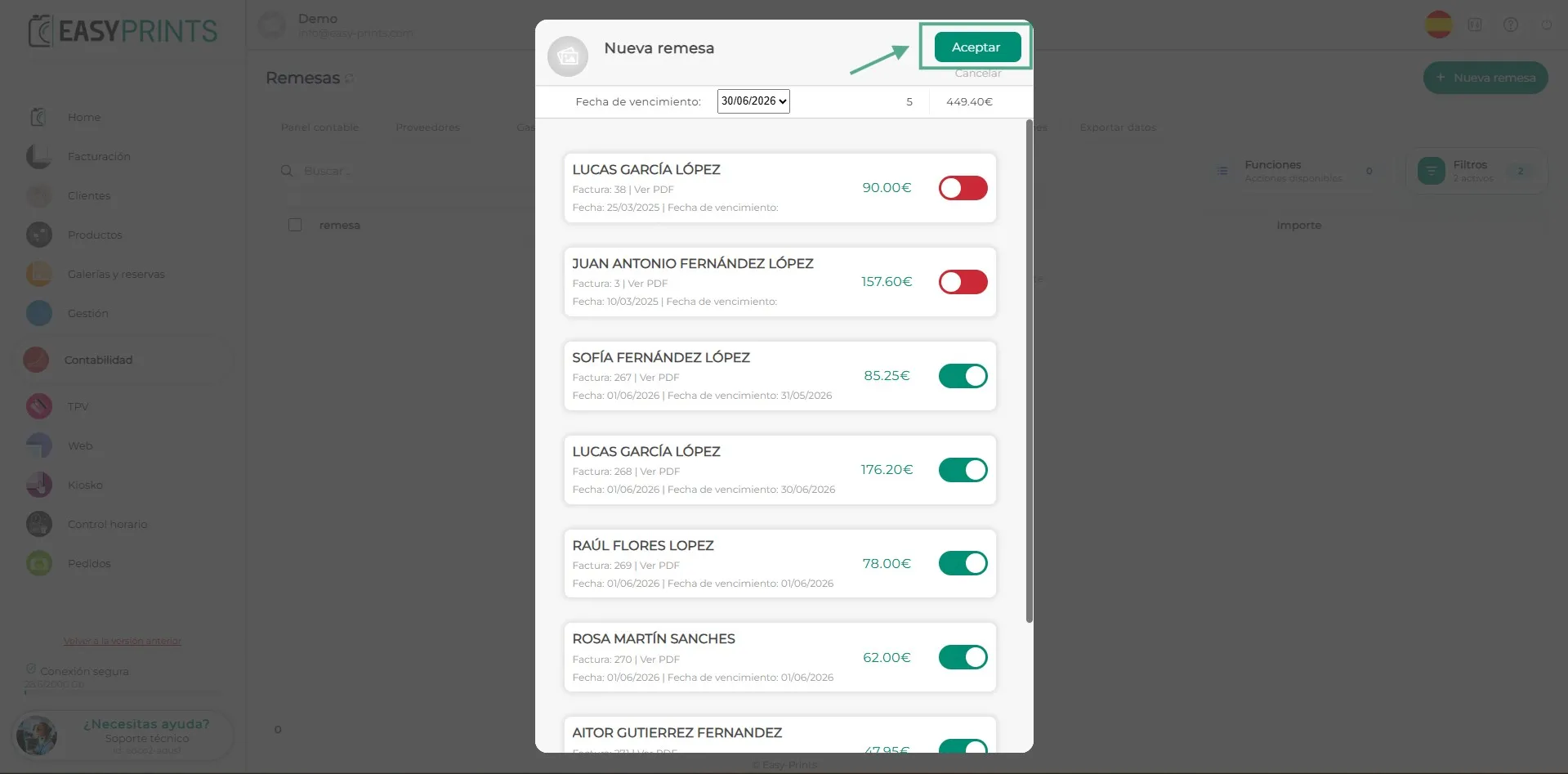
Step 4
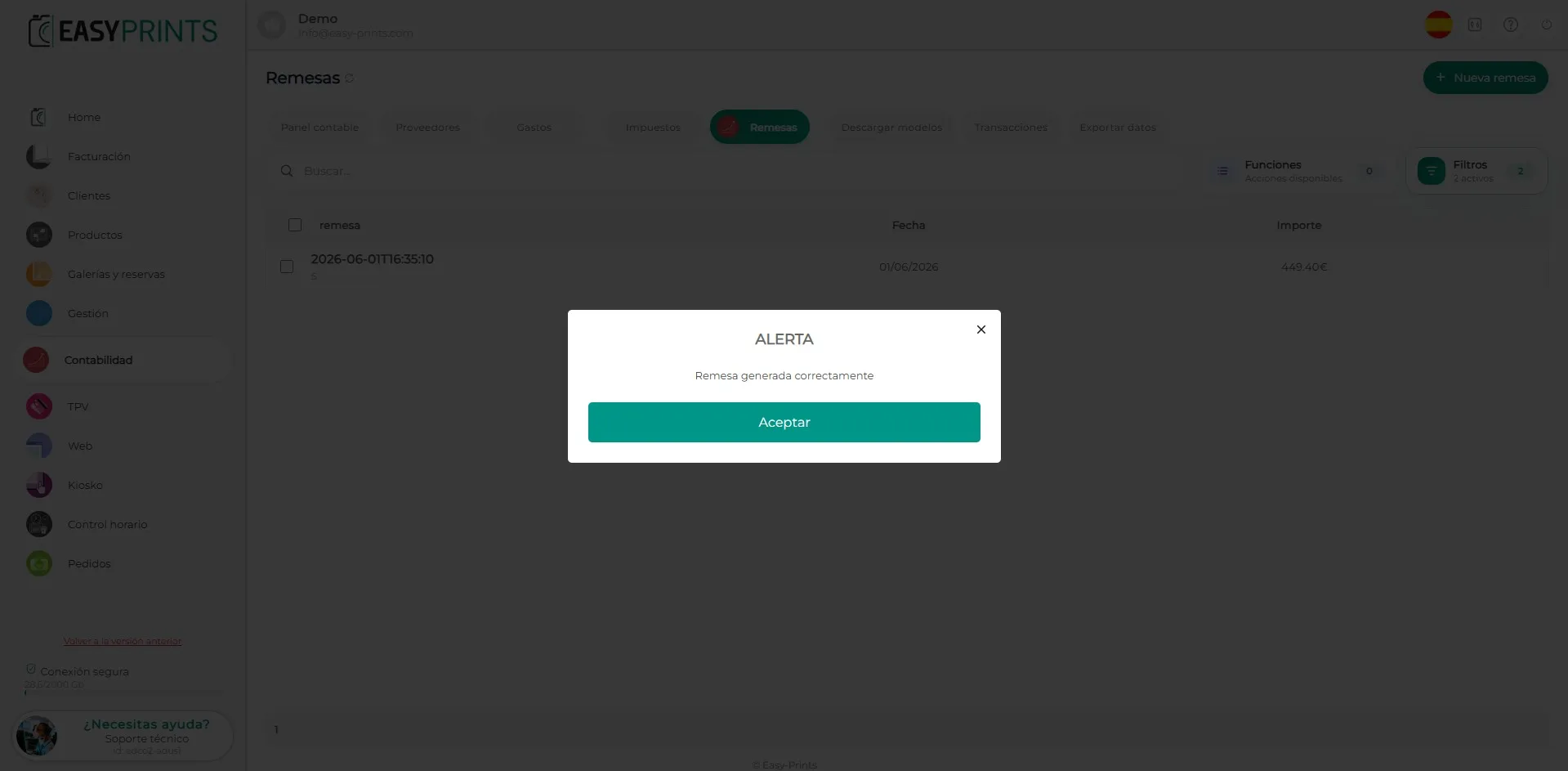
Once the remittance has been generated, this message will appear. Click Accept.
Step 5
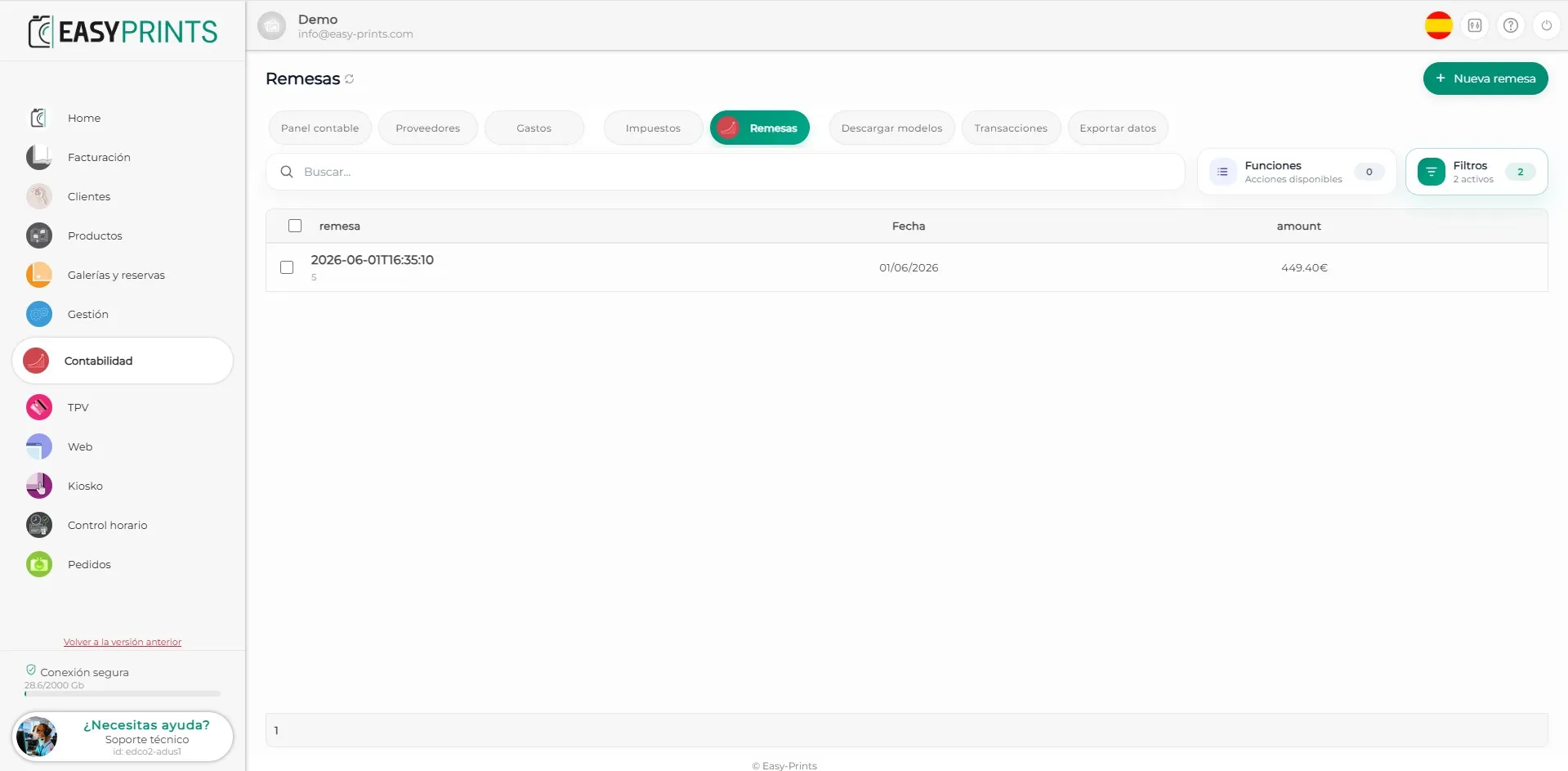
Click on the generated remittance, where the date and time it was created are shown, in order to obtain the SEPA file.
Step 6
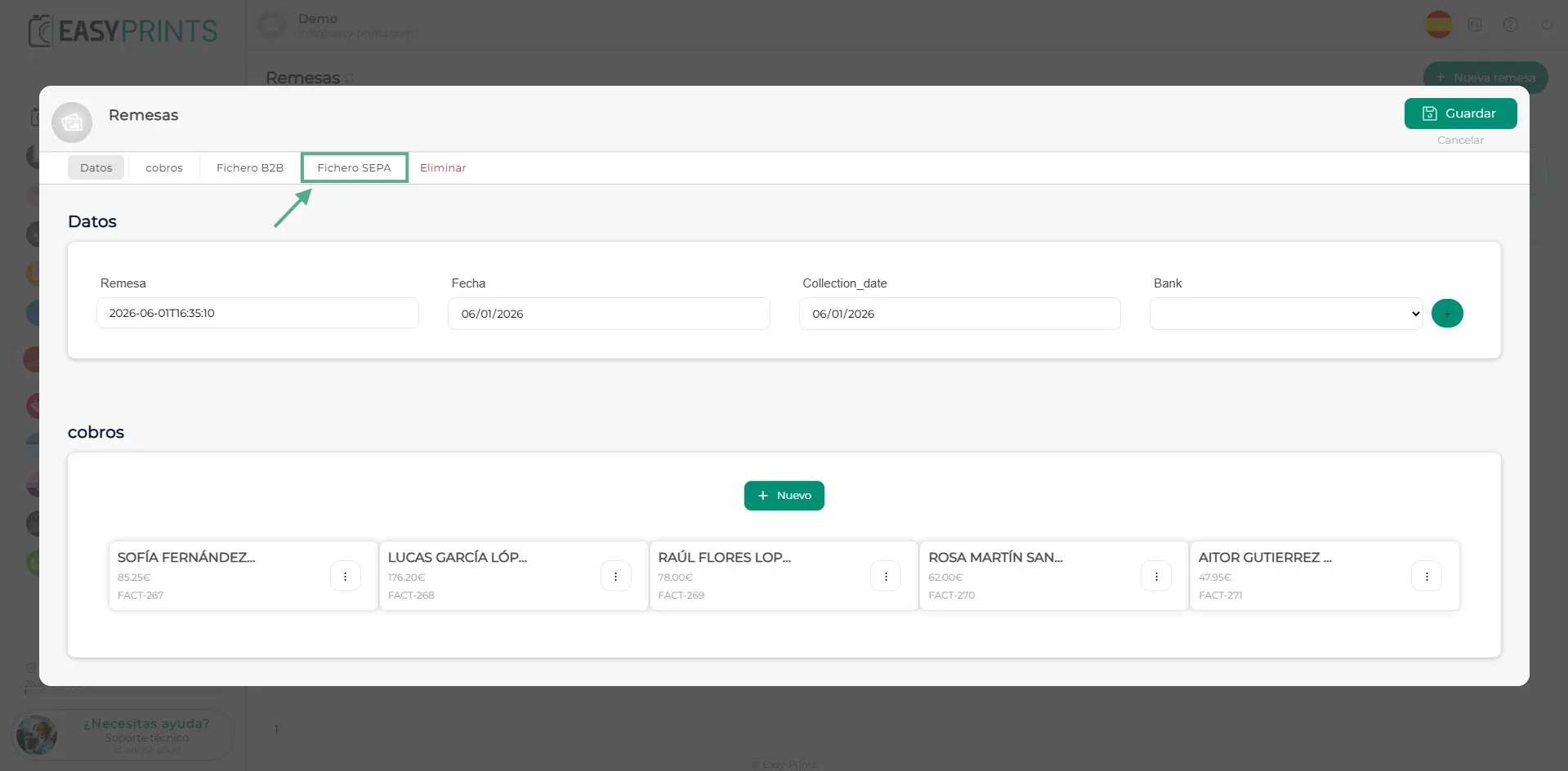
Inside the remittance, at the top, you will find the SEPA File option. Click on it to obtain the file. Once downloaded, you must upload this file to your corresponding bank.
Go back to the Help Center or contact Easy-Prints.
← Back to Help Center