
Assign a sales representative to a customer
To assign a sales representative to a customer, go to the Customers section located in the left-hand side menu. Once inside, select the Customers option ag…
Step 1
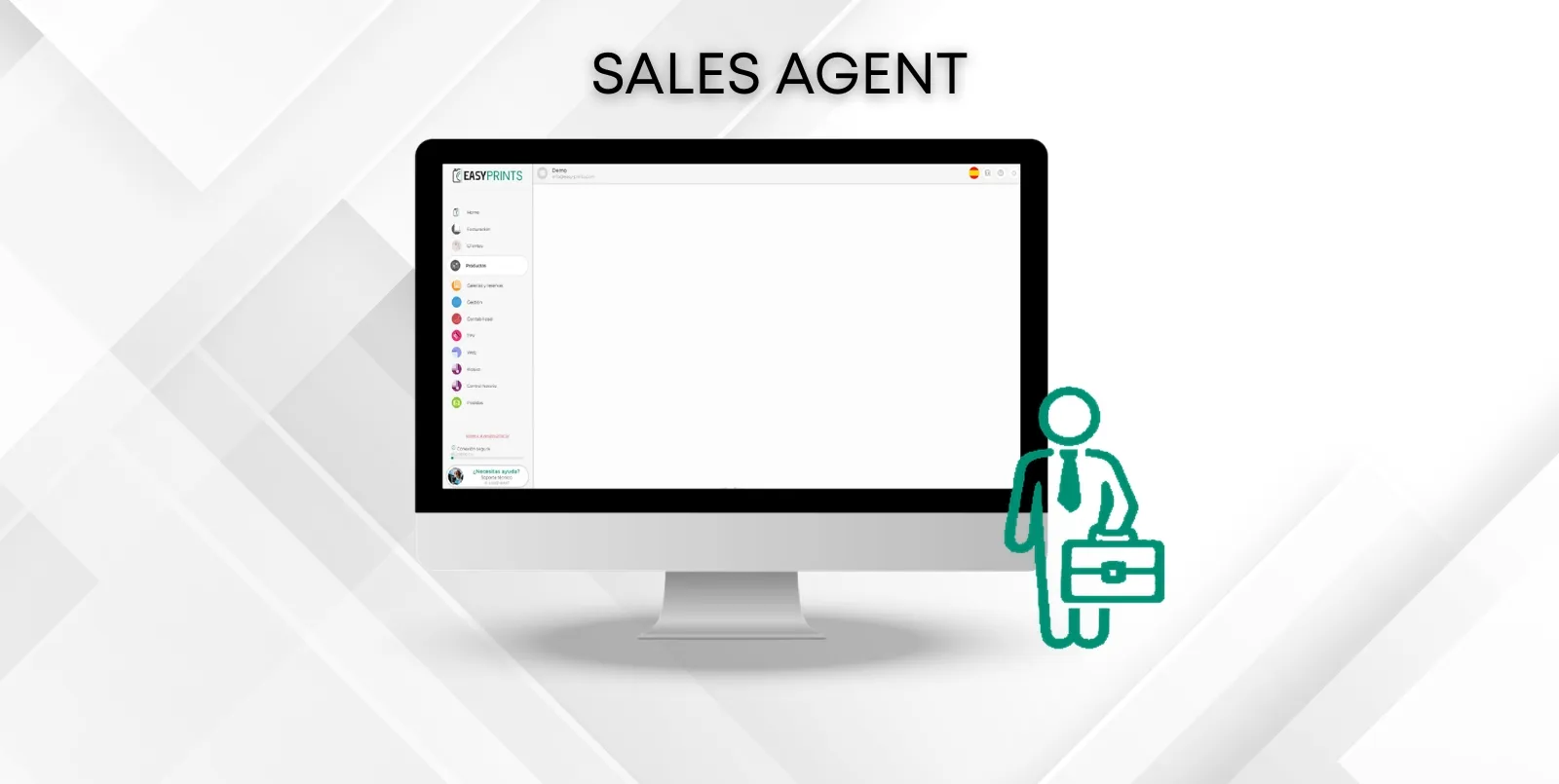
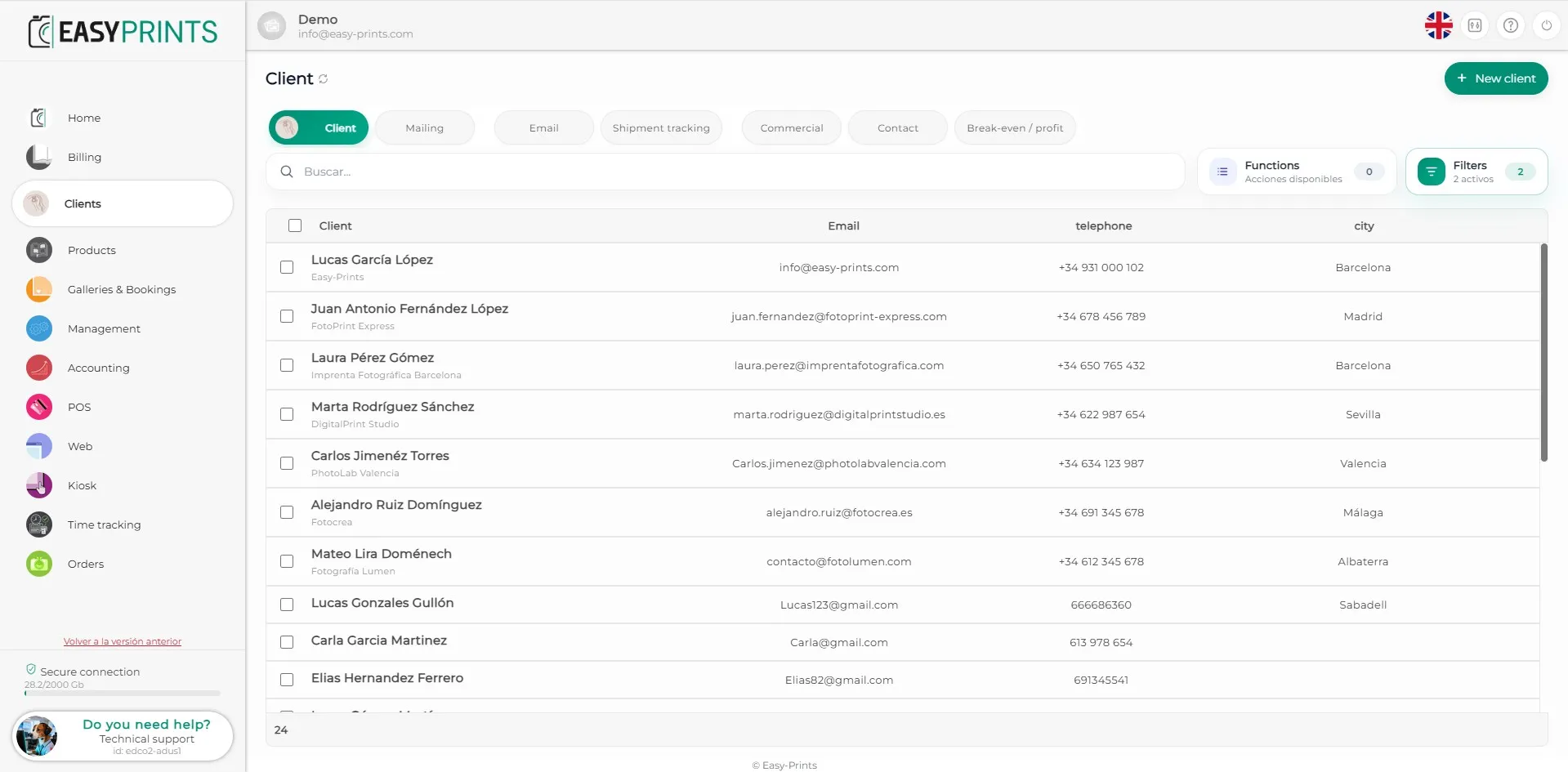
To assign a sales representative to a customer, go to the Customers section located in the left-hand side menu. Once inside, select the Customers option again.
Step 2
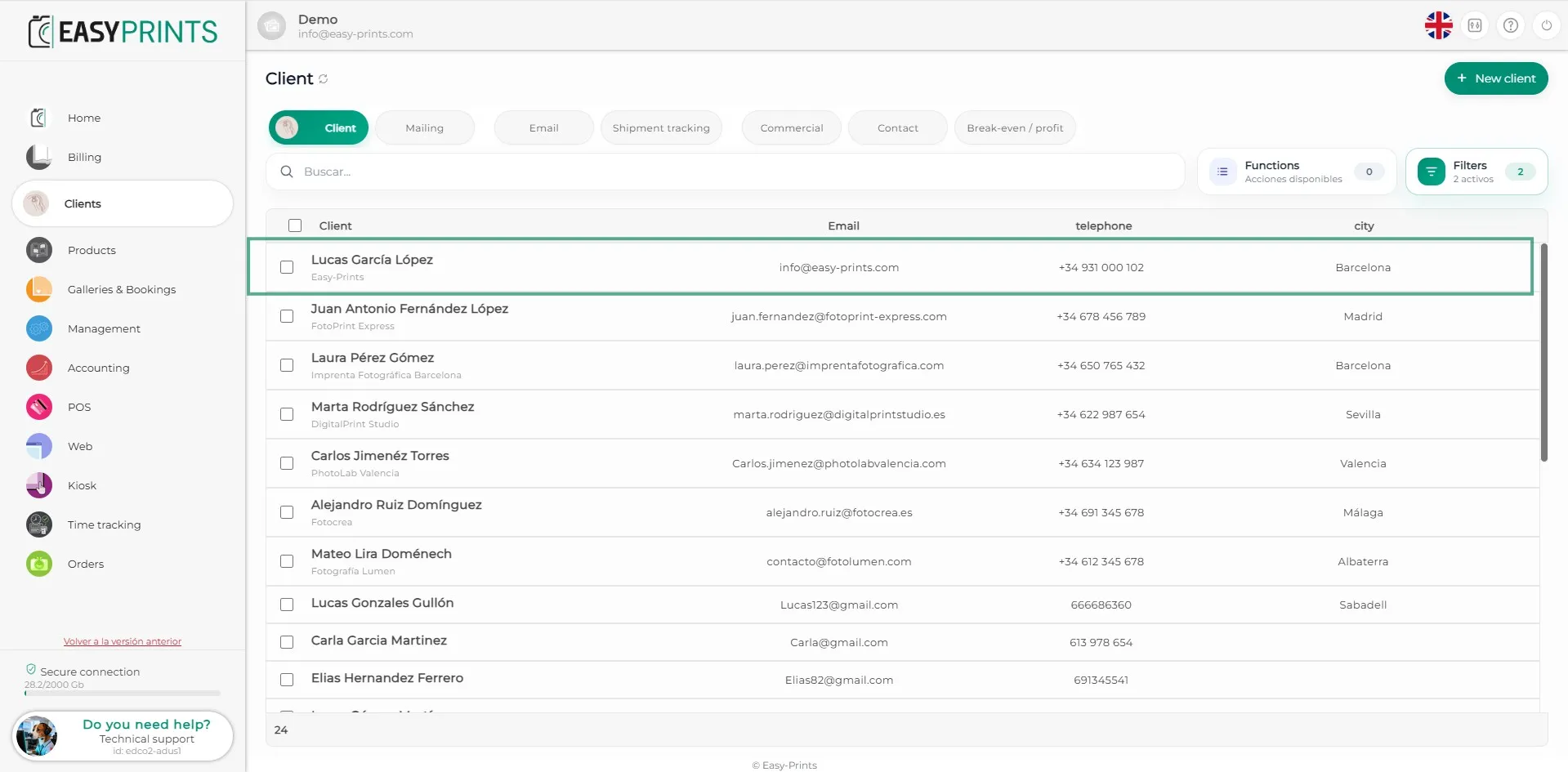
Select the customer you want to assign a sales representative to.
Step 3
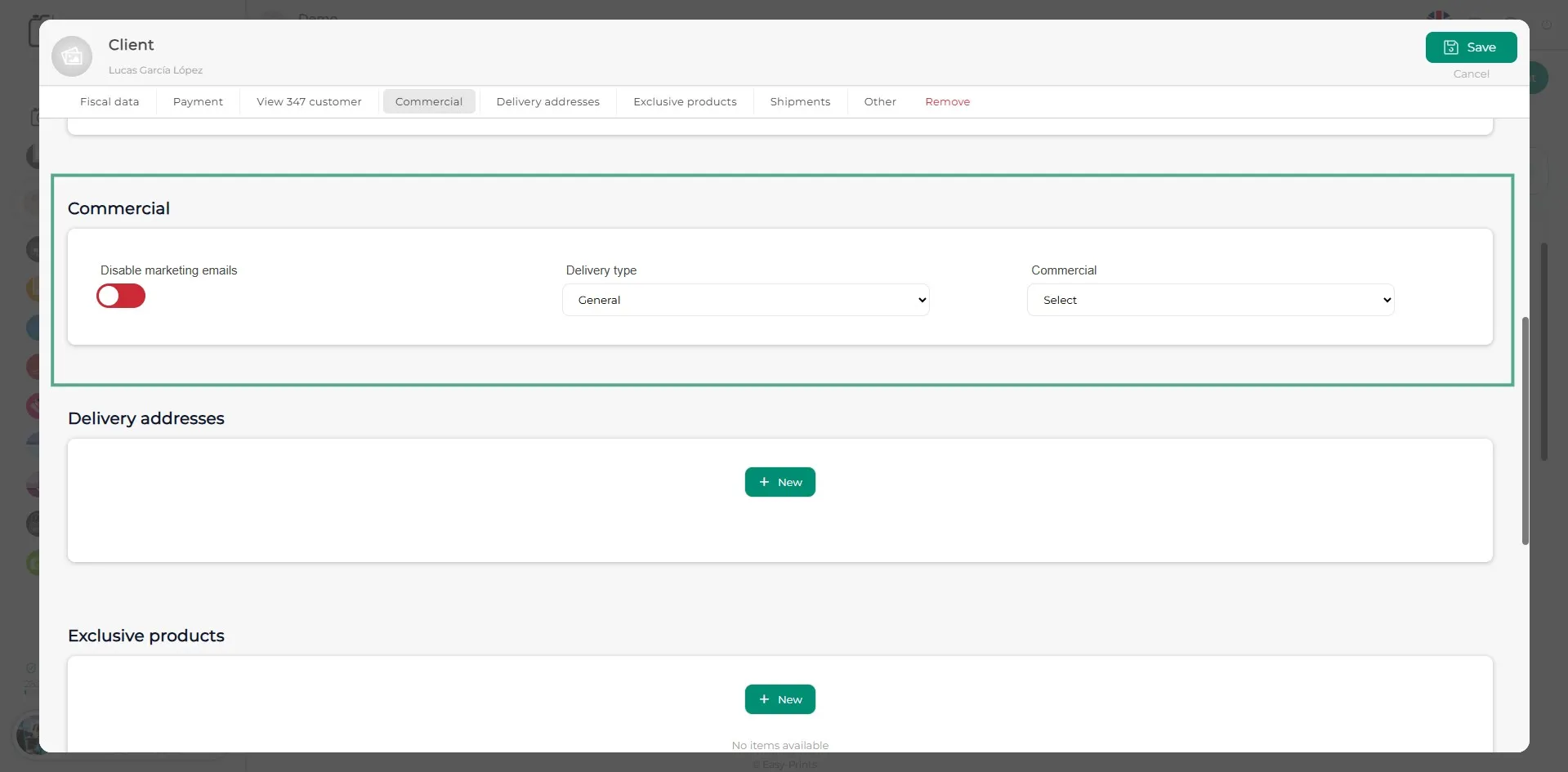
In the customer editing window, go to the Sales Representative section. You will need to enable the sales representative option, select the corresponding delivery company, for example GLS, MRW or Nacex, and choose the sales representative you want to assign. Once the details have been completed, save the changes by clicking the green button located in the top-right corner.
Go back to the Help Center or contact Easy-Prints.
← Back to Help Center