
How to add paper types.
To add paper types, go to the Products section in the left-hand menu. In the top bar, go to the Paper section. Once there, click the green “+ New paper” bu…
Step 1
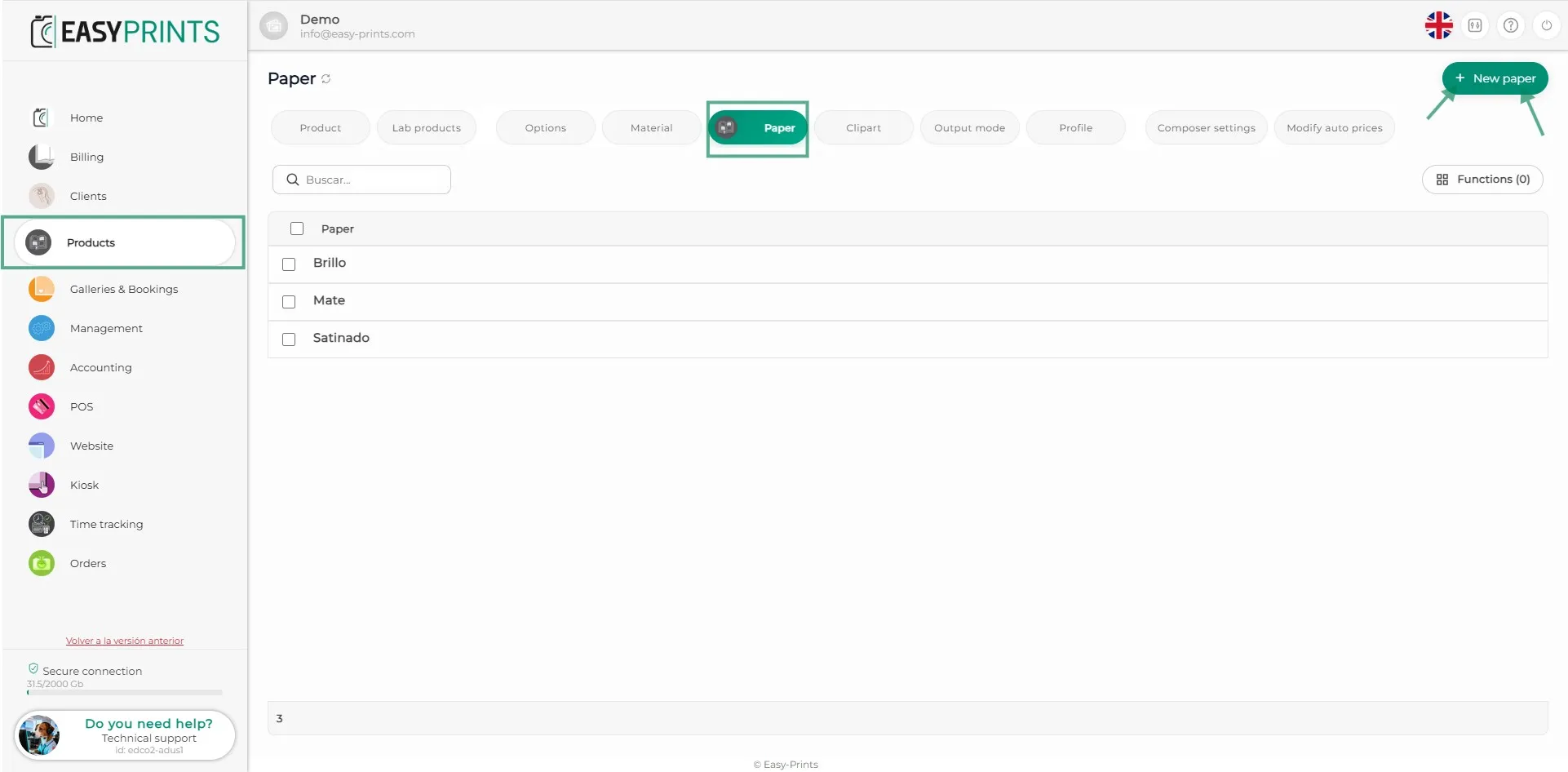
To add paper types, go to the Products section in the left-hand menu. In the top bar, go to the Paper section. Once there, click the green “+ New paper” button located in the top right corner.
Step 2
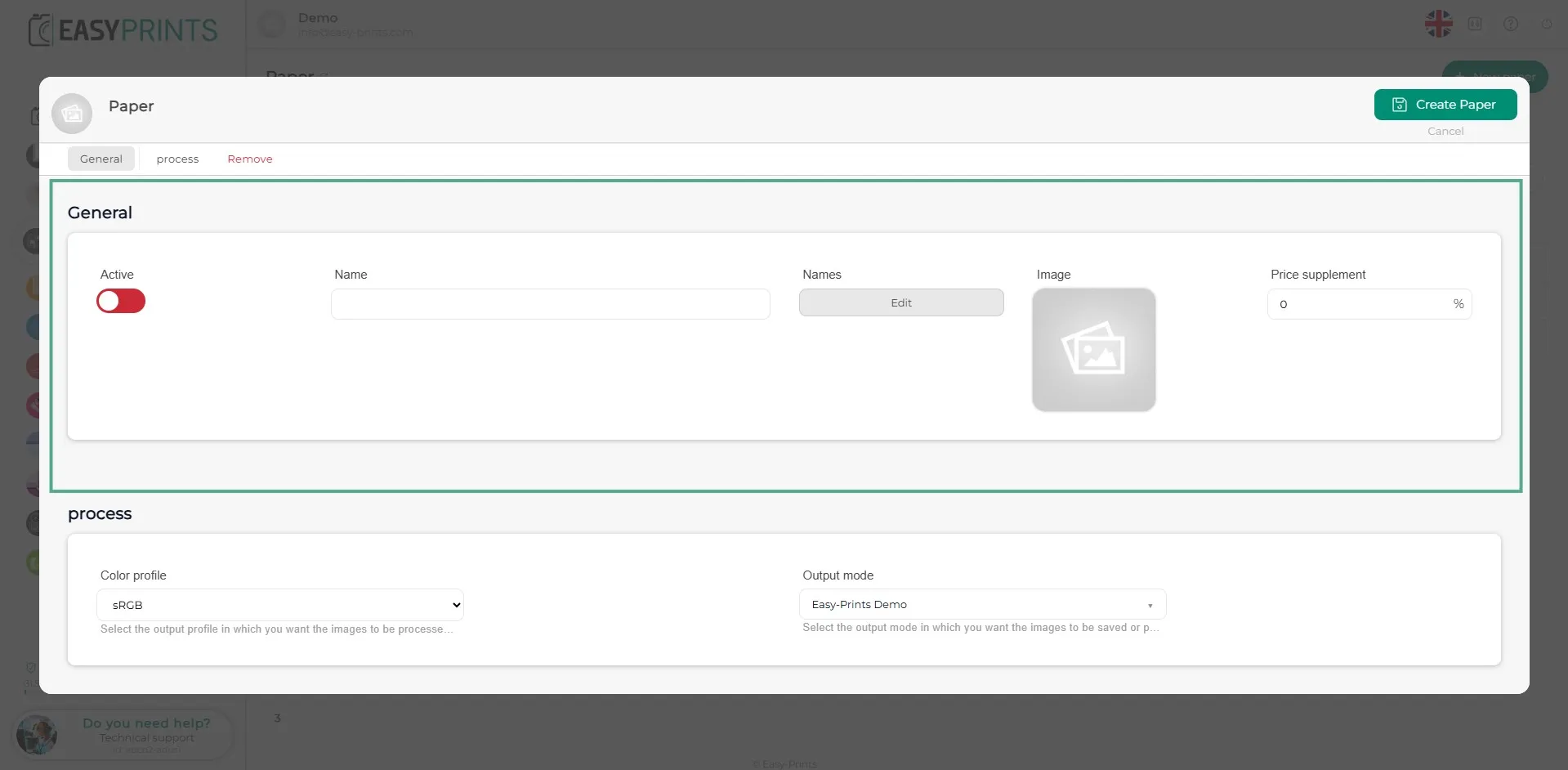
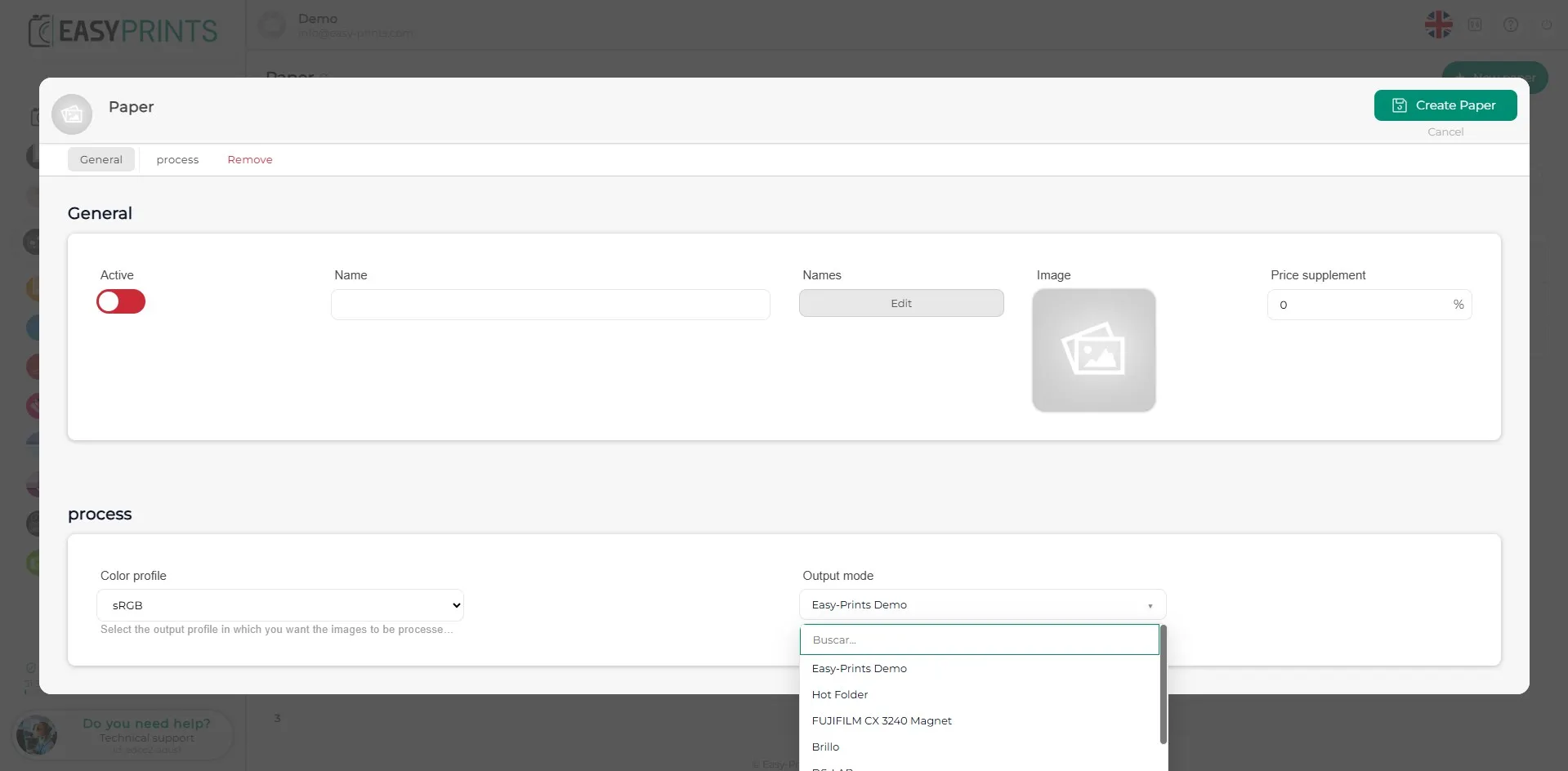
In the new window, in the General section, activate the new paper and fill in the empty fields. If the paper has an additional cost, specify it in the corresponding section.
Step 3
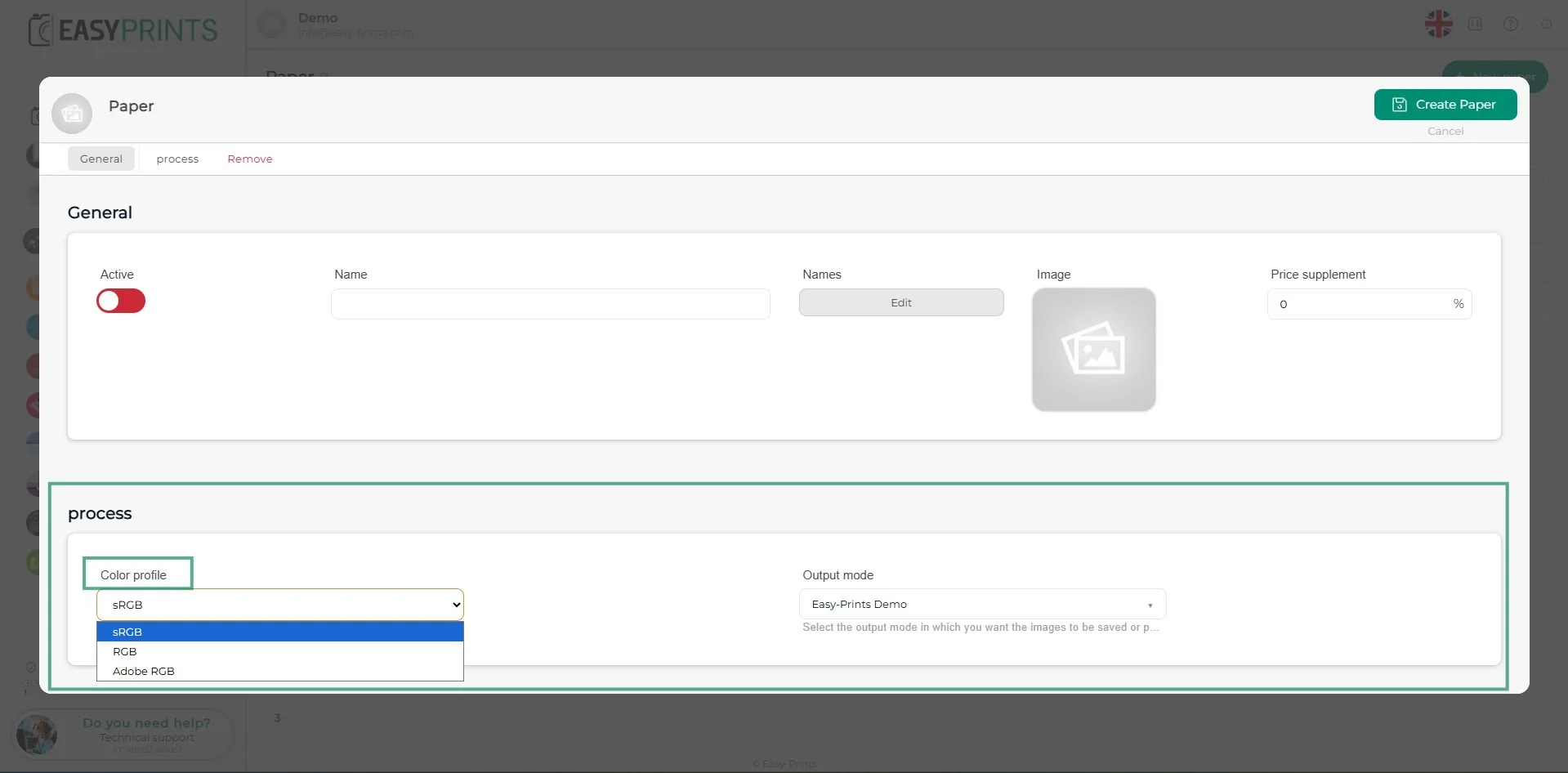
In the Process section, under Color profile, select the output profile between sRGB, RGB, and Adobe RGB.
Step 4
In the Output mode section, choose one of the output modes previously created.
Step 5
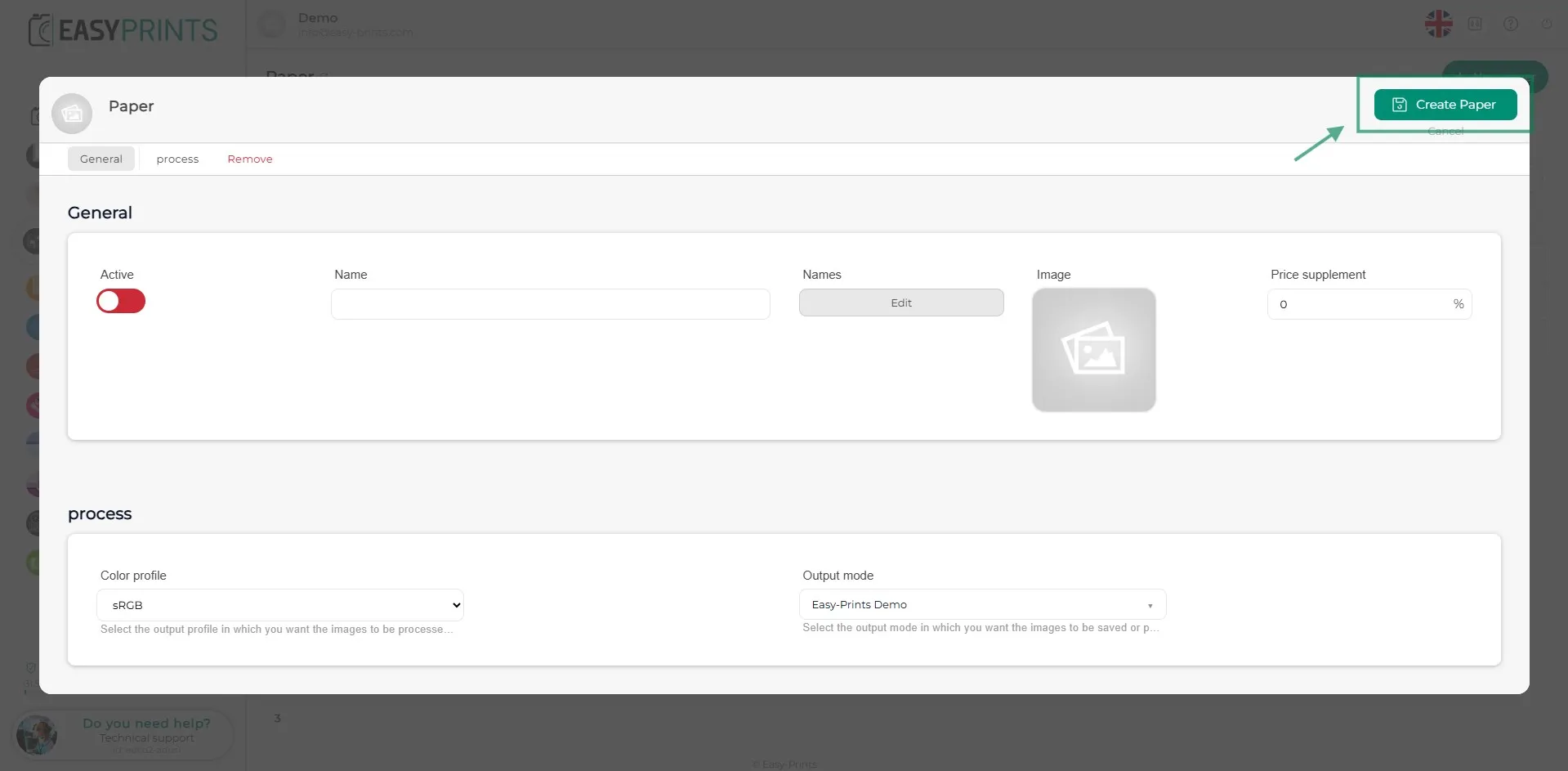
Once all fields are completed, click the Save button located in the top right corner of the screen.
Go back to the Help Center or contact Easy-Prints.
← Back to Help Center